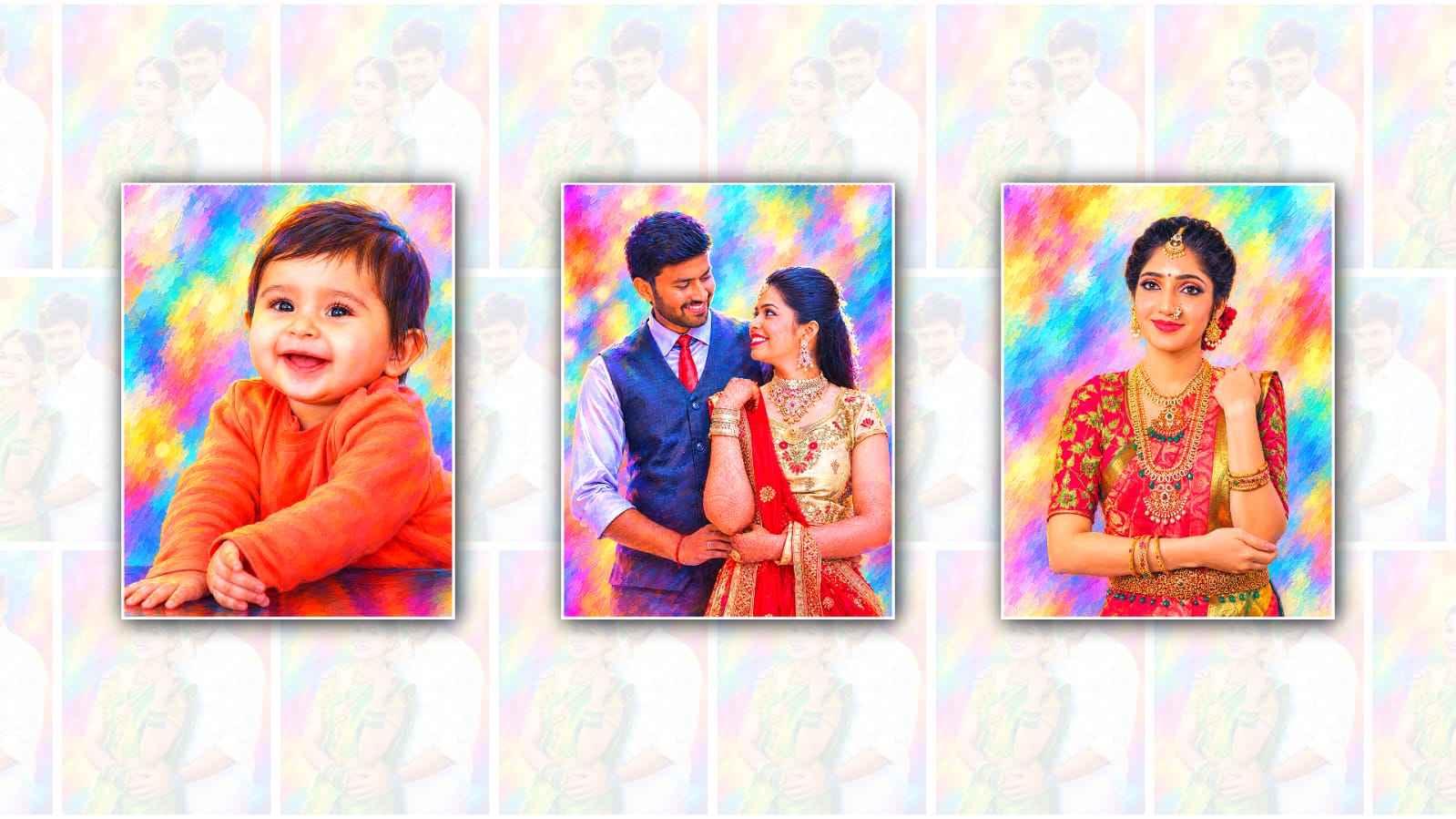

Creating digital oil painting artwork from an ordinary photo has become much easier with the help of artificial intelligence. You no longer need professional painting skills, expensive software, or hours of manual editing to give your favourite photograph a beautiful artistic look. With Google Gemini, you can transform a normal image into something that looks like a carefully painted oil portrait simply by using a well-written prompt and the right photo.
Google Gemini is an AI tool that can understand natural language instructions and, depending on the features available in your version, can help create or edit images. One of the most interesting ways to use it is to turn a regular photograph into digital oil painting artwork. The result can have rich colours, visible brush textures, soft lighting, detailed facial features, and the classic appearance of an oil painting.
The first thing you need is a suitable photograph. You can choose a portrait, family picture, travel photograph, wedding photo, pet picture, or almost any other image that you want to transform. For the best result, use a clear, high-quality photograph where the main subject is easy to see. A well-lit image usually works better because Gemini has more visual information to work with. If you are editing a portrait, try to use a photo where the person’s face is not heavily covered by shadows or objects.
Once you have selected your image, open Google Gemini and upload the photograph. Depending on the interface and features available to your account, you may see an option to add or upload an image inside the chat. Add your photo and explain exactly how you want it changed. You do not need to use complicated technical language. In fact, a simple and detailed description often works better.
For example, you can write a prompt such as: “Transform this photo into a realistic digital oil painting. Preserve the person’s facial identity, expression, hairstyle, clothing, and overall composition. Add natural oil-paint brush strokes, rich colours, soft highlights, subtle shadows, detailed textures, and a traditional fine-art painting appearance. Make the final image look elegant, realistic, and professionally painted.”
The important part of this prompt is that you are not simply asking Gemini to “make it an oil painting.” You are describing the visual qualities you want. Mentioning things such as brush strokes, canvas texture, lighting, colours, shadows, and realistic details gives the AI a clearer idea of the desired result.
If you want a classic portrait-painting style, you can make the prompt more specific. For example, ask for warm natural lighting, deep but realistic shadows, rich skin tones, visible brushwork, and a textured canvas appearance. If you prefer a modern digital oil painting, ask for smoother brush strokes, bright colours, sharper details, and a contemporary artistic finish.
One useful technique is to tell Gemini what should remain unchanged. AI image editing can sometimes alter facial features, clothing, backgrounds, or other details. If preserving the original photograph is important, include instructions such as “keep the person’s identity and facial features unchanged” or “preserve the original pose, composition, clothing, and background.” This helps communicate that you want an artistic transformation rather than a completely new image.
You can also decide how realistic or artistic you want the final result to look. For a realistic oil painting, use words such as “photorealistic oil painting,” “natural skin texture,” “realistic facial details,” and “professional fine-art portrait.” For a more dramatic artwork, you can request stronger brush strokes, desaturated colours, cinematic lighting, and a more expressive painterly style.
Backgrounds can also make a major difference. If the original background is distracting, you can ask Gemini to simplify it while keeping the subject unchanged. For example, you might request a soft painted background with colours and subtle brushwork. Another option is to keep the original background but convert its details into painted textures so that the entire image feels cohesive.
Color is another important part of digital oil painting. You can ask for warm golden tones for a traditional portrait effect, cool grey and grey shades for a dramatic atmosphere, or vibrant colours for a modern artwork. You can even describe the mood you want, such as peaceful, elegant, nostalgic, romantic, dramatic, or cheerful.
After Gemini generates the edited image, take a close look at the result. Check the face, eyes, hands, hair, clothing, background, and small details. Sometimes an AI-generated edit may produce areas that do not look exactly right. Instead of starting again, you can give Gemini another instruction asking it to correct the specific problem.
For example, you could say, “Keep the current oil painting style, but improve the facial details and make the eyes more natural. Preserve the original expression and hairstyle.” Giving focused instructions can be more useful than completely changing the prompt.
You can also experiment with different artistic directions. Try asking for a traditional museum-style oil painting, a contemporary digital oil portrait, a soft impressionist painting, or a highly detailed canvas artwork. Each description can produce a different visual interpretation while using the same original photograph.
If you are creating an image for social media, you may want to consider the composition and aspect ratio as well. A portrait-oriented image can work nicely for profile pictures, Instagram posts, or personal artwork. A wider composition may be better for a desktop wallpaper or a framed landscape-style painting. When supported, you can mention your preferred composition in the prompt.
The quality of the original photo still matters. AI can improve and stylise an image, but starting with a sharp photograph generally gives you more useful details. Avoid heavily compressed images, extremely dark photographs, or pictures where the subject’s face is mostly hidden. A clean original image gives the editing model a stronger foundation.
Another advantage of this process is that you can create several versions of the same photograph. You might make one warm and traditional version, another colourful and modern version, and another dramatic version with strong lighting. Comparing different versions can help you discover which artistic direction works best for your photograph.
When the final image looks the way you want, you can save it and use it as a digital artwork, profile image, personal gift, social media post, or inspiration for a physical painting. If you plan to print it, check the available image resolution and make sure it is suitable for the size of print you have in mind.
The key to getting good results with Google Gemini is experimentation. Your first prompt does not have to be perfect. Think of the process as communicating with an artist. Start with the main idea, look at the result, and then explain what you would like to change. More specific instructions about lighting, colours, brushwork, facial details, background, and mood can gradually bring the result closer to your vision.
Creating digital oil painting art from a photograph with Google Gemini can therefore be a simple and enjoyable creative process. You provide the photograph, describe the artistic style you want, review the generated result, and refine it with additional instructions. With a good source image and a thoughtful prompt, an ordinary photograph can be transformed into an artwork that has the rich colours, texture, depth, and character associated with traditional oil painting.
IMAGE PROMPT
Use the uploaded couple photograph as the PRIMARY IMAGE and preserve the exact people, faces, identity, facial features, expressions, hairstyle, skin tone, body proportions, pose, clothing, jewelry, hands, and original composition. Use the separately provided reference image ONLY as a STYLE AND COLOR REFERENCE. Do NOT copy the people, pose, composition, text, or background from the reference image. Transform the uploaded couple photo into a highly detailed digital oil painting with the SAME overall visual style, color treatment, lighting, and artistic finish as the reference image.

STYLE:
Create a vibrant glossy digital oil-painting / hand-painted portrait effect. Use smooth but visible oil-paint brush strokes, soft painterly blending, rich glossy highlights, subtle canvas texture, luminous skin rendering, slightly dreamy edges, and a polished professional digital-art finish.

COLOR GRADING:
Match the reference image's colorful grading very closely:
soft pastel white and lavender areas mixed with vivid magenta, hot pink, purple, violet, cyan, turquoise, electric blue, emerald green, lime green, yellow, orange, peach, and warm red.
Create beautiful rainbow-like color transitions and luminous color reflections throughout the image. Keep the colors bright, saturated, glowing, and harmonious rather than dark or muddy.

SKIN:
Keep the original natural skin tone and facial structure recognizable, but render the skin with the same smooth glossy painted appearance as the reference. Add subtle warm orange, peach, pink, purple, and golden reflected light without making the skin unnaturally dark or changing the person's identity.

HAIR:
Preserve the exact hairstyle and shape. Give the hair glossy painted strands with subtle purple, blue, violet, pink, and cyan highlights similar to the reference style.

CLOTHING AND JEWELRY:
Preserve the exact original clothing, colors, patterns, jewelry, flowers, accessories, and details. Enhance them with rich glossy oil-paint texture and colorful reflected highlights while keeping them recognizable.

BACKGROUND:
Convert the original background into a soft abstract artistic background inspired by the reference: luminous pastel white, lavender, pink, purple, cyan, turquoise, yellow, orange, and green gradients with soft painterly brush strokes, colorful light splashes, subtle abstract shapes, and dreamy glowing transitions.

IMPORTANT:
The uploaded couple photograph must remain the actual subject and composition. Do not replace the couple with the reference couple. Do not change their faces, identity, pose, clothing, body proportions, or expressions. Do not add people. Do not turn it into anime, cartoon, 3D render, sketch, or ordinary photography. The final result should look like the original couple photograph has been professionally hand-painted using the SAME colorful glossy oil-painting treatment, rainbow pastel color palette, soft luminous blending, and artistic atmosphere of the reference image. Ultra-detailed, high resolution, professional digital oil painting, realistic faces, glossy painterly finish, vibrant pastel rainbow color grading, smooth blended brushwork, luminous highlights, beautiful artistic texture.
