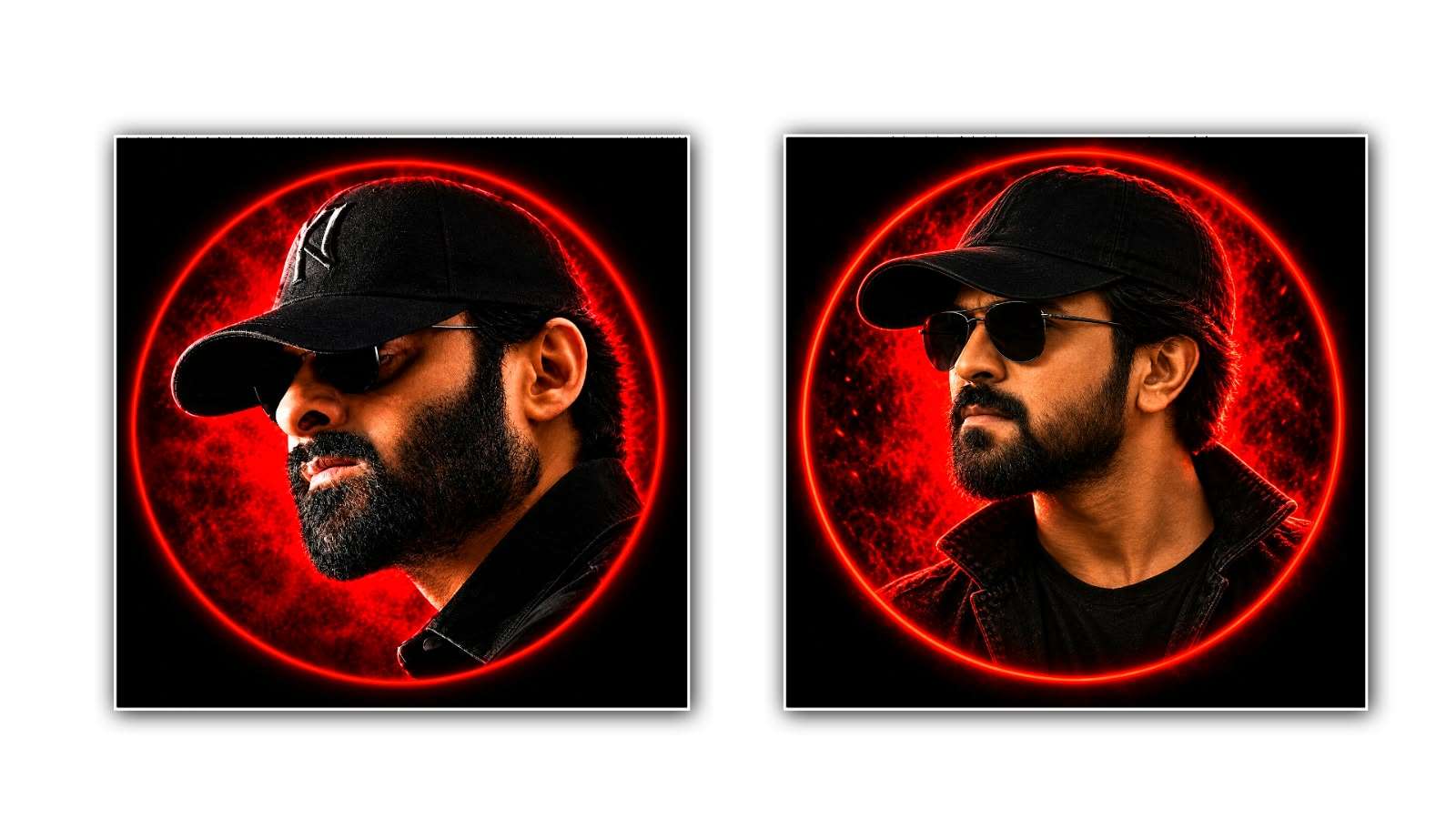

Creating a cinematic mass DP using Google Gemini is one of the easiest ways to transform an ordinary photo into a stylish, powerful, and professional-looking display picture. Nowadays, many people love cinematic photo editing because it gives their pictures a dramatic movie-poster appearance with attractive lighting, rich colours, sharp details, and a powerful atmosphere. Whether you want a stylish Instagram profile picture, a WhatsApp DP, or a photo inspired by your favourite action movie, Google Gemini can help you create an impressive result with the right photo and a well-written prompt.
The best thing about using Google Gemini is that you do not need to be a professional photo editor to get started. Traditional cinematic editing often requires advanced software, multiple editing tools, and a good understanding of colour grading, lighting, and background effects. However, with an AI image editing tool, you can describe the look you want in simple words and let the AI help transform your image. The final result depends on the quality of your original photo, the clarity of your instructions, and the image editing capabilities available in Gemini.
To begin, open Google Gemini on your mobile phone or computer and sign in with your Google account if required. Make sure you are using a version that supports image uploads and image editing. Once you reach the chat screen, select the option to upload an image and choose a clear photograph from your gallery. A front-facing portrait or a slightly angled photo usually works well for a cinematic mass DP because the face remains the main focus of the image.
Before uploading your photo, try to select an image with good lighting and a clear view of your face. You do not necessarily need an expensive camera or a professional photoshoot. A photo taken with a regular smartphone can also produce an attractive result if the face is visible and the image is not too blurry. Avoid pictures with heavy filters, extremely dark shadows, or objects covering important facial features, as these can make the editing process more difficult.
After uploading your photo, the next important step is writing the correct prompt. A prompt is simply a description that tells Google Gemini how you want your image to look. Instead of writing only a few general words such as “make my photo cinematic,” describe the lighting, background, mood, clothing colours, and overall style you want. Specific instructions can help the AI understand your creative idea more clearly.
For example, you can use a prompt like this: “Transform my uploaded photo into a highly realistic cinematic mass hero portrait. Keep my original face, facial features, skin tone, and identity as close to the reference image as possible. Give the image a powerful movie-poster atmosphere with dramatic lighting, deep shadows, subtle smoke in the background, warm golden highlights, cool dark tones, and realistic skin texture. Add a stylish black outfit and a confident expression while preserving my natural appearance. Use professional cinematic colour grading, sharp facial details, a softly blurred background, and a premium photography look. Make the composition suitable for a square social media display picture. Avoid cartoon effects, excessive skin smoothing, unrealistic facial changes, and unnecessary text.”
This type of prompt gives Gemini a clearer idea of the style you want. However, you can change the description according to your personal taste. If you prefer a dark action-movie look, ask for black and red tones, dramatic shadows, and subtle atmospheric smoke. If you want a royal and powerful appearance, try a black outfit, warm golden lighting, a grand background, and a confident pose. For a modern urban style, you can request a nighttime city background, neon lights, cinematic contrast, and realistic street photography.
Once you have entered your prompt, send it and wait for Gemini to process the image. Depending on the tool’s current capabilities and the complexity of the request, the result may take a little time to appear. Examine the generated image carefully instead of immediately accepting the first version. Check whether the face looks natural, the lighting matches the background, and the overall composition suits your display picture.
Sometimes, the first result may not look exactly as you imagined. The face might appear slightly different, the background may be too bright, or colours might not have enough cinematic depth. There is no need to start again from the beginning. You can continue the conversation and provide a more specific instruction to improve the image. For example, you could say, “Make the lighting more dramatic, reduce the brightness of the background, add subtle warm highlights to the face, and keep my facial features closer to the original uploaded photograph.”
If the image looks too artificial, ask Gemini to reduce the visual effects and use a more natural photography style. You can also request realistic skin texture, balanced contrast, softer background details, and natural facial proportions. These small adjustments can make a major difference between an image that looks heavily AI-generated and one that resembles a professionally edited cinematic portrait.
Another useful technique is to experiment with different cinematic moods. You can create several versions of the same photo, each with a different atmosphere. One version could feature a dark, intense action-film style, while another could use warm sunset lighting or a dramatic blue-and-orange colour palette. You might also try a black-and-white portrait with strong shadows for a timeless movie-star appearance. Comparing different versions allows you to choose the one that best matches your personality and the kind of profile picture you want.
The background also plays an important role in creating a mass DP. A simple, softly blurred background often makes the subject stand out more clearly than a complicated scene filled with too many objects. You can ask for a cinematic city street, a smoky studio background, a dramatic sunset, or a dark environment with subtle light rays. The important thing is to ensure that the background supports the portrait rather than distracting attention from the face.
After you are satisfied with the final result, download the generated image using the available download option. Before setting it as your profile picture, check the image dimensions and crop it into a square format if necessary. Most social media platforms display profile pictures inside a circular frame, so keep your face centred and leave enough space around your head and shoulders. This helps prevent important parts of the image from being cut off when the DP is displayed.
It is also worth remembering that AI image editing has certain limitations. Even when you ask the tool to preserve your original face, small changes to facial details, clothing, hands, or background objects can sometimes occur. If keeping your identity accurate is important, compare the edited image with your original photograph and regenerate the image or request corrections when necessary. Avoid prompts that add too many effects at once, because excessive smoke, glowing lights, artificial muscles, or extreme colour grading can make the final picture look unrealistic.
In conclusion, creating a cinematic mass DP in Google Gemini is a simple and creative way to give your ordinary photograph a powerful movie-inspired appearance. By choosing a clear photo, writing a detailed prompt, experimenting with lighting and backgrounds, and making small improvements through follow-up instructions, you can create a stylish display picture without needing advanced editing skills. The secret is not just using an impressive prompt but also understanding the look you want and refining the result until it feels right. With a little creativity and patience, Google Gemini can help you turn a simple portrait into a bold cinematic DP that stands out on WhatsApp, Instagram, Facebook, and other social media platforms.
IMAGE PROMPT
Create an ultra-realistic, high-contrast cinematic MASS DP using ONLY the uploaded person's photo as the identity reference.

FACE IDENTITY LOCK — TOP PRIORITY:
Preserve the uploaded person's exact facial identity, face shape, eyes, nose, lips, jawline, ears, skin tone, age, hairstyle, hair texture, beard, and moustache. The result must clearly look like the same person in the uploaded photo. Do not replace the face with another person's face or imitate any celebrity. Do not unnecessarily alter, reshape, beautify, or reconstruct facial features.

POSE & CAMERA:
Create a dramatic, tight close-up portrait with the head turned slightly toward the LEFT in a three-quarter side profile. The chin is slightly lowered, with a serious, confident expression. Use a close crop showing the head, neck, and upper shoulders. Keep the face large and dominant in the composition.

OUTFIT & ACCESSORIES:
Add a realistic black baseball cap with a curved brim, positioned low over the forehead. Add stylish black aviator sunglasses covering the eyes. Dress the person in a premium black jacket with a raised collar. These additions must look natural and fit the person's head and face. Preserve the original hairstyle, beard, and moustache wherever visible; do not copy them from any other person.

BACKGROUND:
Use a pure black background with a large, perfectly circular, bright neon-red glowing ring behind the person's head and shoulders. Fill the inside of the ring with intense red smoky textures, fiery particles, and subtle glowing embers. Keep the area outside the circle deep black.

LIGHTING & EFFECTS:
Add dramatic red rim lighting around the cap, hair, ears, beard, jawline, and jacket. Use strong cinematic contrast, deep black shadows, realistic warm skin tones, sharp facial details, and premium action-movie poster lighting.

COMPOSITION:
Center the person's head inside the red circle. The circle must be fully visible, symmetrical, and glowing intensely. Match the style of a premium cinematic social-media DP: black outfit, black cap, dark sunglasses, detailed beard, fiery red circular background, and dramatic close-up framing.

OUTPUT:
Square 1:1 aspect ratio, ultra-realistic, highly detailed, 4K quality, suitable for Instagram DP and WhatsApp profile pictures.

STRICT RULES:
Use the uploaded photo as the ONLY source of the person's identity. Never copy a face from another image. Never change the person's identity or facial structure. Do not automatically change the original hairstyle, beard, or moustache. Only add the specified cap, sunglasses, black jacket, lighting, and background effects. Do not add text, logos, watermarks, borders, or extra objects. Do not generate a cartoon, painting, or artificial-looking face. Keep the same red circular design, black background, camera angle, and cinematic style for every uploaded person.

FINAL RESULT:
A highly realistic, powerful MASS DP featuring the exact uploaded person, wearing a black cap, black sunglasses, and a black jacket, surrounded by an intense glowing red circular halo on a deep black background.
