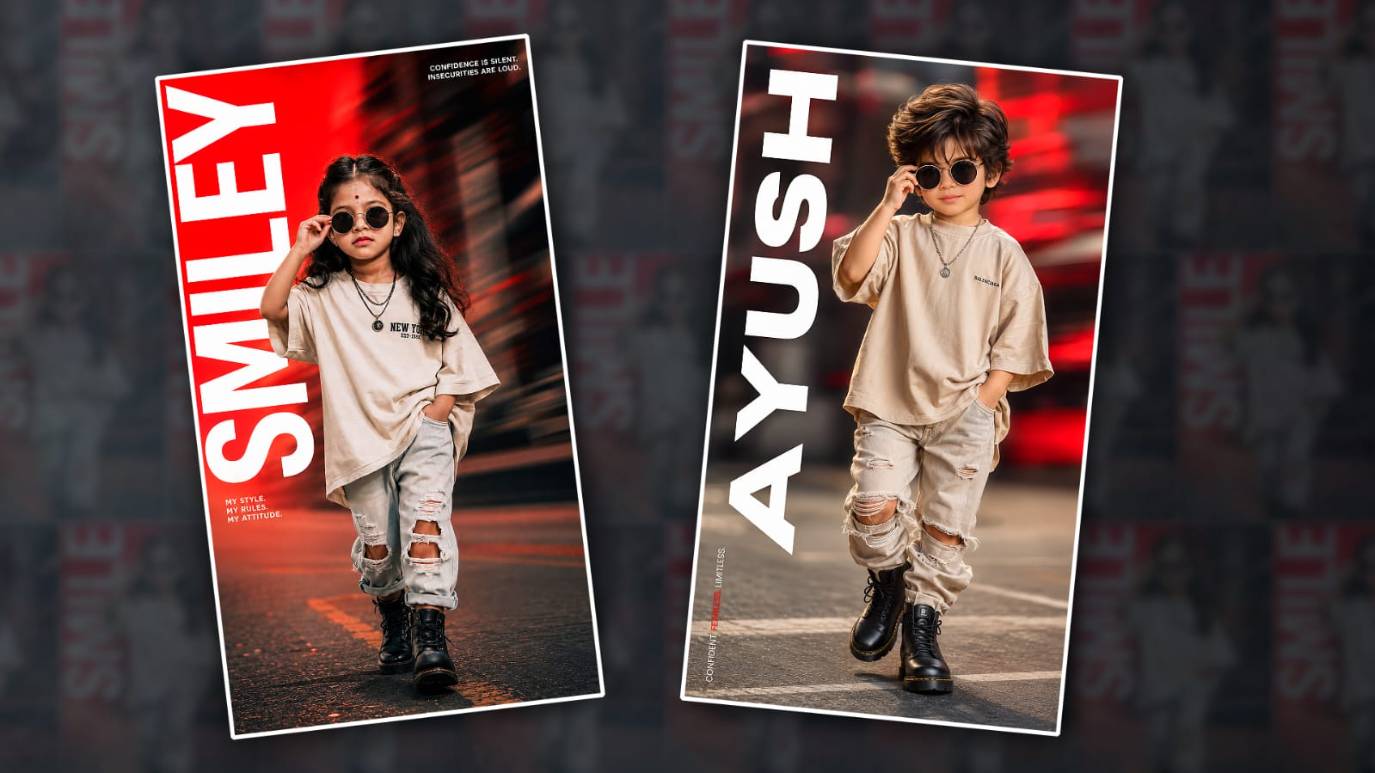

Welcome to another trending best photo editing article. I will tell you how to edit a kids’ fashion poster with a name photo in the Pix Art app. Read the article completely, and you can also edit the photo of your choice with your kids. It will be easy,y and these applications can be used for professional photo editing. Read it completely and edit your photos.
Files Required for editing
- Your photos should be stylish.
- Kids’ photos should be in running clothes.
- Then the background should be a little blurred in red colour
- Red-colour lighting effects.
- Then use stylish fonts or any text PNG image.
- Then you should have the PicsArt app installed on your mobile.
Now let’s start photo editing. First, open the PicsArt app. When you open the app, here too you will see a plus sign at the bottom. Click on it. Then you will see the Edit any photo option. Click on it. There you will directly see it. It will ask you to select backgrounds. There are backgrounds of your choice there. You don’t need to choose them separately. There are many backgrounds in this one. From there, select an image with a red colour and a slight lighting effect. After selecting it, crop this image. Because it is photo editing, it takes a square size by default, so you have to adjust it to the photo editing format, for this there is a left tools option at the bottom, click on it or there is a crop option, click on it and there you will see the portrait ratio option, click on this option and adjust your photo, then click on the right mark and open it.
Blur effect to Background
Here, if you want to apply any blur effects to this photo after clicking on this layer, there will be some effects options at the bottom. There will be many effects in it. If you click on the blur effect again, there will be many other related effects in it; there will be a radial option. Apply it. After applying it to the background, now we need to add text, i.e. our name, on this photo. For this, come back and there will be an add text option at the bottom, click on it and add a text, add your name in it and paste it, there are many styles in it, apply the font you like, or if you want to add it from your mobile, there will be an add fonts option there, you can also apply it there, add it and apply it, then add it to the left side or the right side vertically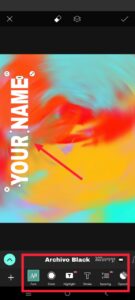 Now apply color to this text, white color only or set any color for background, it doesn’t matter,
Photo Add on Background
Then let’s apply our photo on it. First, come back to this photo and add a photo will appear.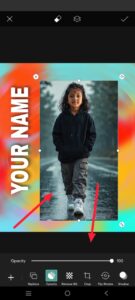 Click on it in the options at the bottom, and there add a photo from the gallery again. After adding, we need to remove the background of this photo. First, for this, if you click on this photo, there will be an eraser tool option at the bottom or top. Click on it. There will be a select option again. After clicking on it on the left side at the bottom, select the person option again. The background will be automatically removed. When using this option, the internet should be on our mobile. Then, if it does not remove the background properly, there will be an eraser option at the top again. Click on it. In the path, click on the erase option, adjust the three options, and you have to remove it properly with your finger while zooming clearly. While zooming, you should also remove the entire background clearly.
Increase Photo Quality
After removing this, you need to make some settings to increase the quality of this photo a little. For quality improvements, come back to this again. There are some options in the Adjust option; apply these. A quality example is Sharpen. After making these adjustments, improve the colour as well. Now,w if you want to add any more effects to this, you will have to come back again. There will be options at the bottom. Scroll from right to left.
Sticker PNG Effects
There you will have an option called Sticker. Press on it, and there will be effects. Search in that. All the images you like are in PNG format. If you like the format, search and add it. It will be applied directly. Now save this photo.
Photo Enhance
Before that, you have to enhance this photo in high quality. For this, simply click on the tools option on the left side at the bottom. Then there will be an option.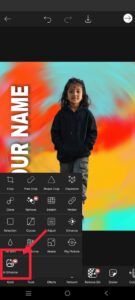 When you click on this, this option will be called AI Enhanced. While using this, the internet should be on your mobile; then it will work. After doing this, it will take some time and generate it in high quality.
Editing With AI
This photo editing is done using methods like Alight Motion or in applications like Google Gemini. If you edit with AI, you will be able to edit photos very simply and quickly. For this, I will tell you how to use an app, for example. First, open ChatGPT or Gemini AI. Both have the same process. Open it. Then click on the plus sign. Then click Photos and select the photo of your choice from the gallery. Then add it. It will be uploaded. After uploading, it is a relaxing experience to indicate in Telugu or English below the image how you want your image to be edited. If you don’t communicate in English, you can also communicate in Telugu. For example, say something like this: Add the currently trending fashion poster, kids’ photo editing pictures and generate a trending photo in high quality. Add smooth brightness and everything. It should be professional and realistic. Add the same face as in the photo I uploaded without changing it at all,l and generate it as realistically as possible. It should be clear and understandable. It will take some time to edit, and then click on the edited photo and check the Save option to save the photo. You can edit it in any way you want easily. If you have any other doubts, please comment.
Prompt
“Ultra-realistic cinematic portrait of a stylish South Indian little kid walking confidently on a road, wearing oversized trendy beige streetwear outfit with ripped jeans, black leather boots, and round black sunglasses, cool attitude pose, one hand in pocket and another touching sunglasses, long stylish wavy hair, expressive eyes, soft glowing skin, dramatic red motion blur urban background, bold white vertical typography text saying ‘SMILEY’, glossy fashion magazine style, moody cinematic lighting, shallow depth of field, ultra detailed skin texture and hair strands, luxury Instagram trending edit, vibrant red and beige cinematic color grading, realistic shadows, high contrast, professional fashion photography, stylish urban aesthetic, 8K ultra HD, full body portrait, dynamic street vibe, vertical 9:16 ratio.”
