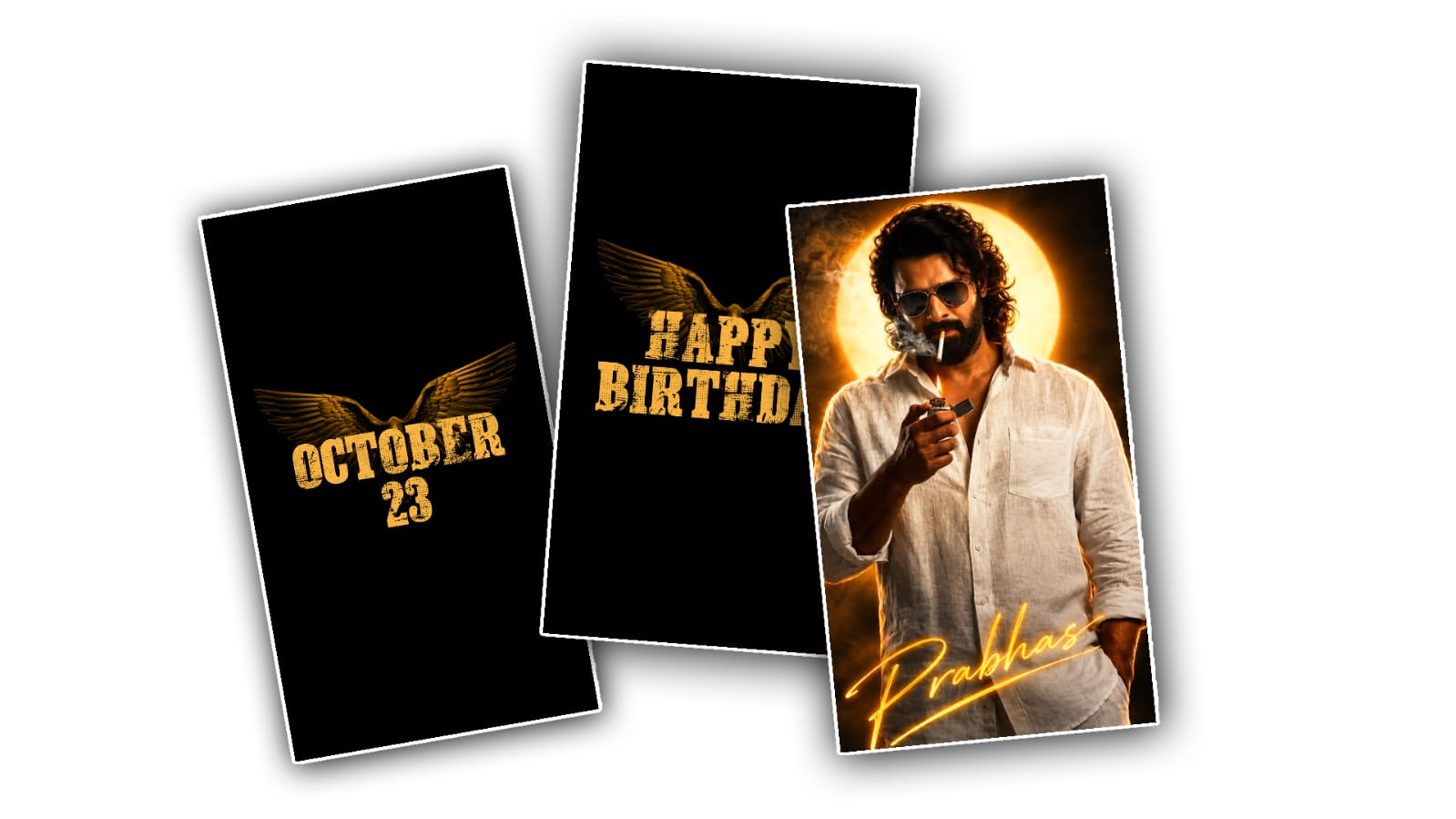

Creating a birthday video for a group of boys can be a really fun way to make a special day more memorable. Instead of using a simple slideshow, you can create something energetic, colourful, and modern with Alight Motion. The app gives you plenty of options for adding photos, music, text, transitions, effects, and animations, even if you are not an experienced video editor. With a little patience, you can make a birthday video that looks professionally edited and feels personal at the same time.
Before starting, collect everything you want to use in the video. Since this is a mass boys’ birthday video, you may have photos or short clips of several boys. Try to choose clear and good-quality pictures. You can include childhood photos, recent pictures, group photos, funny moments, school memories, family pictures, or photos from previous birthdays. Organising the photos in the order you want to show them can save a lot of time when you start editing.
Open Alight Motion and create a new project. Choose the video size according to where you plan to share it. If you are making the video for Instagram Reels, YouTube Shorts, or WhatsApp Status, a vertical 9:16 format usually works well. If you want to show it on a television or YouTube in a normal landscape format, you can choose 16:9. For a birthday status or social media post, vertical video is often the easiest option because it fills the phone screen.
Once your project is ready, choose a background. You do not always need a complicated background. A dark gradient, colourful abstract background, blurred photo, or simple animated background can work really well. For aboy’s’ birthday video, you can choose colours such as blue, black, red, purple, or neon shades depending on the overall style you want. Keeping the same colour theme throughout the video will make the final result look more organised.
Now start adding the photos. Import the first picture and adjust it so that the important part of the image is visible. You can resize, rotate, or reposition the photo using the transform controls. Then add the remaining pictures one by one. Avoid showing every photo for too long because a birthday montage usually looks better when the pictures change along with the music. Around one to three seconds per photo can be a good starting point, although you can change the timing depending on the song and the type of photo.
The next important part is animation. Static pictures can look a little boring, but Alight Motion makes it easy to give them movement. You can use keyframes to create a slow zoom-in, zoom-out, left-to-right movement, or slight rotation. For example, place a keyframe at the beginning of a photo with a slightly smaller scale, then move to the end of the photo and increase the scale. This creates a smooth zoom effect. You can also move the position slightly between the two keyframes to give the picture a more dynamic feel.
Transitions are another part that can make your birthday video more interesting. Instead of simply cutting from one photo to another, you can use fades, zoom transitions, slides, spins, flashes, or other effects. However, try not to use a different transition for every photo. Too many effects can make the video look messy. Choosing two or three transition styles and using them consistently will usually give the video a cleaner and more professional appearance.
Text is especially important in a mass birthday video because you may want to introduce each boy separately. You can begin with a simple title such as “Happy Birthday” followed by the names of the boys. After that, give each person a short section with their name and a few pictures. You could write something like “Happy Birthday, Rahul!” or “Cheers to another amazing year!” Keep the text short and easy to read. A bold font with a clean design can work better than an overly decorative font.
You can also add small birthday-related elements such as balloons, confetti, stars, lights, hearts, crowns, or colourful shapes. These elements can be placed around the photos without covering the faces. If you are using stickers or PNG elements, try to match their colours with your main theme. For a more energetic boys’ birthday edit, glowing lines, particles, light leaks, and neon elements can also work nicely.
Music will bring the whole video together. Choose a birthday song, a popular energetic track, or a song that has a personal meaning for the group. Import the audio into Alight Motion and place it on the timeline. Listen carefully to the beat and try to change photos or transitions at important points in the music. When a photo changes exactly on a strong beat, the video immediately feels more polished. You do not have to synchronise every single picture, but matching the major changes to the music can make a big difference.
For a more cinematic result, you can add effects such as brightness, contrast, saturation, blur, glow, or motion blur. These effects should be used carefully. For example, a small amount of glow can make text and light elements stand out, while motion blur can make fast movements look smoother. You can also apply similar colour adjustments to your photos so that pictures taken in different lighting conditions look more consistent.
A nice idea for a mass birthday video is to divide it into small sections. Start with an attractive opening containing “Happy Birthday” and the names. Then show individual photos of each boy. After that, include group pictures and funny memories. Towards the end, you can create a faster photo montage where several pictures appear quickly with the music. Finally, slow things down and finish with a simple birthday message wishing everyone happiness, success, and a great year ahead.
Pay attention to the timing while editing. Watch the complete video several times instead of checking only individual sections. Sometimes an effect may look great on its own but feel too fast or too slow when combined with the rest of the video. Remove unnecessary effects if they distract from the photos. Remember that the people and memories are the main focus, not the effects.
When everything looks good, check the text carefully for spelling mistakes, especially the names. Make sure no important face is covered by text or stickers, and check that the music is not too loud. If you are using voice messages or birthday wishes, adjust the audio levels so that they can be heard clearly.
Finally, export the project from Alight Motion. Choose a suitable resolution and frame rate depending on where you will share the video. If the video is going to WhatsApp or social media, you may not need extremely high settings because the platform may compress the file anyway. Before sharing the final version, watch the exported video once from beginning to end to make sure everything works correctly.
The best part about creating a massboys’s birthday video is that you do not need to make it extremely complicated. Good photos, suitable music, simple animations, clean text, and well-timed transitions are often enough to create something people will genuinely enjoy. Take your time with the timing and make the video personal by including funny memories, group moments, and messages for each birthday boy. With Alight Motion and a little creativity, even a beginner can turn ordinary photos into a lively birthday video that the whole group can remember and enjoy.
