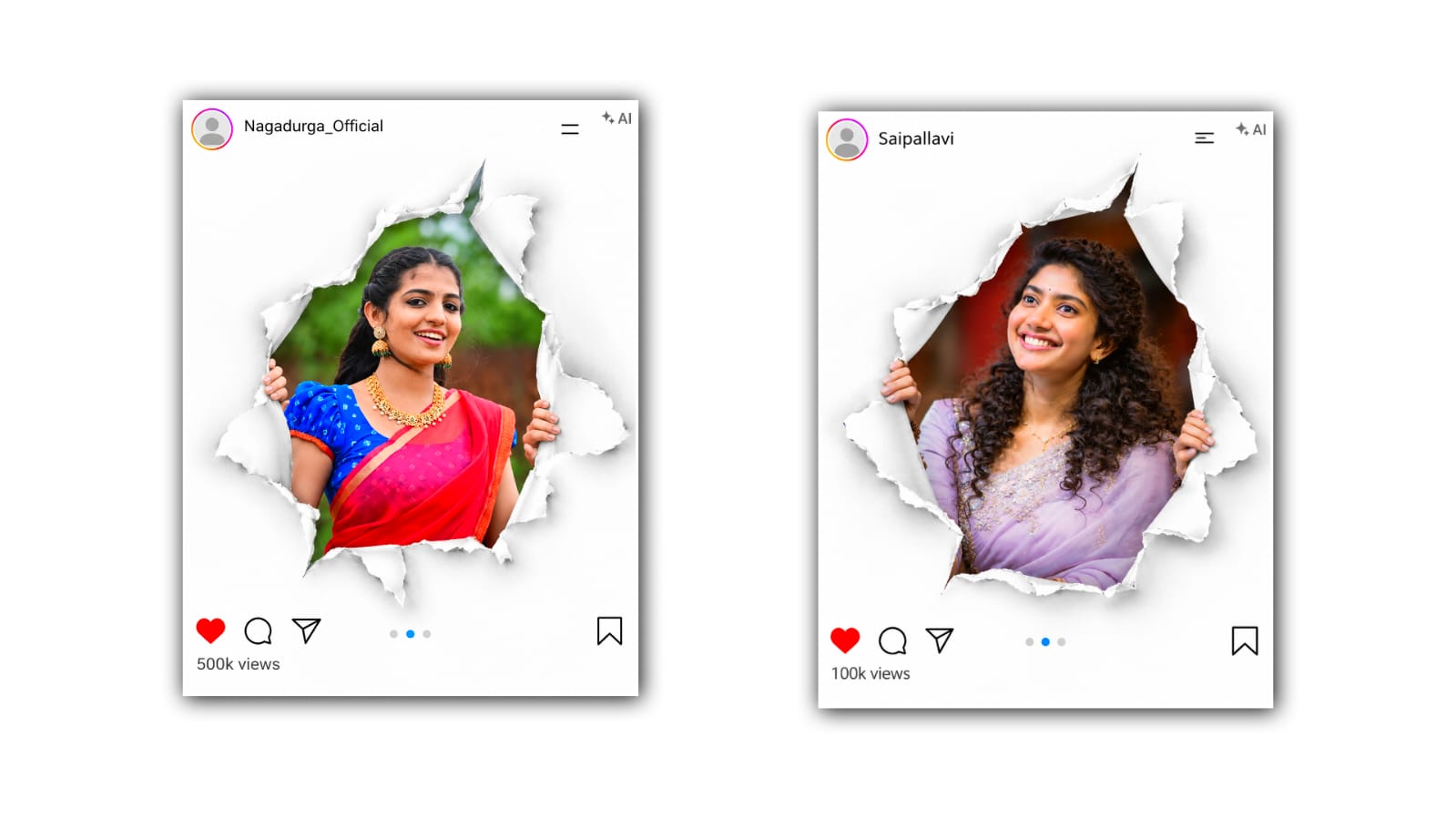

Creating a paper effect Instagram post photo is a popular way to make your pictures look creative, stylish, and eye-catching. This editing style gives your photo the appearance of being printed on paper, cut out with scissors, or placed on a handmade scrapbook page. It can make an ordinary picture look like a beautiful piece of art. The best part is that you can create this effect with the help of Google Gemini by using a clear photo and the right prompt. You do not need professional photography skills or advanced photo editing knowledge to get started.
Google Gemini is an AI tool that can help you transform your photos into different artistic styles. Depending on the features available in your account, you can upload an image and describe the changes you want to make. For example, you can ask Gemini to turn your normal portrait into a paper cutout design, create torn paper edges, add a white paper border, or place your picture on a vintage scrapbook background. With a little creativity, you can make an Instagram-ready image that looks unique and attractive.
Before starting the editing process, choose a good-quality photo that you want to transform. You can use a selfie, a full-body picture, a couple photo, a travel picture, or even a photo with your friends. Images with a clear subject and good lighting usually work well because the AI can understand the main details more easily. If you want the final result to look professional, select a photo in which your face and outfit are clearly visible. You can also use a picture with a simple background if you want the paper effect to stand out.
First, open Google Gemini on your mobile phone or computer. Sign in to your Google account if required, and check whether image generation or image editing is available in your version. The available features may vary depending on your account, location, and current Gemini tools. Once you are ready, open a new chat and look for the option to upload an image. Select the photo from your gallery or device and wait for it to finish uploading.
After uploading your image, the next step is to explain the paper effect you want. This is where your prompt becomes important. A prompt is simply a description of the result you want the AI to create. Instead of writing only “make a paper effect,” explain the paper texture, edges, colors, background, and overall style. The more clearly you describe your idea, the easier it is for Gemini to understand your creative direction.
For example, you can use this prompt: “Transform the uploaded photo into a stylish paper cutout Instagram edit. Keep the person’s face, hairstyle, outfit, and original identity recognizable. Make the person look like a real photograph cut out from textured white paper, with slightly torn edges and soft natural shadows. Place the cutout on a minimal cream-colored paper background with subtle grain, layered paper pieces, and a handmade scrapbook aesthetic. Use soft lighting, realistic paper textures, clean details, and a modern editorial style. Keep the composition attractive and suitable for an Instagram post.”
You can copy this prompt into Gemini after uploading your picture. If you want a more colorful design, you can change the background to pastel pink, sky blue, lavender, beige, or light yellow. You can also ask for a black-and-white paper effect if you prefer a simple and elegant appearance. The important thing is to describe the style you want instead of adding too many unrelated details.
Once you submit the prompt, Gemini will process your request and may generate an edited image or a new version of your photo. Take a moment to check the result carefully. Look at the face, hands, clothes, background, paper edges, and overall composition. Sometimes AI-generated edits may change small details or create effects that do not match your original image perfectly. If the result looks different from what you expected, you can provide another instruction to improve it.
For example, if the paper edges look too artificial, ask Gemini to make them softer and more realistic. If the face changes too much, tell it to preserve the original facial features and identity as closely as possible. If the background looks too busy, ask for a clean, minimal paper background. You can also request more visible paper layers, natural shadows, or a subtle 3D effect to make the image look as though the cutout is placed on top of a real sheet of paper.
Another interesting idea is to create a floating paper cutout effect. In this style, your photo appears to be lifted slightly above the background, creating a soft shadow underneath. You can try a prompt such as, “Create a realistic floating paper cutout effect from the uploaded portrait, with clean white borders, gently curled paper corners, natural depth, and soft shadows on a pastel scrapbook background. Preserve the person’s original appearance and make the final image suitable for Instagram.”
If you prefer the torn-paper style, ask Gemini to create rough, uneven paper edges around the subject. For a scrapbook look, you can include layered paper, small decorative shapes, tape, handwritten-style elements, and subtle textures. However, avoid adding too many decorations if you want the person to remain the main focus. A simple composition often looks more attractive on Instagram because viewers can immediately notice the subject.
You can also experiment with different layouts depending on the type of post you want to publish. A vertical portrait works well for Instagram Stories and Reels covers, while a square composition can be suitable for a regular Instagram feed post. For a portrait feed post, a 4:5 aspect ratio is a useful choice. You can ask Gemini to create a vertical composition with enough space around the subject, although you may need to crop or resize the image afterward using an editing application.
After you are satisfied with the generated image, download or save it using the available option. Open the image in your phone’s gallery and check whether the quality is suitable for sharing. If necessary, use a photo editing application to adjust brightness, contrast, sharpness, or saturation. Keep the adjustments subtle so the paper texture remains natural. You can also add a short caption or a small amount of text if it fits the design, but make sure the text is readable and does not cover important parts of the photo.
When the image is ready, open Instagram and create a new post. Select your edited photo, adjust the crop if needed, and choose a caption that matches the mood of your design. You can use a simple caption such as “A little paper magic,” “Turning memories into art,” or “My photo, reimagined.” Add relevant hashtags if you want to make the post easier for interested users to discover, but choose tags that genuinely relate to your content rather than filling the caption with unrelated keywords.
One useful tip is to save the prompt that produces your favorite result. You can reuse it for other photos and change only the background color, paper texture, or layout. This helps you create a consistent visual style for your Instagram profile. You can also generate several variations and compare them before deciding which one looks best. Remember that AI results are not always identical, so a little experimentation may be necessary.
It is also important to understand that Google Gemini may not preserve every detail of your original image perfectly. The final appearance depends on the uploaded photo, the prompt, and the image editing features available at the time. If the result changes your face, clothing, or other important details, try a more specific prompt or use a traditional editing application to make final corrections. Avoid sharing private or sensitive photos unless you are comfortable uploading them to the service and have reviewed its privacy settings.
Overall, making a paper effect Instagram post with Google Gemini is a simple and creative way to give your ordinary photos a fresh appearance. By choosing a clear image, writing a detailed prompt, experimenting with paper textures, and refining the generated result, you can create an attractive design without needing advanced editing skills. Whether you prefer torn paper edges, layered scrapbook elements, floating cutouts, or minimal white paper backgrounds, Gemini can help you explore different visual ideas. With practice, you can develop your own editing style and create eye-catching Instagram posts that feel personal, artistic, and different from ordinary photos.
IMAGE PROMPT
Create the exact reference-style Instagram 4:5 portrait design. Use the uploaded person’s photo, appearing through a realistic torn white-paper opening while holding both torn edges with their hands. Preserve the person’s original face, identity, hairstyle, expression, skin tone, dress, jewelry, and accessories unchanged. Reconstruct only the necessary hands and arms if needed. Maintain the same irregular torn-paper shape, curled edges, 3D shadows, white background, person positioning, and composition as the reference.
EDITABLE DETAILS:
Username: [ENTER USERNAME]
Views: [ENTER VIEWS]
Profile Picture: [DEFAULT / CUSTOM]
Recreate the Instagram-style layout: circular profile picture and username at the top-left; simple black menu icon at the top-right; red heart, outlined comment, share, three carousel dots with a blue center dot, and bookmark icon at the bottom. Display the views count below the icons.
NO WATERMARK: Do not add any AI icon, AI label, sparkle symbol, creator logo, signature, or watermark anywhere. Keep the top-right corner free of AI branding. Keep the design consistent with the original reference for every new photo. Only change the username, views count, and profile picture. High resolution, realistic paper texture, 4:5 portrait, no extra text.
