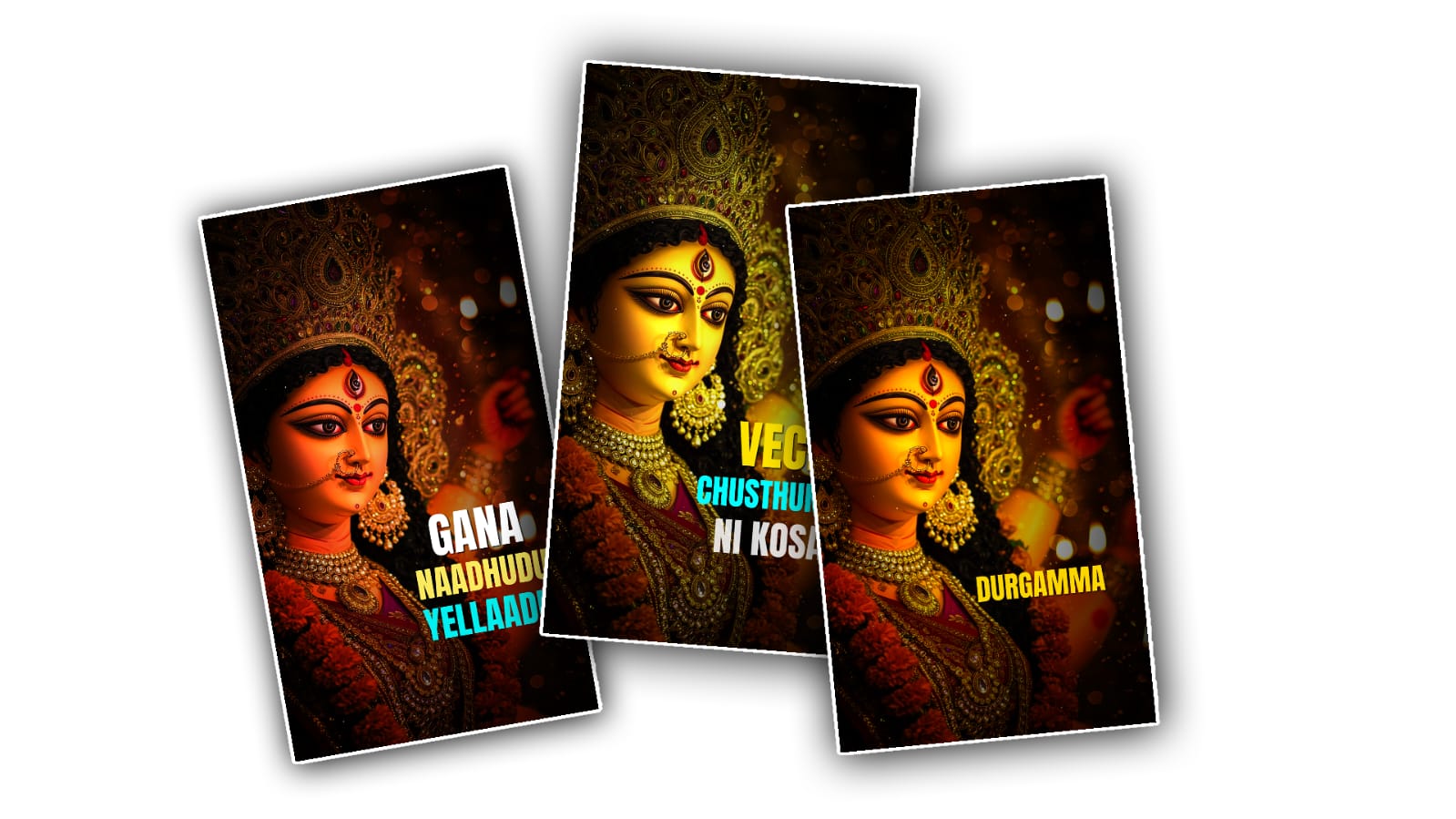

Creating a Durga Maa lyrical video in Alight Motion can be a beautiful way to combine devotional music, meaningful lyrics, and creative visual effects. You do not need a professional computer or complicated editing software to make this type of video. With a phone, a few good images or video clips, and some creativity, you can create an attractive devotional lyrical edit directly in Alight Motion.
Before starting the editing process, collect everything you need. Choose a Durga Maa song or bhajan that you want to use in your video. It is better to select a song with clear vocals because the lyrics will be easier to match with the music. You can also collect high-quality images of Maa Durga, temple backgrounds, flowers, diyas, clouds, or other devotional elements. If you want a more cinematic result, short video clips can also be used instead of still images.
Open Alight Motion and create a new project. Select the aspect ratio according to where you want to upload the video. For Instagram Reels, YouTube Shorts, and similar vertical platforms, a 9:16 project works well. You can choose a resolution such as 1080p if your phone can handle it smoothly. For the frame rate, 30 FPS is generally enough for a lyrical video, although you can use 60 FPS if you want particularly smooth movement.
The first thing you should add is your Durga Maa song. Import the audio into the project and place it on the timeline. Listen to the song carefully before adding too many effects. Try to identify the important parts of the music, such as the intro, beat drops, chorus, and emotional sections. These moments will help you decide where to change images, add text, or create transitions.
Next, import your main Durga Maa images or clips. Try to use clear, high-resolution pictures because low-quality images can make the final video look blurry. Place the first image at the beginning of the timeline and adjust its duration according to the song. You do not have to keep every image completely still. One of the easiest ways to make a devotional edit look more professional is to add slow movement to the images.
For example, you can create a gentle zoom-in effect on Maa Durga’s face. Add keyframes to the scale property, keeping the starting scale slightly smaller and increasing it gradually toward the end of the clip. You can also move the image slowly from one side to another. Avoid moving too fast because devotional videos usually look better with smooth and peaceful animation.
The most important part of a lyrical video is the text. Add a text layer and type the first line of the song. Keep the lyrics synchronised with the singer’s voice. When the singer starts a particular line, the corresponding text should appear at almost the same moment. Continue this process for the rest of the song.
Font selection makes a big difference. For a Durga Maa devotional edit, a clean and elegant font usually looks better than an extremely decorative one. You can use white, golden, red, or light yellow text depending on the background. If the image is bright, add a shadow or stroke around the text so that the lyrics remain easy to read.
You can also create a simple text animation. Instead of making the lyrics suddenly appear, use keyframes to create a small fade-in or upward movement. Another option is to animate the opacity so that the text gradually becomes visible. Keep the animation short and smooth. The goal is to support the song rather than distract viewers from it.
Beat synchronisation can make the edit feel much more energetic. Alight Motion allows you to work with keyframes and timing manually, so listen to the music and mark important beats. Whenever there is a strong beat, you can slightly change the scale, position, or brightness of the image. For a devotional lyrical video, subtle beat effects often look better than strong shakes.
Adding glow and light effects can also give the video a divine appearance. You can duplicate your main image, apply blur or glow, and reduce its opacity. Place the glowing layer behind or above the original image depending on the effect you want. A soft golden glow around Maa Durga can create a warm devotional atmosphere. Do not overuse the effect, because too much glow can hide important details in the image.
Particles are another useful element. You can add small light particles, floating dust, sparkles, or bokeh effects over the background. These elements can make a static image feel alive. Golden particles work particularly well with traditional devotional themes. Keep their opacity low so that they remain in the background instead of covering the lyrics.
Transitions are important when moving from one Durga Maa image to another. You can create a simple zoom transition by increasing the scale of the first image at the end and starting the next image with a slightly larger or smaller scale. You can also use fade transitions, blur transitions, or light-flash effects. Try to match the transition with the rhythm of the music.
For a more cinematic look, consider adding a dark overlay around the edges of the frame. A subtle vignette can draw attention toward the centre, especially when Maa Durga is positioned there. You can also adjust brightness, contrast, saturation, and other colour settings to give all your images a similar appearance. If each image has a completely different colour tone, the final video may look inconsistent.
Another nice idea is to use a devotional opening scene. Start with a dark or blurred background, then slowly reveal the image of Maa Durga while the music begins. You can add a short title such as the name of the bhajan or a devotional phrase. After a few seconds, begin displaying the lyrics. This creates a clear introduction and makes the video feel more planned.
When your editing is finished, watch the entire video from beginning to end. Check whether every lyric appears at the correct time. Look for spelling mistakes, text that disappears too quickly, images that change too suddenly, or effects that are too strong. It is often during this final preview that you notice small problems that were difficult to see while editing individual sections.
Finally, export the video from Alight Motion. Before exporting, choose a suitable resolution and frame rate. If you are uploading the video to social media, 1080p is usually a good choice. Keep an eye on the file size if your phone has limited storage. After exporting, watch the saved video once more in your gallery to make sure the audio, lyrics, effects, and transitions are working properly.
The best Durga Maa lyrical edits are not necessarily the ones with the most effects. A good devotional video usually depends on clean lyrics, meaningful images, smooth animation, and synchronisation with the music. Start with simple keyframes and gradually experiment with glow, particles, transitions, colour adjustments, and other Alight Motion features. As you practice, you will become more comfortable with the timeline and start developing your own editing style.
With a little patience and creativity, Alight Motion is enough to create a beautiful Durga Maa lyrical video that feels emotional, peaceful, and visually appealing. Focus on the feeling of the song, keep the lyrics readable, and make every effect serve the mood of the devotional music. That approach will help your videos look more natural and polished instead of feeling overloaded with effects.
