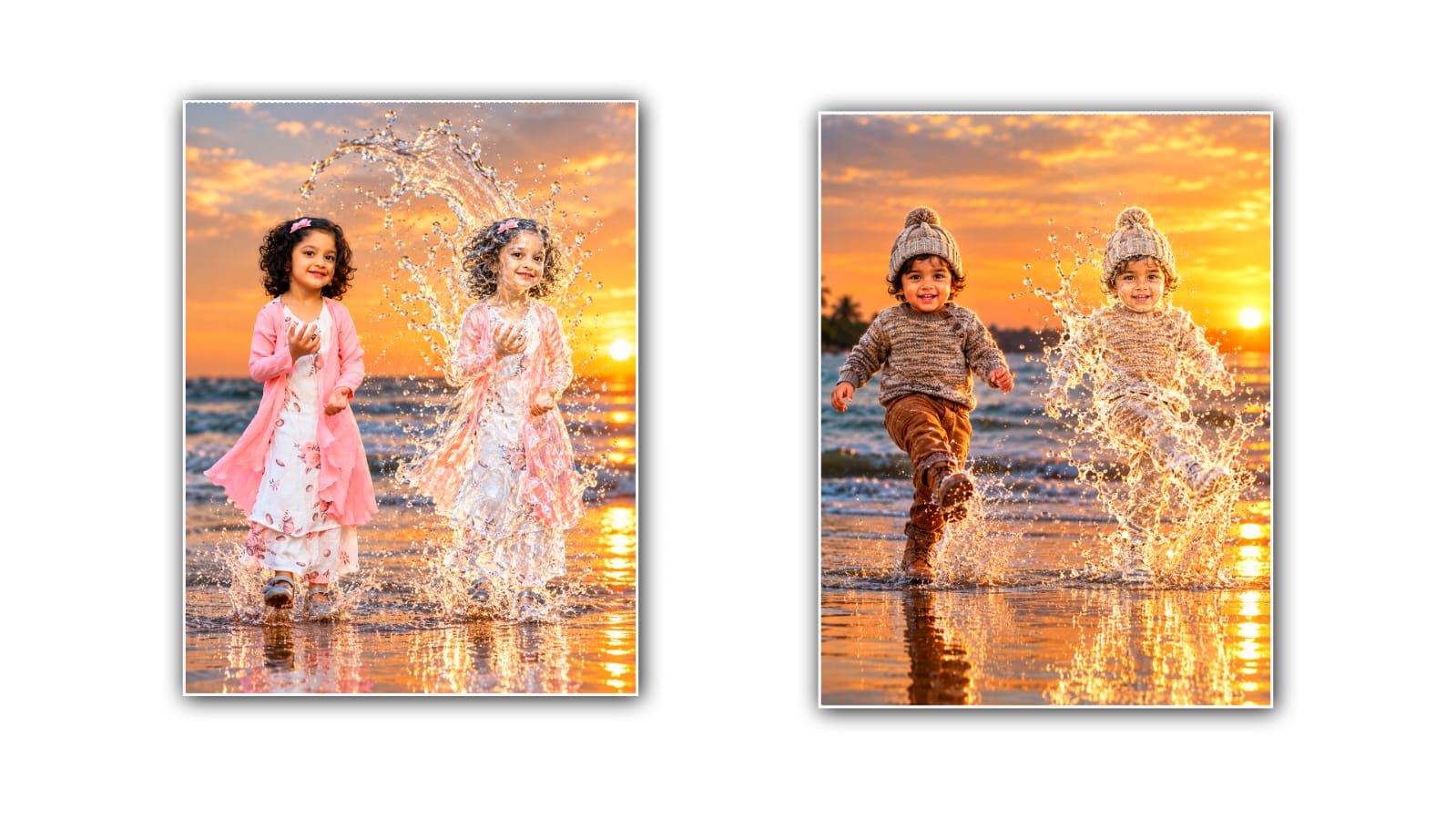

Creating a water effect in a photo can completely change the mood and appearance of an ordinary picture. A simple portrait, travel photo, or outdoor image can be made to look fresh, creative, and visually interesting by adding realistic water elements. The good thing is that you do not always need advanced photo-editing software or professional editing skills to create this type of effect. With Google Gemini, you can use simple instructions to transform an existing image and create a convincing water effect.
Google Gemini has become useful for many creative tasks, including image editing and generation. If you already have a photo that you want to edit, you can upload it to Gemini and describe the changes you want. The more clearly you explain your idea, the easier it is for the AI to understand the result you are looking for. This makes it a convenient option for people who want attractive photo edits without spending hours learning complicated editing tools.
To begin, choose a good-quality photo that you want to edit. A clear image usually produces better results because Gemini has more details to work with. You can use a portrait, a picture taken near a beach, a street photograph, a nature image, or almost any other suitable photo. Before uploading it, think about what kind of water effect you want. For example, you may want your photo to look as if it was taken underwater, surrounded by splashing water, reflected on a wet surface, or captured during a rainy moment.
Once you have selected your photo, open Google Gemini and upload the image through the image option available in your account. After the image is uploaded, write a prompt explaining the editing you want. You do not need to use complicated technical words. Natural language is usually enough. For example, you could write, “Edit this photo by adding a realistic water effect around the subject. Make the water look natural, with soft reflections, realistic splashes, transparent droplets, and cinematic lighting. Keep the person’s face, clothing, and identity unchanged.”
This type of prompt gives Gemini a clear idea about the main goal. It tells the AI that you want water added while preserving important parts of the original photograph. If you simply write “add water effect,” the result may not look exactly the way you imagined because the instruction is too general. Adding details about lighting, reflections, colours, water movement, and realism can help create a more controlled result.
One popular style is the underwater effect. For this look, you can ask Gemini to make the subject appear as though they are underwater while keeping the personrecognisablee. You could mention clear blue water, soft underwater light rays, floating particles, gentle bubbles, and realistic light reflections. A prompt such as, “Transform this photo into a realistic underwater scene with blue water surrounding the subject, natural light rays coming from above, small bubbles, soft reflections, and cinematic detail. Keep the subject’s face and clothing realistic,” can provide a useful starting point.
Another interesting option is a water splash effect. This works especially well with portraits and fashion photographs. You can ask Gemini to add water splashing around the person while keeping the subject sharp. For example, you can describe water droplets frozen in motion, transparent splashes around the body, dramatic lighting, and a clean background. The important part is to tell Gemini not to distort the person’s face or body. This helps maintain the original character of the photograph.
You can also create a rainy-water effect. This can make a normal street or portrait photograph look more cinematic. Ask Gemini to add realistic rain droplets, wet surfaces, reflections from lights, and a slightly dramatic atmosphere. If the original image is taken at night, you can request reflections from streetlights or colourful signs on the wet road. For a daytime photo, you can ask for soft cloudy lighting and natural water drops on the subject.
Water reflections are another simple but attractive editing idea. If your photograph has a person standing near the bottom or centre of the frame, you can ask Gemini to create a realistic reflection underneath them. The reflection should not look perfectly sharp because real water usually creates a slightly distorted image. You can specifically mention gentle ripples, subtle distortion, natural shadows, and realistic reflections. These small details can make the final image look much more believable.
The background is also important when creating a water effect. If the background does not match the new effect, the edited image may look artificial. For example, if you are creating an underwater scene, ask for a background that matches the colour and lighting of the water. You can request a soft blue-green atmosphere, floating particles, subtle shadows, and natural depth. If you are creating a rainy street effect, ask for wet roads, puddles, reflections, and realistic rain while keeping the main subject clear.
Lighting can make a major difference. Water interacts strongly with light, so adding realistic lighting instructions can improve the overall appearance. You can ask for soft reflections on the skin, highlights on water droplets, realistic shadows, and natural light scattering through the water. If you want a dramatic social-media-style image, you can ask for cinematic lighting and high contrast. If you prefer a natural photograph, request soft daylight and subtle water reflections instead.
Sometimes the first result will not be perfect, and that is completely normal. Instead of starting again, you can give Gemini another instruction based on what you want to change. For example, you might say, “Make the water effect more realistic and less intense,” or “Reduce the number of water droplets and keep the person’s face exactly like the original.” You can also ask it to make the water more transparent, change the colour from blue to turquoise, soften the reflections, or reduce the amount of splash.
If the AI changes important parts of the original image, clearly mention what should remain unchanged. For example, you can say, “Preserve the original facial features, hairstyle, skin tone, clothing, pose, and body proportions. Only modify the surroundings and add the water effect.” This is particularly useful when editing portraits because keeping the person’s identity consistent is often more important than adding extra visual effects.
For social media, you can also experiment with different styles. A soft aqua water effect can give a photo a calm and refreshing appearance, while a darker blue underwater effect can create a mysterious cinematic look. A bright splash effect can make a fashion photograph energetic, while a rainy city effect can give a portrait a dramatic movie-like feeling. Try to choose the style based on the original photograph rather than adding too many effects at once.
The final result can be improved further by asking Gemini to maintain realistic proportions and natural details. Avoid prompts that request too many unrelated changes because they can make the image look artificial. A focused prompt is usually better than a long list of random effects. Start with the main water effect, check the result, and then make small changes until you are satisfied.
The biggest advantage of using Gemini for this kind of editing is simplicity. You can describe your idea in everyday language instead of manually selecting layers, masks, brushes, filters, and effects. It gives beginners an easy way to experiment with creative photo editing while still allowing more experienced users to give detailed instructions.
Creating a water effect photo with Google Gemini is therefore less about complicated editing techniques and more about describing the visual result you want. Choose a clear photo, upload it, explain the water effect in detail, protect the important parts of the original image, and refine the result with follow-up instructions. With a little experimentation, you can turn an ordinary photograph into an image with realistic water splashes, underwater atmosphere, rain, reflections, or cinematic aquatic effects. The key is to keep your instructions clear, focus on realism, and make gradual changes rather than trying to create everything in one step.
IMAGE PROMPT
Use the uploaded person photo as the ONLY identity and appearance reference. Create a photorealistic cinematic 4:5 DUAL-PERSON COMPOSITION inspired by the provided reference image. Show TWO VERSIONS OF THE SAME PERSON side-by-side in the same scene and same dynamic running pose.

LEFT SIDE — ORIGINAL NORMAL VERSION:
Keep the uploaded person's exact face, identity, hairstyle, hair texture, skin tone, age, body proportions and ORIGINAL CLOTHING completely unchanged. Do not redesign or modify the person's appearance. Show the person in a natural realistic form, running through shallow beach water with ONE LEG LIFTED FORWARD as if kicking the water.

RIGHT SIDE — WATER VERSION:
Create an identical second version of the SAME PERSON in the SAME RUNNING/KICKING POSE, with the same face, hairstyle, body proportions and exactly the same clothing design and colors. Transform this entire second person into a highly realistic transparent flowing WATER SCULPTURE. The face must remain clearly recognizable and match the original person.

The two versions must look like the SAME PERSON in two different forms: NORMAL PERSON on the left and WATER PERSON on the right. The lifted leg of the WATER VERSION must dramatically kick the shallow water, creating a large realistic splash, curved water arcs, flowing streams and hundreds of suspended droplets. The water sculpture should have realistic transparency, refraction, glossy highlights and physically accurate liquid details. Keep the ORIGINAL VERSION completely normal and solid, NOT made of water. Both versions must stand/run in shallow ocean water with realistic wet-sand reflections. Create strong mirror-like reflections beneath both people, with the water version having a reflection made from transparent liquid and glowing highlights. Golden-hour sunset beach, warm orange sunlight, cinematic backlighting, realistic ocean waves, dramatic water spray, soft atmospheric background, shallow depth of field, ultra-photorealistic photography, realistic water physics, premium cinematic 4K detail.

IMPORTANT:
The composition must clearly show TWO versions of the same uploaded person — one NORMAL and one WATER. Do not merge them together. Do not create two different people. Do not change the uploaded person's face, hairstyle, clothing or identity. Do not change the pose. No extra people, no extra limbs, no duplicate body parts, no distorted face, no cartoon, no CGI look, no text, no watermark.
