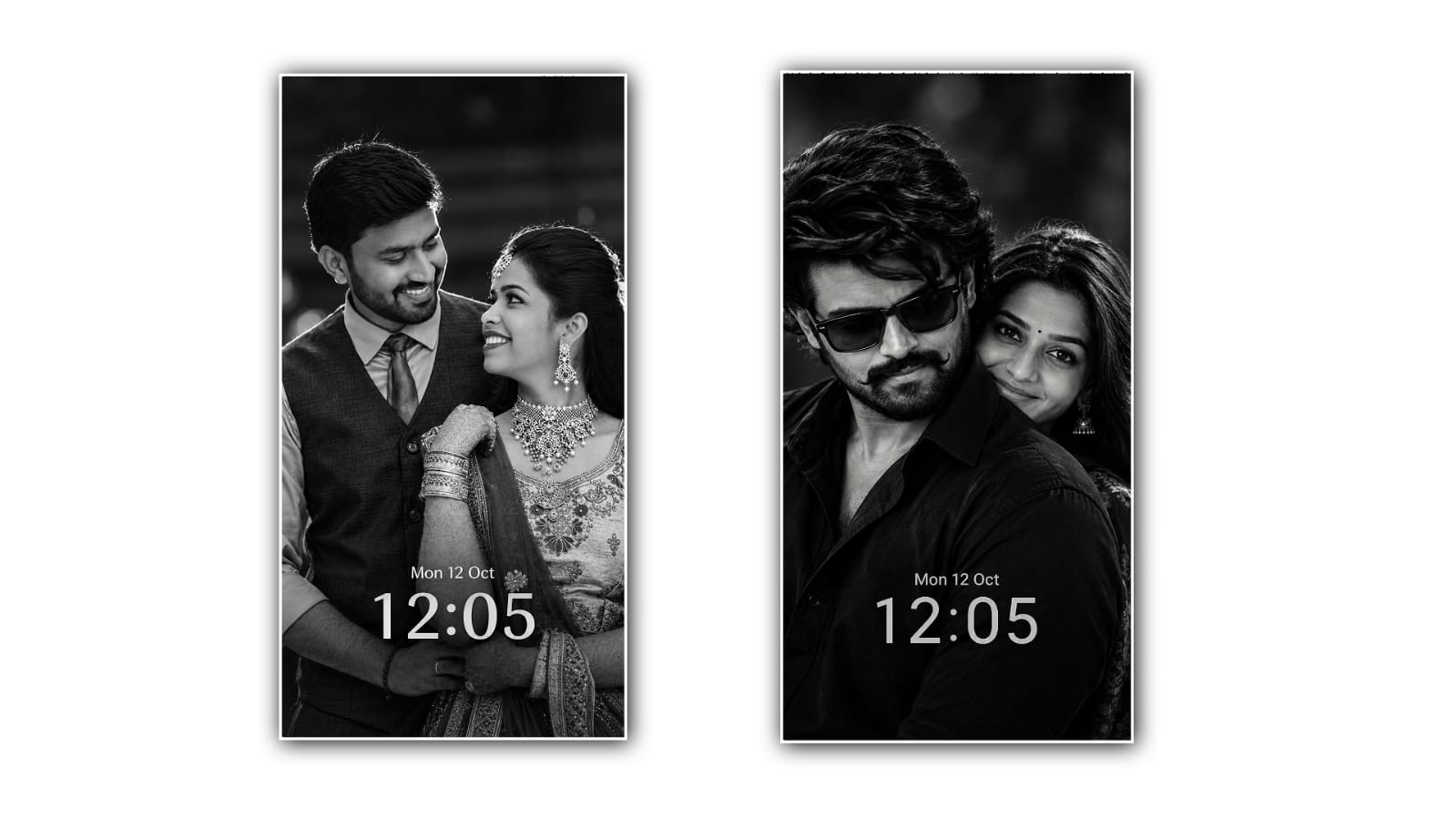

Nowadays, trending wallpaper photo editing is becoming very popular on social media platforms like Instagram, Facebook, Pinterest, and WhatsApp. Many people love to create stylish wallpapers with their own photos and give them a professional, cinematic, and eye-catching look. From aesthetic backgrounds to 3D portraits, neon effects, rainy moods, and stunning nature scenes, there are countless ways to transform an ordinary photo into something special. One of the easiest ways to explore these creative ideas is by using Google Gemini AI.
Google Gemini makes photo editing more accessible, even for people who do not have advanced editing skills. Instead of spending hours learning complicated editing software, users can describe the image they want in simple words and use AI to help create a new visual style. With the right prompt and a clear photo, you can experiment with trending wallpaper designs and create images that match your personal taste.
The first step is to open Google Gemini on your mobile phone or computer. You can visit the official Gemini website or use the Gemini app, depending on your device and availability. Sign in with your Google account if required, and look for the image-generation or image-editing features available to you. The available features may vary depending on your account, region, and the version of Gemini you are using.
Once you open Gemini, decide what kind of wallpaper you want to create. You can choose a stylish portrait wallpaper, a cinematic photo, a romantic couple image, a nature-inspired background, or a modern 3D design. It is helpful to have a clear idea of the final result before starting. For example, if you want a stylish mobile wallpaper, you might prefer a dark background, dramatic lighting, and a portrait placed in the center. If you like aesthetic designs, you could choose soft, centre-framed lighting and a beautiful blurred background.
If you want to edit your own photo, upload a suitable image using the attachment option available in Gemini. Choose a photo with good lighting and a clear face, especially if you want to create a portrait wallpaper. A high-quality original image can help the AI understand the details you want to preserve. After uploading the photo, explain exactly how you want it to look. You can ask Gemini to improve the background, change the lighting, add artistic effects, or create a completely different visual atmosphere.
Writing a good prompt is one of the most important parts of creating trending wallpaper photo edits. A prompt is simply a description of the image you want the AI to generate or edit. The more clearly you describe the subject, background, colors, lighting, and composition, the easier it is to communicate your idea. However, the result may still differ from your expectations, so you may need to adjust your prompt and try again.
For example, you can use a prompt like this: “Create a cinematic mobile wallpaper using the uploaded photo as the main reference. Keep the person’s facial features and natural appearance consistent. Add a dark blue background, dramatic studio lighting, subtle glowing particles, realistic shadows, and a premium photography look. Make the image sharp, detailed, and visually attractive, with a vertical 9:16 composition suitable for a smartphone wallpaper.”
This type of prompt gives Gemini a clear direction. It explains what should remain important in the photo and what visual elements should be added. You can change the colours, background, and effects to create a different style. For example, replace the dark blue background with a purple neon city, a golden sunset, a rainy street, or a peaceful mountain landscape.
Another popular style is the 3D portrait wallpaper. This style can make a photo look more dramatic and visually interesting by combining depth, lighting, and creative backgrounds. To try it, upload your picture and use a prompt such as: “Transform this photo into a realistic 3D-inspired portrait wallpaper with cinematic depth, soft rim lighting, a stylish modern background, detailed textures, and a professional finish. Keep the subject recognisable and use a vertical composition for a smartphone screen.”
You can also create aesthetic wallpapers with a softer and more natural appearance. These designs often use pastel colours, gentle sunlight, blurred backgrounds, and minimal visual elements. If you prefer this style, ask Gemini to create a clean aesthetic wallpaper with soft pink and lavender tones, natural lighting, subtle shadows, and a peaceful atmosphere. You can experiment with flowers, clouds, stars, city lights, or other background elements to make the result more personal.
For people who enjoy dramatic photography, a cinematic or rainy-night wallpaper can be an excellent choice. Imagine a portrait with reflections on a wet road, colourful lights in the background, and a moody atmosphere. You can describe this look by asking Gemini to create a realistic nighttime scene with blue and purple neon lighting, gentle rain, cinematic contrast, and detailed reflections. If you are editing a personal photograph, mention that the person should remain recognizable and that the added effects should blend naturally with the original image.
After generating the first result, take a moment to review the image carefully. Check whether the face looks natural, the background matches your idea, and the lighting appears realistic. Sometimes AI-generated images may contain unusual details, distorted hands, incorrect accessories, or unexpected changes to facial features. If something does not look right, you do not always need to start from the beginning. You can give Gemini a follow-up instruction asking it to correct a specific part while keeping the rest of the image unchanged.
For example, you might write, “Make the background less distracting, improve the lighting around the face, and keep the original facial appearance as close as possible.” You can also request a darker background, more realistic shadows, fewer visual effects, or a cleaner composition. Small changes can make a significant difference, so it is worth experimenting with a few versions until you find one you like.
Choosing the right image size is also important when creating a wallpaper. For most modern smartphones, a vertical composition works well. You can ask for a 9:16 aspect ratio, although the exact dimensions and cropping options available may vary. Remember that the clock, date, and app icons may cover parts of your wallpaper. Keeping the main subject away from important screen areas can make the final design look cleaner and more practical.
Once you are satisfied with the result, download the generated image if the option is available. Open your phone’s gallery, select the image, and choose the option to set it as your home screen or lock screen wallpaper. Depending on your phone, you may be able to adjust the crop, zoom level, and position before applying it. Preview the wallpaper to make sure the subject is visible, and the important details are not hidden behind icons or the clock.
One useful tip is to avoid adding too many effects at once. Although glowing lights, smoke, particles, and dramatic colors can look attractive, too many elements may make the image look artificial or crowded. A balanced design with good lighting, a clear subject, and a suitable background often looks more professional. You should also experiment with different prompt styles rather than copying the same description every time. Adding your own ideas can help you create a wallpaper that feels unique.
If you plan to share your edits on Instagram, Facebook, or other social media platforms, consider creating a few variations with different colors and backgrounds. You can compare the results and choose the most visually appealing version. Always use photos you have permission to edit, and be respectful when using pictures of other people. If you intend to use the image commercially, check the relevant tool terms and any rights associated with the original photograph.
In conclusion, creating trending wallpaper photo editing in Google Gemini is a simple and creative way to explore AI-powered image design. You do not need to be a professional photographer or an expert editor to get started. All you need is a clear idea, a suitable photo, and a well-written prompt. By experimenting with cinematic effects, aesthetic colors, 3D-inspired portraits, and creative backgrounds, you can transform ordinary pictures into attractive wallpapers for your smartphone. Keep improving your prompts, review every result carefully, and try different styles until you discover the look you love. With a little creativity and patience, Google Gemini can help you turn your wallpaper ideas into personalised digital artwork.
IMAGE PROMPT
Create an ultra-realistic black-and-white cinematic couple wallpaper using the uploaded photos as identity references. If one couple photo is uploaded, use it directly; if two separate photos are uploaded, combine both people naturally into one romantic portrait. Preserve both individuals’ original facial features, identity, hairstyle, skin texture, and natural proportions. Position the man in the foreground wearing a plain black shirt, looking slightly downward with a subtle expression. Position the woman closely behind his shoulder, gazing softly at the camera with a gentle smile, long flowing hair, a tiny bindi, and traditional jhumka earrings if present in the reference. Create a close-up romantic composition matching a premium cinematic smartphone lock-screen wallpaper. Pure black-and-white photography, deep blacks, rich grayscale tones, dramatic soft lighting, realistic shadows, sharp facial details, shallow depth of field, dark blurred background, elegant film-grain texture. Add realistic smartphone lock-screen elements near the bottom: small white date text “Mon 12 Oct” and a large elegant digital time “12:05” beneath it. Keep the time and date clearly readable over the dark clothing, without covering either face. Vertical 9:16 aspect ratio, high resolution, professional Indian romantic movie aesthetic.No colour, no extra text, no borders, no social media interface, no phone frame, no watermark, no AI logo.
