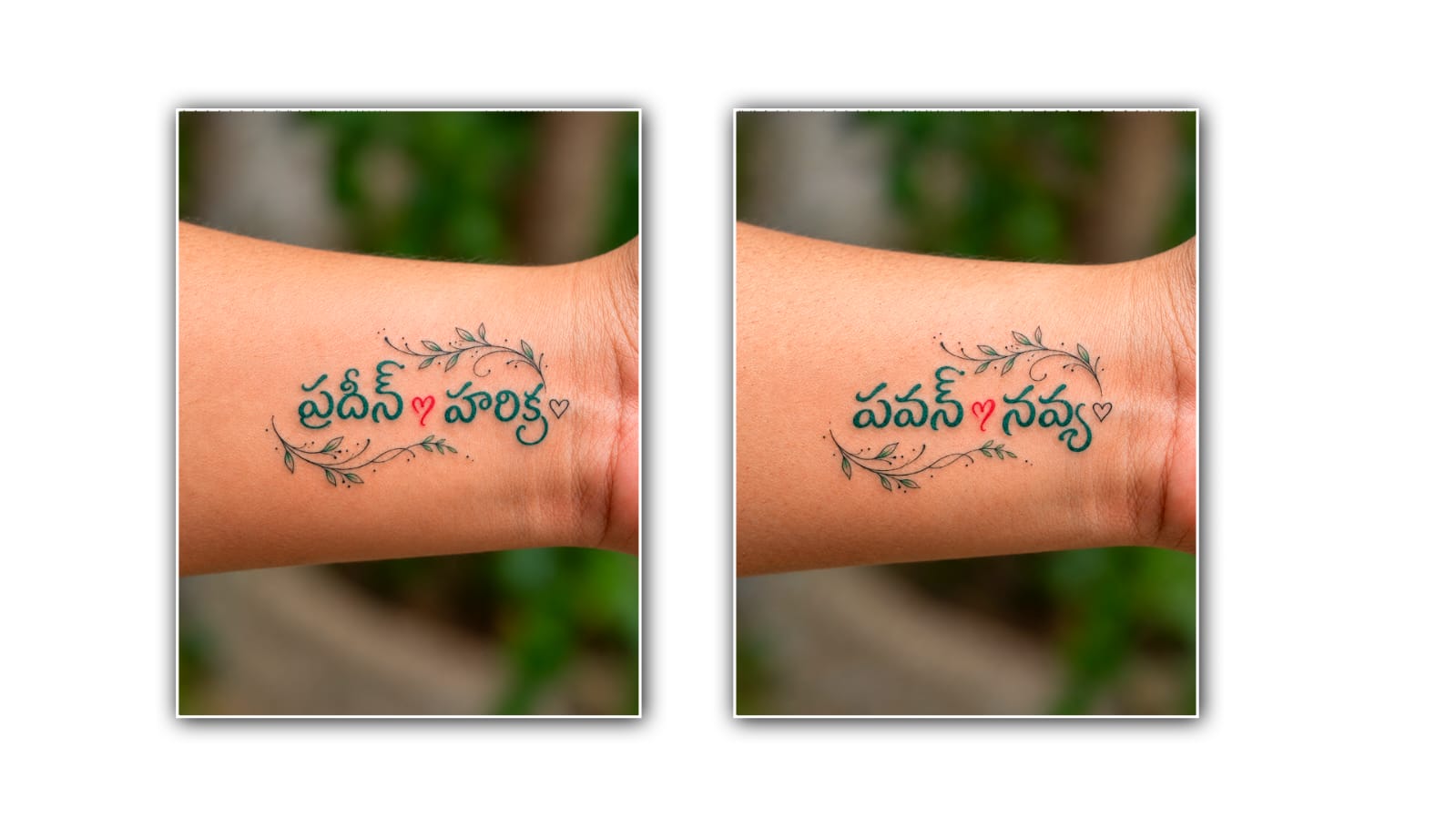

Creating tattoo name art photos has become popular among people who love stylish photo editing and personalised designs. A simple name can look much more attractive when paired with creative tattoo lettering, realistic skin effects, artistic backgrounds, and professional lighting. With the help of Google Gemini, anyone can experiment with tattoo name art without needing advanced photo editing skills. Whether you want to create a tattoo design featuring your own name, your partner’s name, a friend’s name, or a special word that means something to you, Gemini can help you turn your idea into an eye-catching image.
Google Gemini is an AI-powered tool that can understand text instructions and, depending on the features available in your account, generate or edit images. Instead of spending hours learning complicated editing software, you can describe the tattoo style you want and use a suitable photo as a reference. Gemini can help you explore different lettering styles, colours, compositions, and visual effects to create a design that matches your imagination. The final result depends on the quality of your prompt, the reference image you provide, and the image generation or editing features available to you.
To begin creating tattoo name art, open Google Gemini on your phone or computer. You can use the Gemini website or the official mobile app, depending on your device and availability. Sign in with your Google account if required, and look for the image generation or image editing option available in the chat interface. The layout and available features may change over time, so do not worry if your screen looks slightly different from someone else’s tutorial.
Before creating the image, decide what kind of tattoo name art you want. Some people prefer a realistic tattoo on their forearm, while others like a design on the wrist, hand, neck, shoulder, or chest. You can also create a creative name tattoo poster with a dark background, glowing letters, smoke effects, or a cinematic appearance. Choosing a clear idea before starting will make it easier to write an effective prompt and get a result that matches your expectations.
The next step is to choose the name you want to include in the design. It could be your own name, the name of someone special, or a meaningful word. Think about the lettering style as well. For example, cursive lettering can create a soft and elegant appearance, while bold Gothic fonts can make the design look powerful and dramatic. Minimalist lettering is suitable for people who prefer a clean look, whereas tribal patterns, floral decorations, and ornamental lines can give the tattoo a more artistic appearance.
If you want to edit your own photo, select a clear picture from your gallery and upload it to Gemini if image upload is supported. A good reference photo usually has sufficient lighting, a visible body area where the tattoo should appear, and a clear view of the skin. For example, if you want a name tattoo on your forearm, choose a picture in which your forearm is clearly visible. A photo with fewer obstructions can help the AI understand where the design should be placed.
After uploading the photo, describe the changes you want in simple but specific language. Tell Gemini the exact name, the preferred tattoo lettering, the body placement, the size, and the overall visual style. You can also explain that the original face, skin tone, body shape, clothing, and background should remain unchanged if you want to preserve the appearance of your photograph.
For example, you could use a prompt like this: “Edit this photo into a realistic tattoo name art image. Add the name ‘Rahul’ as a stylish black cursive tattoo on the forearm. Make the tattoo look naturally inked into the skin, with realistic texture, fine lines, accurate perspective, and soft natural lighting. Keep the original face, skin tone, body shape, clothes, and background unchanged. Make the final image sharp, realistic, and professionally edited.”
You can replace Rahul with any name you prefer. If you want a different look, change the lettering style and placement in the prompt. For example, you could request a small minimalist name tattoo on the wrist, a bold Gothic name tattoo on the upper arm, or an elegant name tattoo with delicate floral details. Giving Gemini clear instructions helps it understand the difference between a realistic tattoo on the skin and text simply placed over a photograph.
If you do not have a personal photo, you can ask Gemini to create a new tattoo name art image from scratch, provided image generation is available. In this case, describe the person or body area, tattoo placement, lighting, background, and composition. For example, you might request a close-up photograph of a person’s forearm featuring the name “Anjali” in elegant black calligraphy, with realistic skin texture, detailed ink lines, soft studio lighting, and a blurred dark background. This approach is useful for creating social media posts, design inspiration, or sample tattoo concepts without using your own photograph.
One important detail is that the spelling of the name should be checked carefully. AI image generators can sometimes produce incorrect letters, distorted words, or unexpected symbols, especially when the design uses complicated lettering. If Gemini creates a beautiful image but the name ismisspeltd, try generating another version with stronger instructions. You can write, “Use the exact spelling ANJALI. Do not add, remove, repeat, or change any letters.” Keeping the name short and using a simpler font may also improve the result. Always inspect the final image closely before sharing or using it as a design reference.
Once Gemini generates the first version, take some time to review the details. Check whether the tattoo follows the shape of the arm or wrist, whether the ink looks natural, and whether the lettering is readable. Sometimes the tattoo may appear too dark, too large, or positioned incorrectly. Rather than starting again immediately, use a follow-up instruction to request a specific correction. You could say, “Make the tattoo 20 percent smaller, move it slightly toward the inner forearm, and make the ink look more natural while keeping everything else unchanged.” Small adjustments can make a noticeable difference in the finished image.
You can also experiment with different artistic styles to find the one you like most. A black-ink tattoo can create a classic and realistic appearance, while a subtle red accent may give the artwork a distinctive touch. A fine-line design is suitable for an elegant look, and a bold lettering style can make the name stand out more clearly. If you prefer a dramatic social media image, ask for cinematic lighting, a dark background, and high contrast. For a natural portrait, choose soft daylight, realistic skin texture, and minimal visual effects. Creating a few variations will help you compare the results and select the most suitable design.
After you are satisfied with the image, use the available download or save option to store it on your device. You can then share it on Instagram, WhatsApp, Facebook, or other social platforms, depending on your preferences. If you plan to use the image as a profile picture or social media post, consider the image dimensions and how the design will appear when cropped. Keep the tattoo name visible and avoid excessive effects that make the lettering difficult to read.
For the best results, remember that a detailed prompt is usually more useful than a very short instruction. Mention the exact name, font style, placement, ink colour, lighting, realism, and details that must remain unchanged. At the same time, avoid adding too many unrelated effects to a single prompt, because a complicated request can make it harder to achieve the desired composition. Work step by step, review the generated image, and refine the result until it looks right.
It is also worth remembering that an AI-generated tattoo image is a visual concept, not a guarantee of how a real tattoo will look on your skin. If you want to get the design permanently tattooed, show the image to a professional tattoo artist. They can correct lettering, adjust proportions, and prepare a design that works well with your skin and body placement. Do not rely on an AI preview alone to determine the final tattoo size or technical details.
Overall, creating tattoo name art photo editing in Google Gemini is a simple and creative way to explore personalised tattoo designs. With a suitable reference photo, a clear prompt, and a few careful adjustments, you can create realistic-looking name tattoo images without mastering professional editing software. Whether you prefer elegant calligraphy, bold lettering, minimalist designs, or dramatic artistic effects, Gemini gives you a convenient way to experiment with different ideas. Start with a simple design, check the spelling, improve the details, and keep trying different styles until you achieve an image that reflects your personal taste and creativity.
