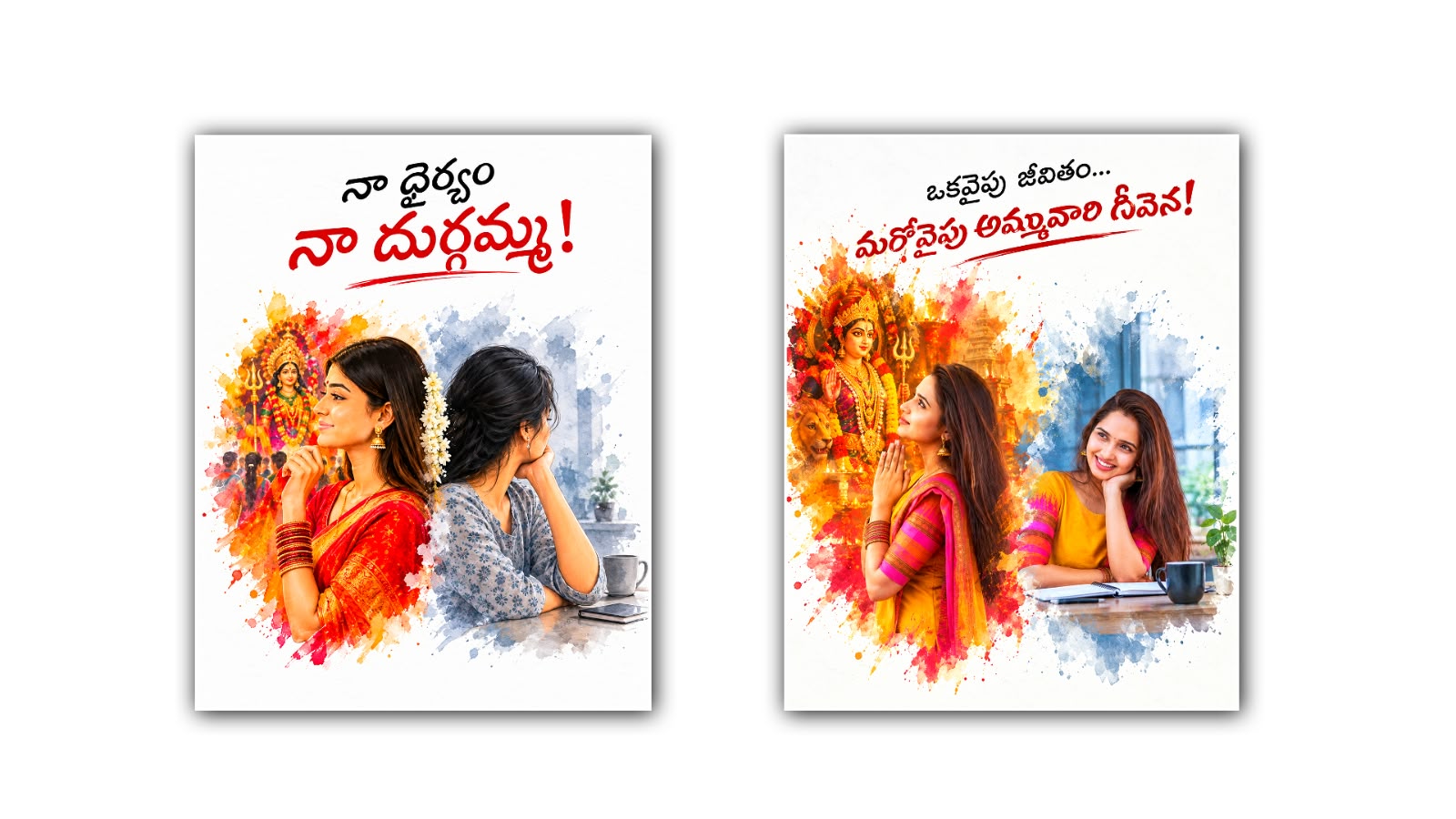

Dual Scene Watercolour Photo Editing in Google Gemini is becoming a creative way to transform ordinary photographs into beautiful artistic images. With the help of artificial intelligence, people can now turn their favourite pictures into soft watercolour paintings that look natural, colourful, and full of emotion. The best part is that you do not need to be a professional artist or have advanced photo editing skills to create something special. With a suitable photo and a clear prompt, Google Gemini can help you explore a watercolour style that combines two different scenes in one creative composition.
In today’s digital world, people love sharing unique photos on social media. Simple photographs are wonderful, but artistic edits can give them a fresh appearance and make them more memorable. Watercolour editing is especially popular because it creates a gentle, dreamy effect with soft colours, delicate brushstrokes, and a handmade feeling. When this style is combined with a dual scene concept, the result can look even more interesting. Two moments, places, or moods can become part of one image, creating a visual story that feels personal and meaningful.
The idea behind dual watercolour photo editing is to bring two visual elements together in a balanced and artistic way. For example, one side of the image might show a person standing in a beautiful garden, while the other side features a peaceful sunset near a lake. Instead of making the pictures look like two separate photographs placed next to each other, the goal is to blend them into a unified watercolour composition. Soft transitions, matching colours, and natural lighting can help both scenes feel connected.
Google Gemini makes this creative process easier for people who want to experiment with AI-powered image editing. Depending on the available image generation and editing features, users can upload a photo and describe how they want it to be transformed. Gemini can use the provided instructions to help create an artistic result while following the visual direction of the prompt. The final output depends on the input image, the clarity of the instructions, and the capabilities available in the version being used.
To begin, choose a photograph that you would like to transform. A clear portrait, a travel photograph, a couple’s picture, or a memorable family moment can work well for this type of editing. Images with good lighting and visible details often provide a useful starting point. If you want the final image to preserve a person’s identity, choose a photograph where the face is clearly visible. Think about the second scene you want to include and how it should relate to the original picture.
Once you have selected your image, open Google Gemini and look for the image upload or image creation feature available to you. Upload the photograph and explain your idea in simple, descriptive language. Rather than asking only for a watercolour effect, describe the complete composition you want to see. Mention the two scenes, the overall mood, the background, the colour palette, and the kind of watercolour texture you prefer. Clear instructions can help the AI better understand the artistic direction you have in mind.
For example, you might use a prompt such as: “Transform the uploaded photograph into a beautiful dual scene watercolour painting. Combine the main subject with a peaceful natural landscape, blending both scenes smoothly with soft watercolour brushstrokes, delicate paper textures, pastel colours, and gentle natural lighting. Keep the person’s facial features recognisable and the overall composition balanced. Make the image artistic, elegant, realistic in its details, and suitable for sharing on social media.”
You can change this prompt according to your own creative idea. If you love romantic photography, you might combine a couple’s portrait with a dreamy sunset or a field filled with flowers. For travel memories, you could blend a portrait with mountains, a historic street, or a quiet beach. If you prefer a peaceful and minimal look, ask for muted colours, a clean background, and subtle watercolour washes. The important thing is to explain how the two scenes should work together rather than simply listing different objects you want to appear.
One of the most attractive parts of watercolour editing is how colours create emotion. Warm shades of orange, peach, pink, and gold can make an image feel romantic and nostalgic. Cool shades of blue, lavender, and green can create a calm and refreshing atmosphere. You can ask Gemini to use a consistent colour palette across both scenes so the composition feels harmonious. Soft edges and natural transitions are also useful when you want the two visual elements to blend without looking artificial.
Another important detail is the balance between artistic creativity and the original photograph. Some people prefer a fully painted appearance, where the entire image looks like it was created with watercolour on paper. Others want a more subtle effect that preserves the original subject while adding painterly textures to the background. You can describe your preference directly in the prompt. If the face, clothing, or other important details change too much, try asking for a more faithful representation of the uploaded photograph and a softer artistic treatment around the subject.
Sometimes, the first result may not match your expectations. The two scenes might appear disconnected, the colours may be too strong, or the subject may look different from the original image. This is a normal part of experimenting with AI image editing. Instead of starting over immediately, provide a follow-up instruction explaining what needs to change. You could ask for smoother blending between the scenes, more natural facial details, softer brushstrokes, or a less crowded background. Making one or two specific adjustments at a time can help you guide the result more effectively.
Lighting is another detail that can make a big difference. When both scenes have a similar visual atmosphere, the final artwork often feels more cohesive. For instance, a portrait with warm evening light can blend beautifully with a sunset landscape. A photograph taken in daylight might work better with a bright garden or an open sky. You can ask for soft shadows, balanced highlights, and gentle colour transitions to make the overall image feel more natural.
The dual scene watercolour style can also be used for creative projects beyond social media. It may suit digital greeting cards, personalised gifts, travel journals, profile pictures, anniversary designs, and artistic posters. A picture that combines a memorable moment with a meaningful place can become a special keepsake. Before using the result for printing, check the image resolution and inspect small details, especially around faces, hands, and areas where the two scenes meet.
Although Google Gemini can make the process more accessible, the quality of the result is not guaranteed to be perfect every time. Image editing features may differ depending on the account, region, and version available to the user. It is also important to review the generated image carefully before sharing it. If you are editing someone else’s photograph, make sure you have permission to use it, especially when the image will be published publicly or used for commercial purposes.
What makes dual scene watercolour photo editing truly appealing is the freedom to turn ordinary memories into something imaginative. You can combine real photographs with beautiful landscapes, create soft artistic backgrounds, and experiment with colours that reflect your personality. Every prompt gives you an opportunity to explore a different visual style, whether you want a romantic composition, a peaceful nature-inspired painting, or a modern artistic portrait.
With a little patience and thoughtful prompting, Google Gemini can become a useful creative companion for exploring this style. Start with a meaningful photograph, describe your two scenes clearly, choose colours that complement each other, and refine the image until it matches your vision. You do not need complicated editing software to begin experimenting. Sometimes, a simple idea and a few well-chosen words are enough to inspire a beautiful watercolour composition that brings two scenes together in one memorable image.
IMAGE PROMPT
Create a beautiful watercolor artistic poster in 4:5 vertical ratio using the uploaded person photo as the identity reference.

LEFT SIDE:
Show the same person in traditional Indian attire, wearing a red-and-gold saree, elegant jewelry, bangles, and jasmine flowers. Pose them in a devotional side profile, looking toward a magnificent Goddess Durga idol with a crown, ornaments, trident, and festival devotees. Use vibrant red, orange, and golden watercolor splashes.

RIGHT SIDE:
Show the same person in a simple casual outfit, sitting beside a table, resting their head on one hand and looking thoughtfully to the side. Add a window, a cup, and a notebook. Use soft grey and blue watercolor splashes.

COMPOSITION:
Blend both scenes naturally with irregular watercolor paint splashes on a clean white background. Match the artistic layout, poses, camera angles, and visual balance of the described poster. No straight dividing line.

IDENTITY:
Preserve the uploaded person's recognizable face, skin tone, facial features, and identity. Keep both versions looking like the same person.

EDITABLE TELUGU QUOTE:
Top small text: "[మీ మొదటి లైన్]"
Main title: "[మీ రెండో లైన్]"

Place both lines at the top center. Use stylish black Telugu lettering for the first line and large deep-red Telugu lettering for the main title, with a thin red brushstroke underline. Keep the text elegant and readable.

TEXT RULES:
Use correct Telugu script only. Preserve the exact supplied spelling. Do not add extra text, bottom captions, logos, or watermarks.

STYLE:
Premium watercolor illustration mixed with realistic details, soft brush strokes, expressive paint splashes, cinematic lighting, and a clean white background.

OUTPUT:
4:5 vertical ratio, high resolution, sharp details, professional artistic finish.
