Looking for a good traditional wedding invitation In this article I will explain to you how to edit the best and beautiful traditional wedding invitation video Read it completely and edit it is going to be very interesting because I have tried some new tricks and new effects for you, I love it very much it is hello color so it goes very well with red color cloth and Telugu fonts.
Telugu Fans Red Cloth Animation Video Red Day Leaves Animation Video Background Music Yellow Colour Background Photo Telugu Fans and their required text dividers and transition effects, so you should keep these ready along with this Kine master app to edit the video.
How to create Telugu titles
For these Telugu titles, you need to install an application separately if you want to create Telugu titles you can create these same applications otherwise it will not work perfectly and also when you are doing animation it will be very late, and you may not get a professional look so if you create it separately in another third party application The best result will be as well as you can edit as you like. So I will tell you how to edit in an application that comes from the Pixel Lab app, in which you can create attractive titles with good colour wedding as you like, and that too in PNG format.
First, open this Kinemaster App If you want this application is available in the Play Store from there you can install it After opening the application click on the plus button, and first you need to add a divider for this you have to go to shapes and select a rectangular shape and make it smaller keep the size at 0.2 and apply black color to this shape. There are many options at the bottom; you can use these options to change the colour. Now this shape should be set horizontally and vertically in the centre.
Then click on the plus button on the top left side and take a text Now if you double-click on this text you will go to the edit option Now type whatever you want to write Example Wedding Invitation Now you have to apply Telugu font for this in the options at the bottom font option Click on this option and in My Fonts, you need to install all the Fonts in this application in advance. If not installed, then go to My Fonts, click on the plus icon, select the folder or file from the Fonts’ gallery of your choice, and then click on the add button. If you do, those forms will be added. Now, click on the font you like and click onAdd Fontt. The font style will be applied to the text you have taken. Then, above the text divider, under the wedding invitation text divider, you can write the name as you like. Apply colour to this text as well.
How to create your own background on ur photo
I will tell you how to create a complete image. First, open the Kine master application, click on the plus button,n enter the name of the project,ct and then click on create. The interface will open, a nd here you will have some images in this application.
Select a yellow or red color among them Now click on this layer or else click on the layer on the right side click on media and add some PNG leaves photos in your mobile from your gallery Add these to the corners of the four sides apply color to these For that, you have to click on the adjustment option on the right side, and you have to change all the colors a little bit. You have to change the four stoves to different colours. No, we click on this layer, er click on the a,pex and take the blur effect. Now you have to set the strength of this blur effect to two or three. Doing this will make the background look a little more attractive.
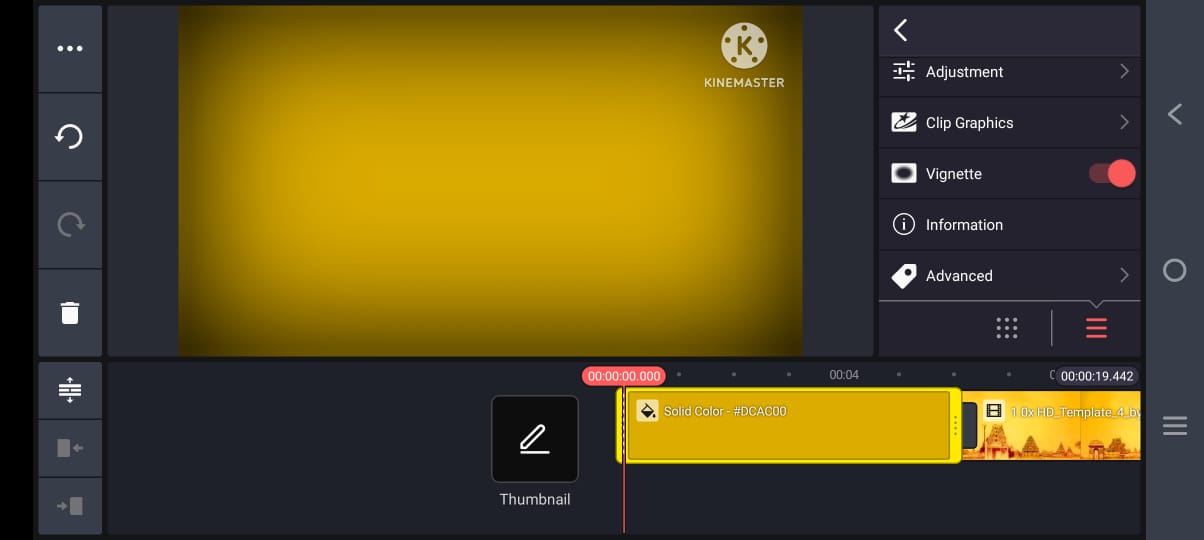
No matter what kind of text or photos and video effects are added on top of this background, we will look very attractive. After that, click on this same layer. This should be enabled. The corners on the sides look dark, so whatever photo we add looks clear to us. After designing some images, if you come to the frame where the image is perfect, click on the view option on the left side and click on the capture and save option. This image will be saved in your gallery in PNG format, so you can create your own background or photos. Along with this, you can also do some leaf animation on the same image. The duration timing should be the same for everything, and only then will you have a perfect animation.
Elements adding
Open the Kinemaster app and click on the Create button here enter a name for your project and select the ratio full screen or landscape that is convenient for you then click on Create the interface will open here first you click on media and background from your gallery You have to select and add an image or video, and then you have to add this video as long as you want to create a video. Then come back and click on the layer and click on the media, and you add a title Add the first title from the titles you have created so far from the gallery then click on this title and add a keep frame and come to two points of the layer on the right side In the available transfer options click on the scale option and impress the text size and again keep from add now it will admit a little zoom in to zoom out or zoom out to zoom in by doing this we will get the feeling that we are making a video animation attractively too.
So if you want to create the rest of the slides in the same way, duplicate the layers you took in the starting apply them under the next slides clickk on that layer, and you will see the replace option on the right side at the top. Click on it and then select the photo you want to use for the site title. Make it enough. Now the next side will automatically go and be ready for you. Along with this also create with photo in the same way while animating this photo first add the title on the left or right then take a photo in the opposite direction click on the craft option to this photo apply the feather and also go to the adjustment option in it The color and brightness occlusion should be increased because the video should be animated only after the color bleeding, after adding all the other programs, finally add background music.
Add this music to the end of the video and delete the extras, then click on the layer, click on media or effects, and add cinematic