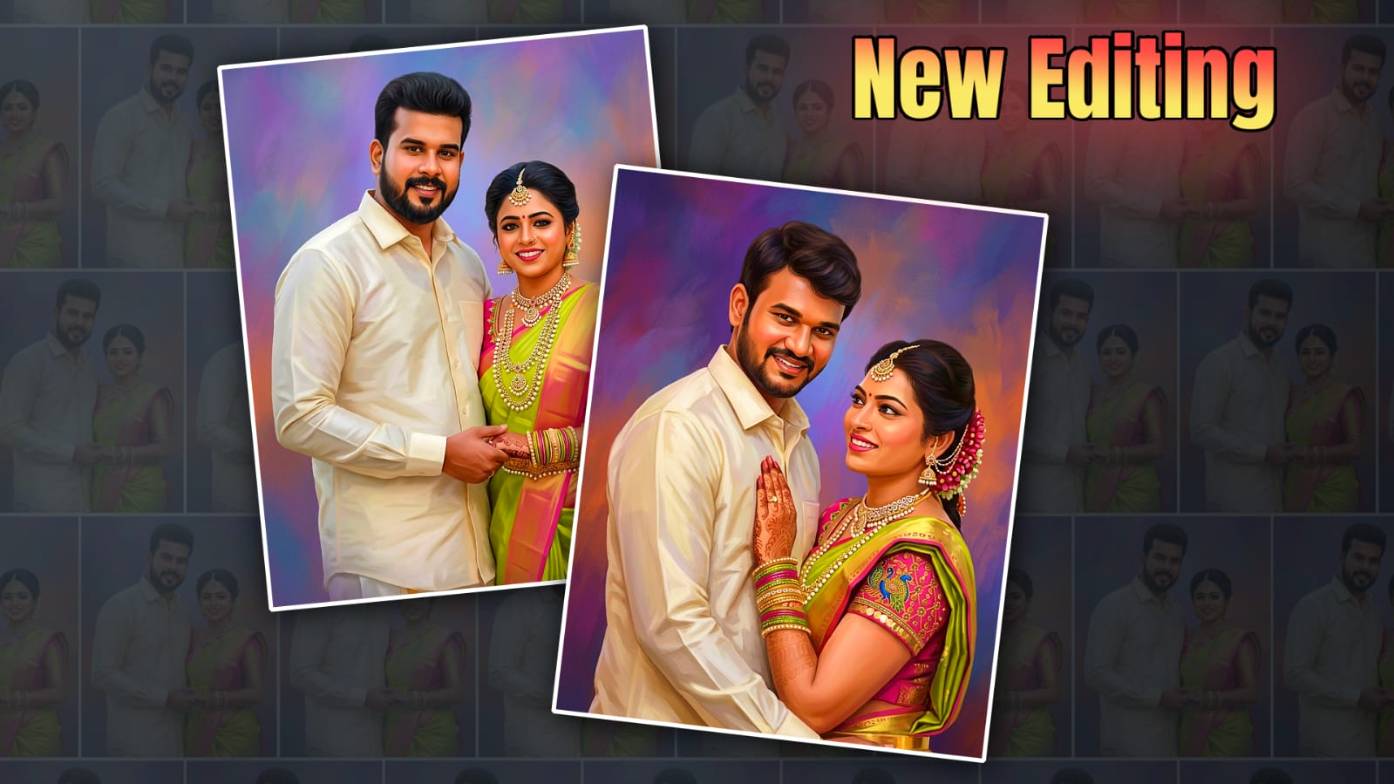

Welcome to another article. In this article, I will give you a step-by-step guide on how to edit digital oil painting photos professionally and in HD quality on your mobile. Anyone can edit. Read this article completely and clearly, and edit it with your photos.
Requirements for this Editing
- You need to install a photo editing application on your mobile
- If you want to edit with AI tools, you also need those tools. Apps or AI tools.
- Similarly, I will explain to you using a total of three applications.
- Install Alight Motion as one of them
- Also install the PicsArt application
First, let’s learn how to edit with the Alight Motion application
Then I will tell you how to edit in other applications. First, you open the Alight Motion application. Select the ratio there. Then give the project name. For digital oil painting, select the ratio of 4:5.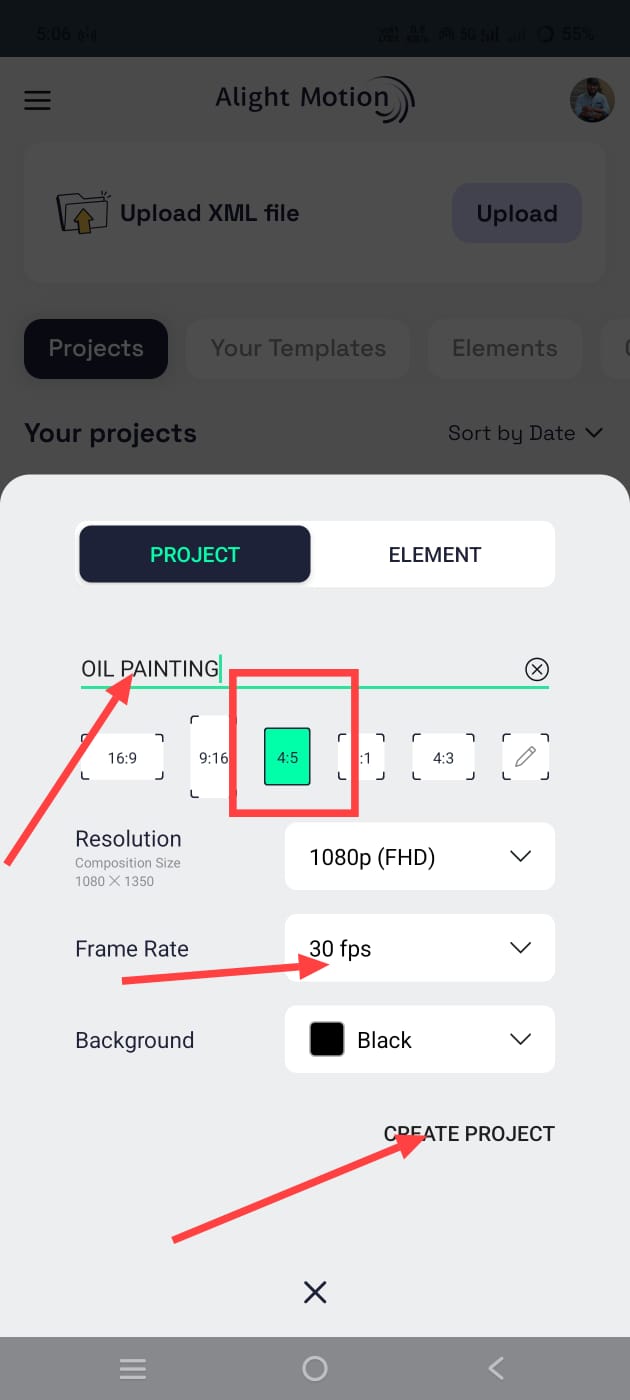 Then it doesn’t matter if you take the colour black or white in the background. Then the frame rate no required, click on Create Project and open it, the next page will open,
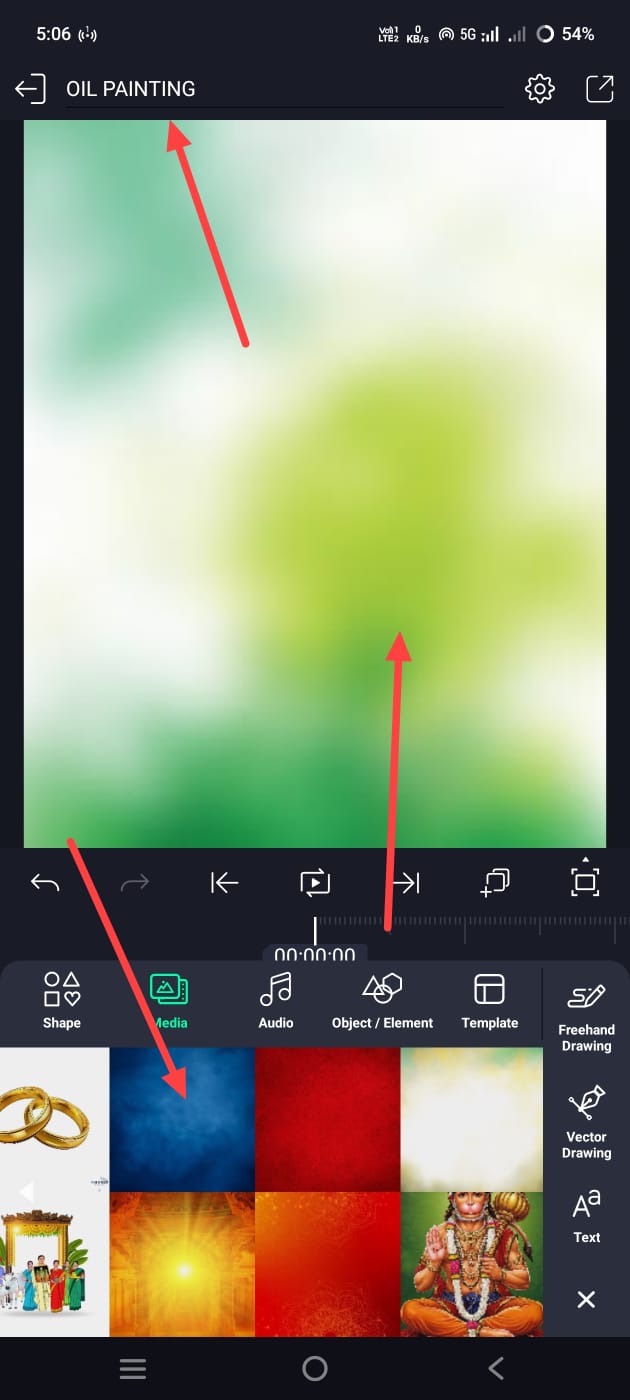 Click on the green plus icon, click on the media option, select any background photo from the gallery, for example, a digital oil painting, you should only take photos that are relative to the color of your photo in the background, after taking this,
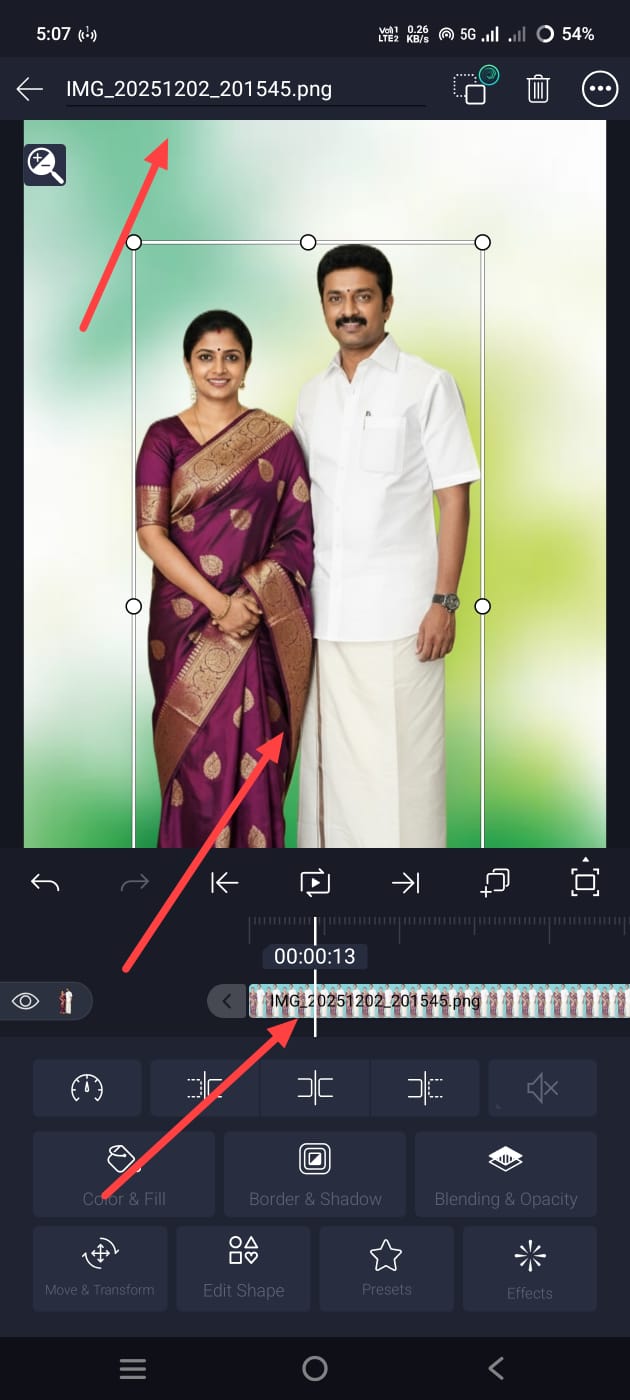 Now you need to add your photo, in which when you add the photo, you need to remove the background of your photo and save it in PNG format. If your photo is in the gallery, come back again and click on the green plus icon, click on the media option and add the photo. Now adjust this photo.
Increase Photo Quality
After adjusting, to increase the HD quality of this photo a little, you have to come back again and click on the effects option. Then go to Effects and choose two effects from the effects.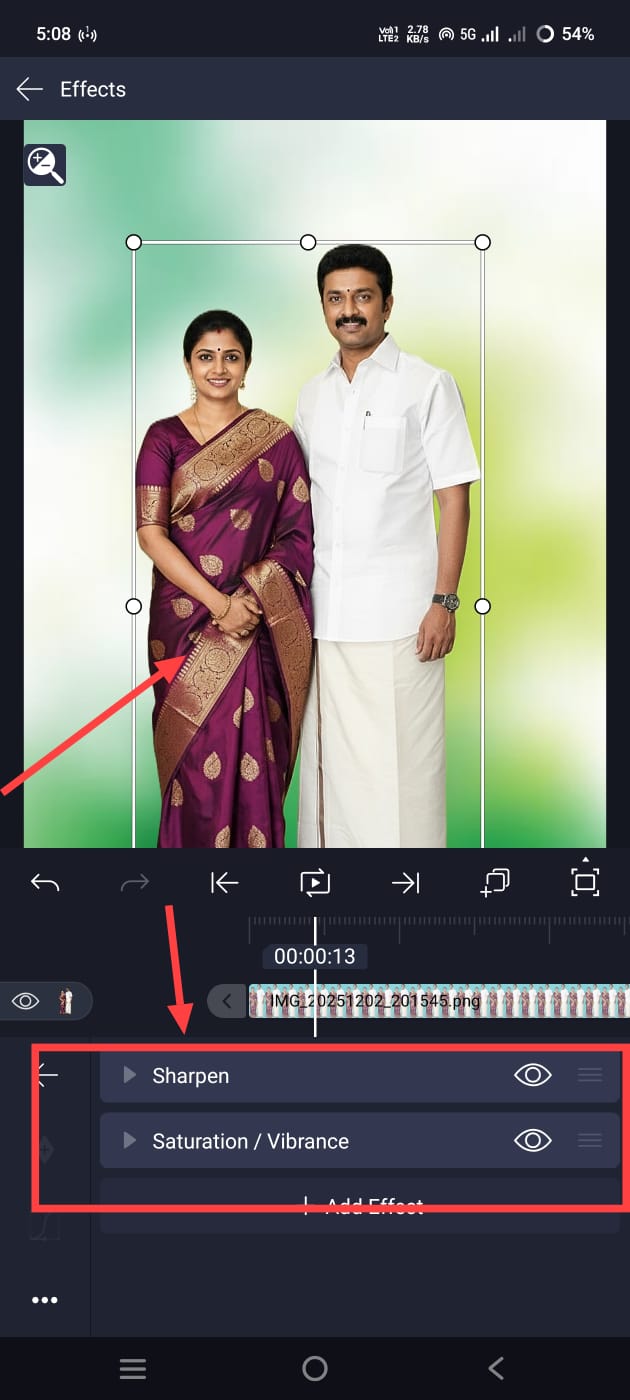 One is sharpness, and the second is saturation. Using these two effects, you have to increase the quality of the photo. Then apply the smooth effect to your photo. For this, come back again and click on the Effects option as before; go to it and apply the Wipe effect. Here you will also have angles. With these angles, you have to apply smoothness wherever you want. So what you will do now is apply a lighting effect to the background of your photo. We do not need to add lighting effects separately.
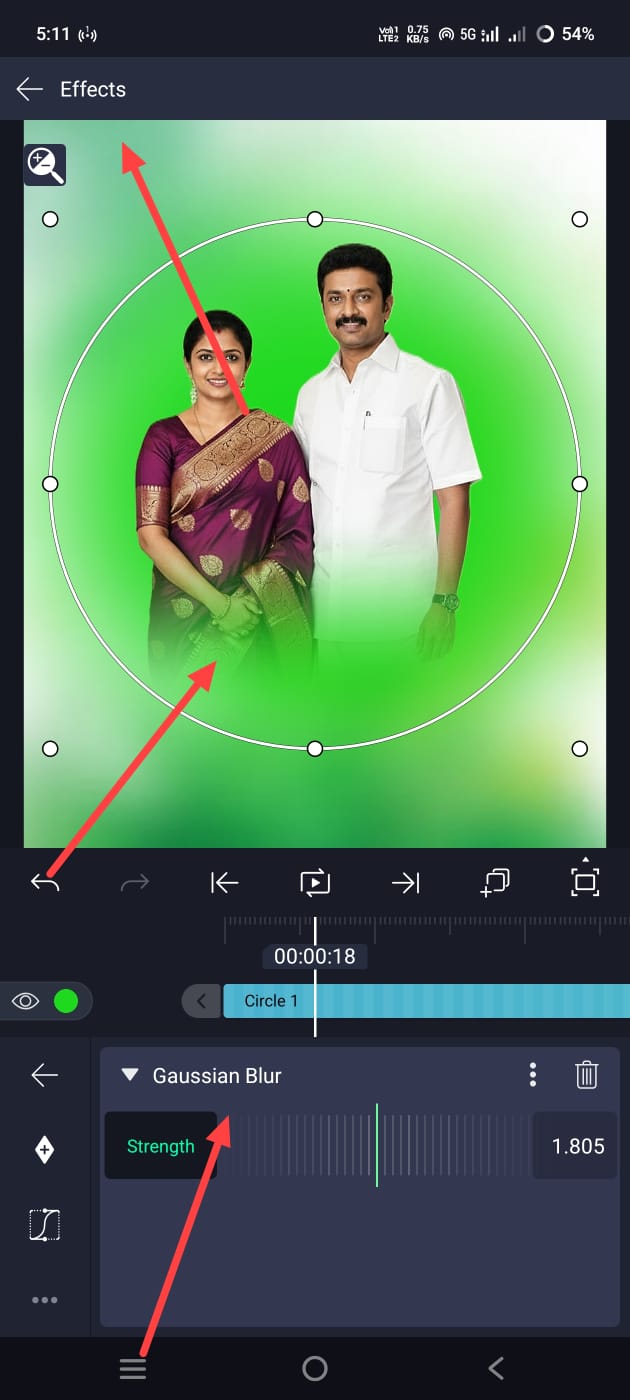 We have lighting effects in this application. For this, come back and click on the green plus sign. Then there will be the Shapes option. Go to it and select a circle shape. Now apply a colour relative to the colours in your photo and background. To apply the colour, you need to click on the Colour and Fill option on the left side. There will be colours in it. Select colours. Now come back again and then click on Effects, and select Gaussian Blur from Effects; then you need to increase it so that the strength is adjusted. By doing this, we will almost complete the photo editing.
Save The Photo
Now click on the Share option in the corner on the right side, and there again you can select the Current Frame as PNG options and save it. After saving like this, if you want to convert it into an oil painting, there is another option for this,
Edit with PicsArt
You can open the PicsArt application. You can edit it directly in the PicsArt application itself. So whatever you find easy, you can do it there. After opening the application, click on the plus icon and add a photo. Add it and click on the Tools option on the left side. There you will have an option called AI Enhance. If you click on the option, it will start automatically enhancing. However, when you click on this option, the internet should be on your mobile so that it will work. You can also adjust colour directly. You can save this image by clicking the Tick icon (✓) right next to the top and saving it as an image.
How to edit using AI
Now let’s learn how to edit with AI tools. With which tools can you edit very easily? How can you edit professionally in the same way as professional editors? For this, we have many AI tools. Open any application or website. After opening it, you will have to sign up again with a number or email ID. After that, click on the plus icon and add your photo. Simply add the photo with which you want to edit a digital oil painting. Now, under that photo, in a language that it understands, you need to clearly explain how you want the photo to be edited. For example, add pixels to the photo you have added and convert it into an oil painting. Then, if there is blur, reduce it and generate it in high quality. Increase the brightness and smoothness in a way that makes it understandable. Only if you explain everything completely, from the background to the foreground, will it be generated. It will generate your photo editing based on the text you give. This will take some time. After that, click on the photo. There will be a save option at the top or bottom. Click on the save option and save the photo. In this way, we can do photo editing very easily with AI tools.
Direct Editing in PicsArt App
If you use the PicsArt application for editing directly, you can make professional HD-quality photos without using any other application. In this, you simply add your photo, remove the background of your photo, and then add any colour photo in the background. In this, we have many PNG images or background images, but we can use them to do oil painting. If not, after applying this photo editing background photos, we have an effects option. If you go into it, you will have all kinds of colour packs. You can do photo editing by simply tapping on them. There are many applications separate for this oil painting photo editing, so we can also do digital oil painting in them.
Prompt
A tremendous virtual oil painting of a romantic South Indian couple. The man is the perfect explorer with a scruffy beard and moustache in a perfect soft cream shirt. The woman is beautiful, wearing a traditional lime green silk saree with a crimson border, embellished with heavy gold pearl essence! Bridal rings, which incorporate Maang Tikka and layered necklaces. Both are smiling warmly on the digicam. The background is an abstract, soft-textured combination of pink, blue, and orange colours. The lighting is soft and tender.
