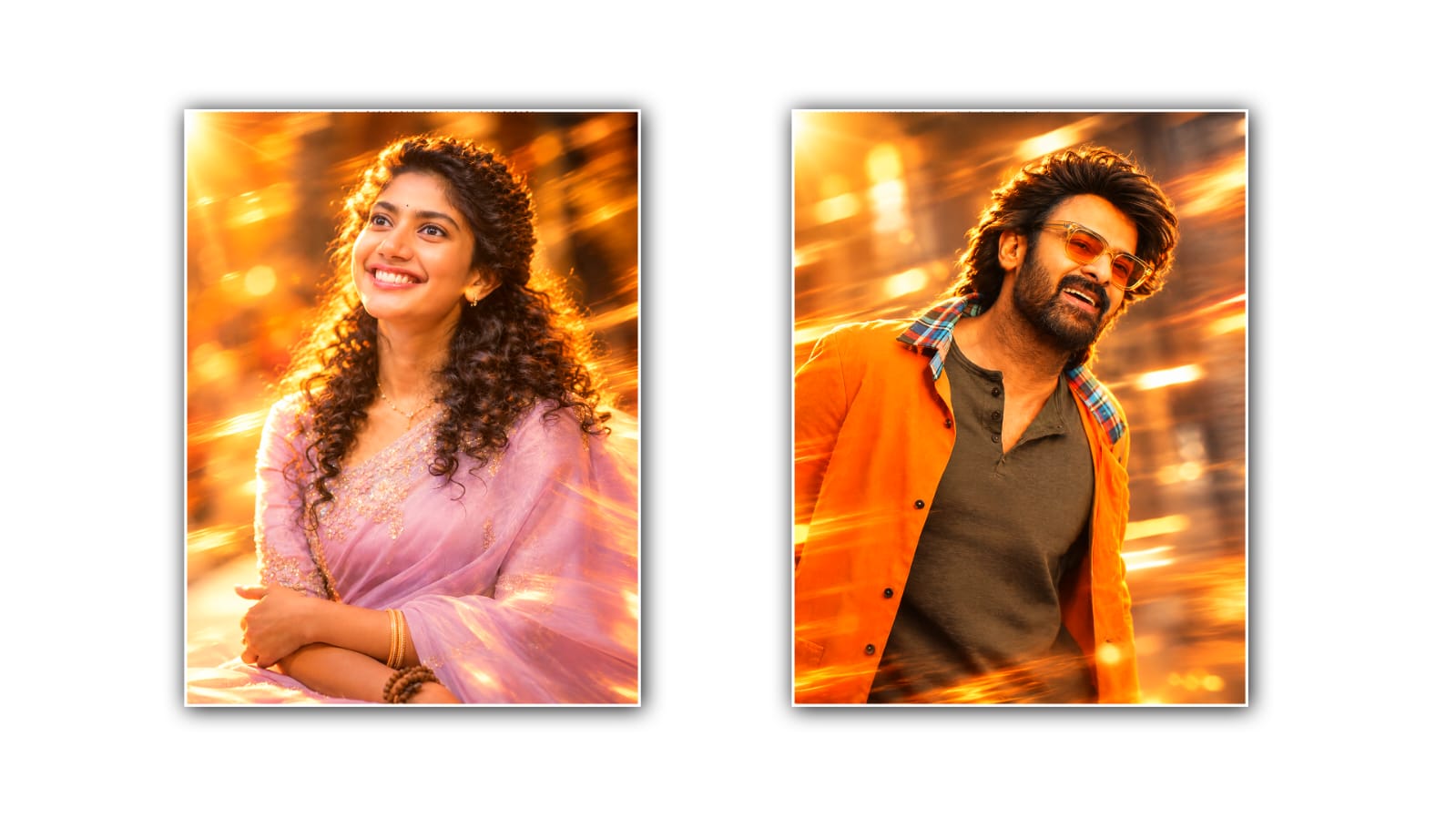

The motion blur effect has become one of the most popular photo-editing styles on social media. It gives an ordinary picture a dynamic, energetic, and cinematic look, making the subject appear as if they are moving quickly while the background flows around them. This effect is especially popular for fashion portraits, street photography, travel pictures, bike and car photos, and creative Instagram posts. The good thing is that you do not need advanced Photoshop skills to create this look anymore. With Google Gemini, you can create a convincing motion blur effect simply by using a good photo and the right editing prompt.
Google Gemini has become a useful tool for people who want to experiment with AI-powered image editing. Instead of spending a long time adjusting blur filters, layers, masks, and other settings manually, you can describe the result you want in natural language. Gemini can then help transform your image according to your instructions. The quality of the final result depends heavily on the original photograph and how clearly you describe the effect you want.
To begin, choose a photo that works well with the motion blur style. A full-body portrait, street photograph, or image where the person is standing or moving in an open environment can produce particularly good results. Photos with a clear subject and enough background space are usually easier to edit. Good lighting is also important because the AI needs to recognise the person, clothing, surroundings, and other details correctly. A sharp, high-resolution image will generally produce a better result than a dark or heavily compressed picture.
Open Google Gemini and use the image editing feature available in your account. Upload the photograph you want to edit and explain exactly what you want to change. You do not have to use complicated technical words. A simple but detailed instruction can work very well. For example, you could ask Gemini to create a realistic motion blur effect while keeping the person in the centre sharp and recognisable. You can also mention that the background should have directional motion blur to make the photograph look as though it was captured while the camera or subject was moving.
One important thing to remember is that motion blur should look intentional. If you simply ask for a strong blur, the entire image may become soft, including the face and clothing. That can make the photograph look artificial. Instead, tell Gemini which parts should remain sharp and which parts should show movement. For example, you can request a sharp face and body with a smooth horizontal blur in the background. This creates the impression that the subject is moving through the scene while the camera captures the action.
Your prompt can be something like: “Edit this photo with a realistic cinematic motion blur effect. Keep the person’s face, body, clothes, and important details sharp and natural. Add directional motion blur to the background and surrounding environment, creating a sense of speed and movement. Keep the original identity, facial features, skin tone, clothing, and composition unchanged. Make the result look like a professional camera photograph rather than an artificial AI image.”
You can customise the prompt depending on the style you want. If you want a dramatic street-photography appearance, ask for stronger horizontal background movement and subtle light streaks. If you are editing a motorcycle or car photo, you can ask for realistic speed motion in the road and surroundings while keeping the vehicle sharp. For a fashion portrait, you can request a softer background blur with subtle movement around the edges of the subject.
The direction of the blur can also change the entire feeling of the photograph. Horizontal motion blur creates a strong sense of speed and is ideal for running, driving, cycling, or street photography. Vertical blur can produce a more unusual artistic appearance, while radial or directional movement can make the subject appear as though they are moving toward the camera. If your first result does not look right, simply tell Gemini what needs to be corrected rather than starting over completely.
Another useful technique is to ask for a natural depth-of-field effect along with motion blur. Real photographs often have a combination of sharp subjects, soft backgrounds, natural lighting, and subtle movement. Asking Gemini to preserve realistic depth and lighting can prevent the result from looking like an obvious digital filter. You can also ask it to maintain realistic shadows and reflections so the edited image still looks like it was taken with a professional camera.
It is also worth paying attention to the face. AI image editors sometimes alter facial features when making major changes to a photograph. If preserving your original appearance is important, specifically instruct Gemini not to change the person’s identity or facial characteristics. Mention that the face should remain sharp, realistic, and identical to the original image. The same applies to clothing, accessories, logos, tattoos, and other details that you want to preserve.
After Gemini generates the edited image, take a close look at the result. Check whether the face is still natural, whether the body proportions have changed, and whether the motion blur follows a believable direction. Sometimes the AI may blur objects that should remain sharp or create strange patterns around hands, hair, vehicles, or other complicated areas. If you notice something like this, give Gemini a follow-up instruction explaining exactly what needs to be fixed.
For example, you can say, “Keep the person completely sharp and reduce the blur around the arms and face. Make the background motion horizontal and smoother. Preserve the original clothing and facial details.” Specific feedback can help you gradually reach a better result. You can experiment with different levels of blur until the photograph has the right balance between sharpness and movement.
Colour grading can make the final image even more attractive. A slightly cinematic colour tone, balanced contrast, and controlled highlights can complement the motion effect. However, it is better not to overdo the colours. The main attraction should remain the movement and composition. Natural skin tones are particularly important in portrait photography, so avoid asking for extreme colour changes unless you specifically want an artistic effect.
The final result can be used for social media posts, profile pictures, creative photography projects, posters, or personal collections. The motion blur effect works especially well when the original photo already has a strong composition. Instead of simply adding blur to make an image look different, think about what story the movement is supposed to tell. A person walking through a busy street can communicate energy and urban life, while a blurred background behind a moving vehicle can create a sense of speed and excitement.
Creating this effect with Google Gemini is ultimately about giving the AI a clear creative direction. You do not need to be a professional photo editor to get started. Choose a suitable image, describe the motion you want, explain what should remain sharp, and refine the result through follow-up instructions. The more specific your prompt is about the subject, background, lighting, blur direction, and realism, the easier it becomes to achieve the desired appearance.
The trend may change over time, but motion-based photography remains a powerful way to make ordinary images feel more dynamic. With AI editing tools such as Google Gemini, experimenting with this style has become much easier for beginners. Instead of spending hours learning complicated editing software, you can start with one photograph and a well-written instruction. With a little experimentation, you can create a stylish motion blur image that looks energetic, modern, and suitable for sharing on social media.
IMAGE PROMPT
“Enhance the image with a rich, warm golden-amber cinematic illumination, featuring pronounced directional motion blur and elegant flowing light streaks surrounding the subject. Preserve the original visual composition, styling, design, pose, outfit, facial appearance, and overall aesthetic exactly as they are. Add a subtle dreamy radial/zoom-motion atmosphere with softly diffused highlights, delicate glowing edges, gentle lens flare, luxurious amber-gold tones, and smooth,mooth silky light trails. Maintain a shallow depth of field with a naturally softened background while keeping the subject’s face and important details crisp, sharp, and highly defined. Allow only the surrounding environment, fabric, and hair to develop graceful dynamic motion trails without altering their original design or appearance. Preserve realistic natural skin tones, refined contrast, soft cinematic bloom, and warm golden-hour illumination. The final result should remain photorealistic, elegant, premium, and editorial, with the same Indian traditional cinematic aesthetic and original design intact.”
