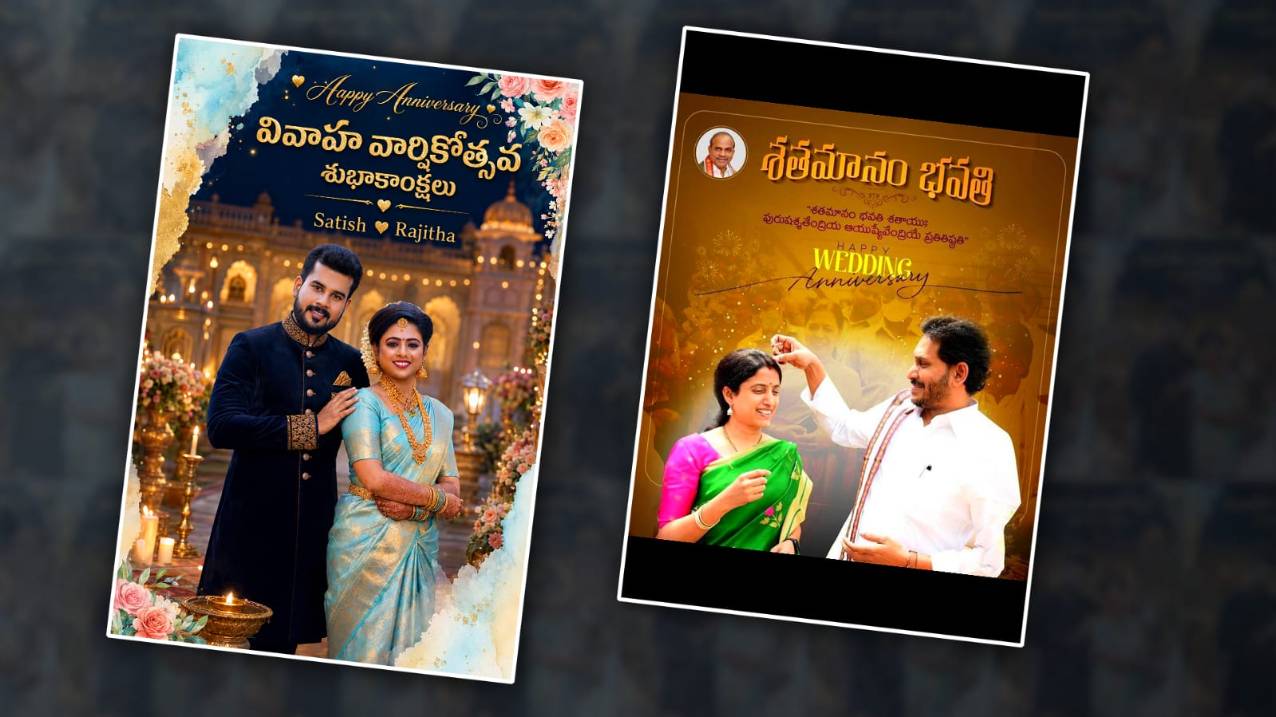

Welcome to another tutorial. In this article, I have explained to you completely and clearly how to edit Happy Anniversary Wishes Photo Editing in the Alight Motion app. So, read this article completely and edit it with the photo of your choice. Only then can you edit without problems. I will explain it in simple terms, in a language each of you can understand. So, try to follow our page every day and let me know in the comments what kind of editing you want.
Gather some files for this editing.
- First, you should have the Alight Motion application installed on your mobile.
- Also, take one or two of your couple’s photos.
- Also, gather some PNG images related to the banner to add in the background.
- Also, make sure that the background image in the background is a little cinematic and dark red in colour.
So, first prepare these, then first open the Alight Motion application, after opening it, select the ratio, that is, the ratio in which you want to do photo editing, select that ratio,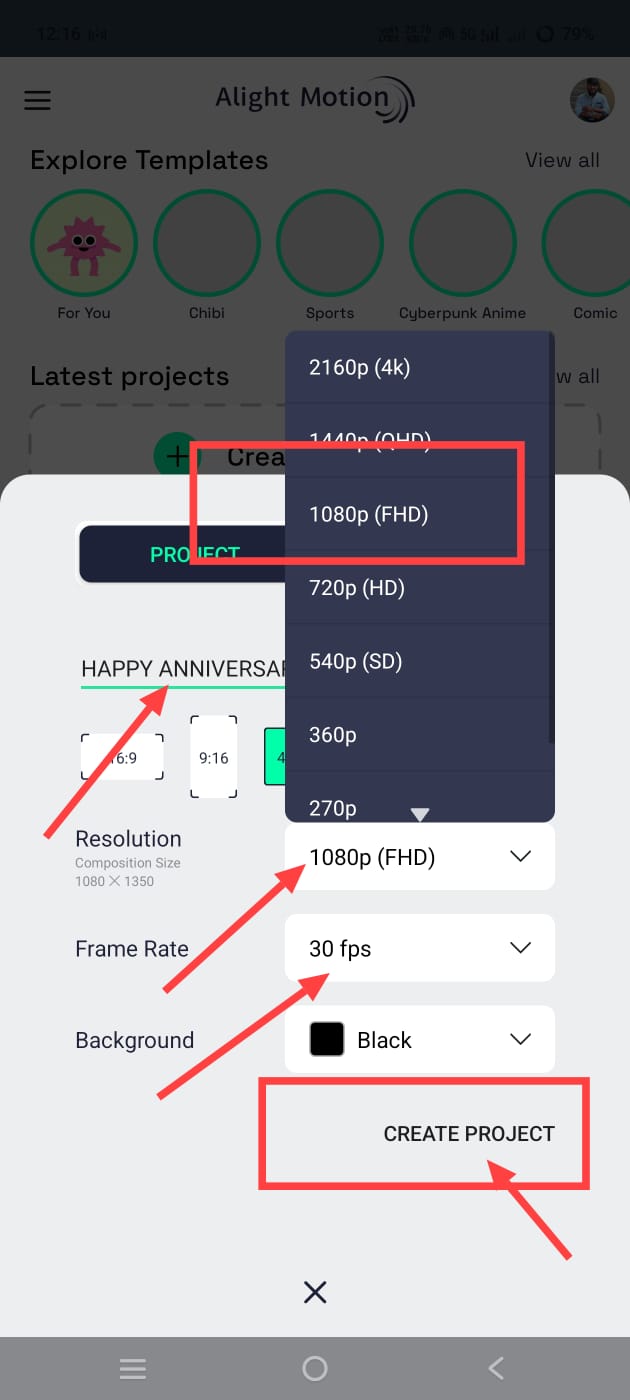 Then enter the name there, for example, take the name of the project Happy Anniversary, also select the quality, then the frame rate, we do not need all this, directly click on the create project and open the project.
Add Background
The first thing to do there is to add a background image, for this, simply click on the plus icon in green color at the bottom, then there will be a gallery option, there will be many options, there will be a media option, go into it, there will be a gallery option, go into it and select the red and dark background photos in the background as mentioned earlier and add them.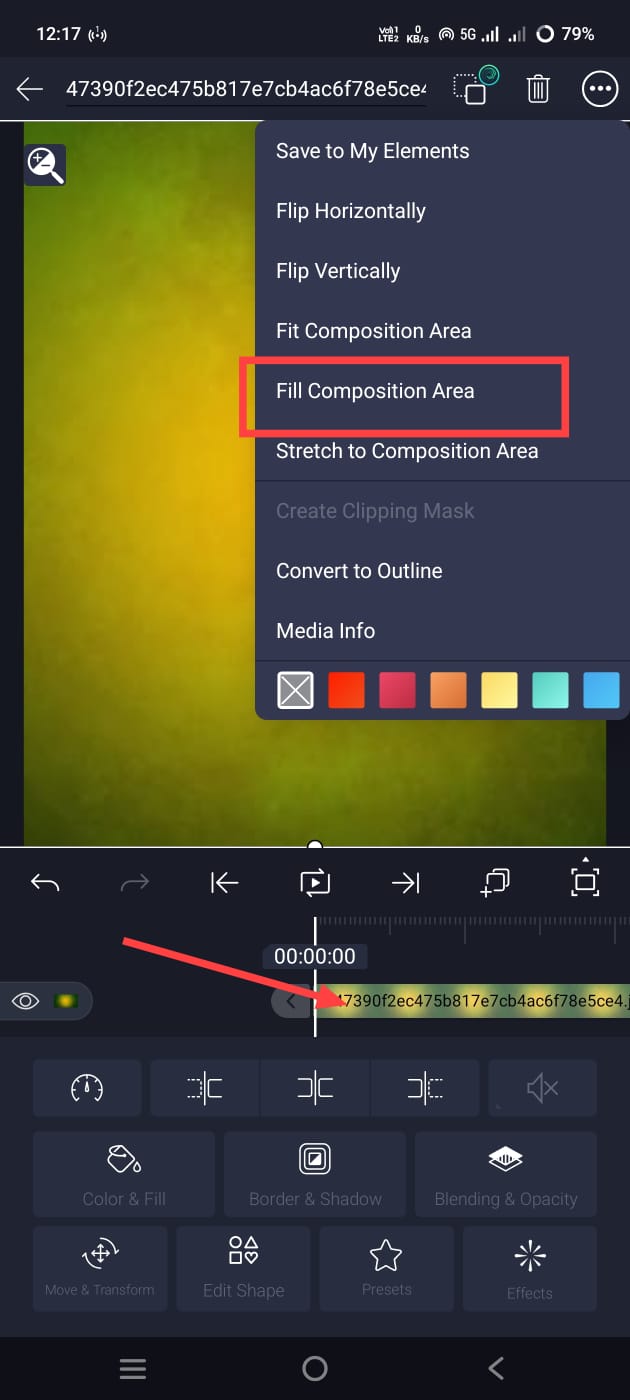 After adding, it should fit the entire screen. For this, you can also fit it manually with your hand fingers or click on the three dots at the top on the right side; then there will be an option called Fill Composition Area. You can also fill it by clicking on it.
Add some decorative PNG images.
Now, you need to add some PNG images to this photo, if you have any. For that, as mentioned earlier, click on the green plus sign, click on the media option, add from the gallery, add and arrange them in the corner, and set them in all the corners.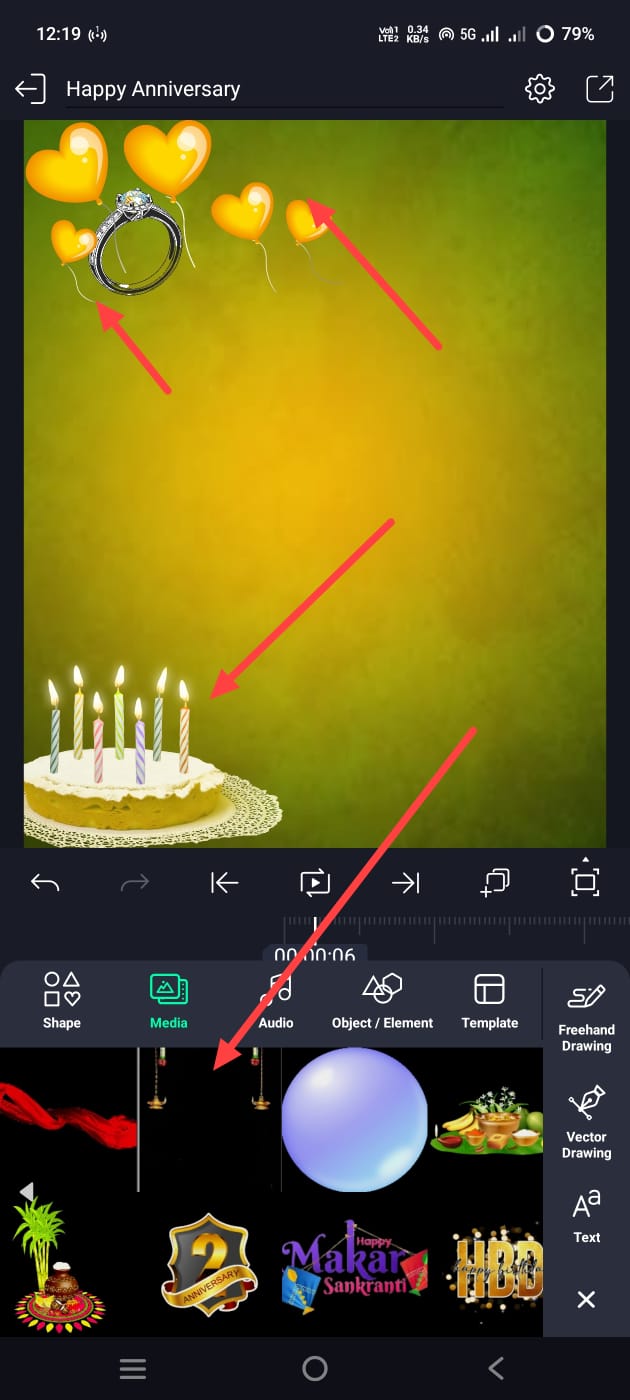 If there is only one, duplicate it and set it in the corners repeatedly. After setting it like this, now you need to add your photo as well. For this, you have to come back again and click on the green plus sign, click on the media option, select the couple’s photo from the gallery and add it. Add this photo and select only the photos with the background removed. If you cannot remove it, many of us have websites or AI tools, as well as applications. Even the new mobiles that have come out now have a default setting to easily remove it. Remove it and add it here. Only if you remove it and add it like this will it look very good here. Otherwise, you will not have a professional look. It is not good to do it even for now.
Photo Quality Improving
Let’s add some effects to improve the quality of your photo. For this, simply click on your photo layer. Then the Add Effect option will appear under it.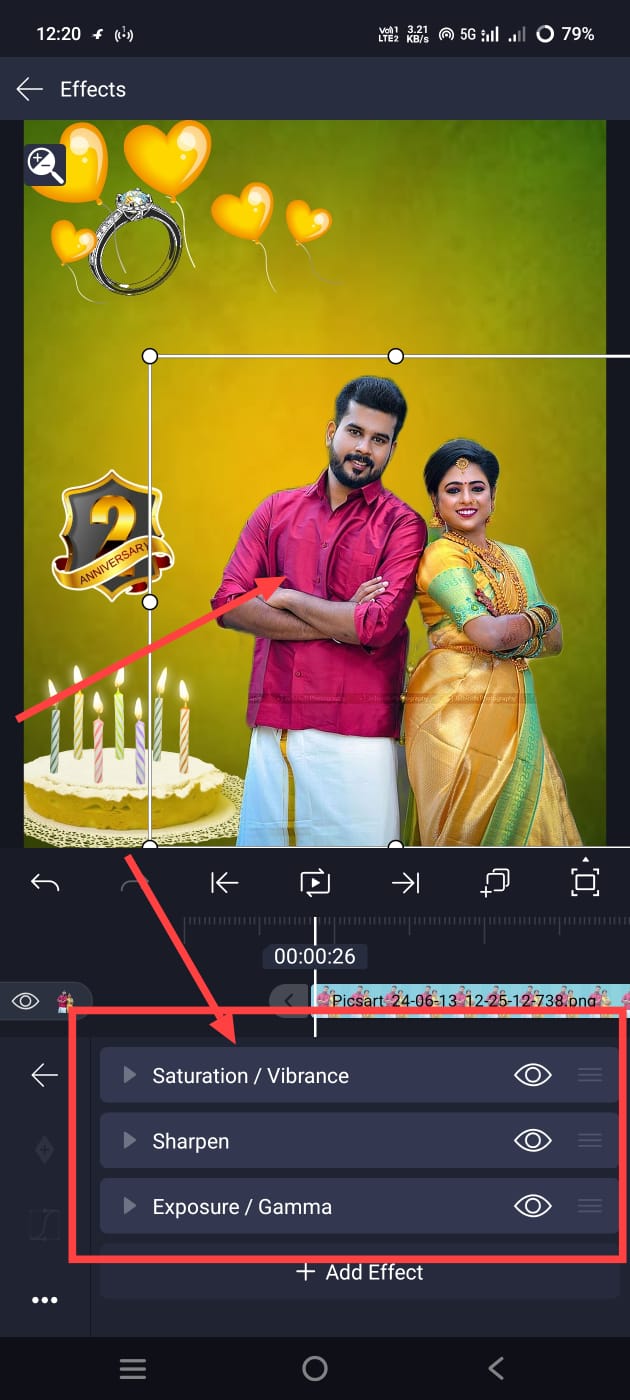 Click on it. There, click on Add Effect and add three effects in the effects. Here, Gamma, the second is Saturation, and the third is Sharpness. If you add these three effects and adjust the settings in them, your photo quality will improve. After that, we also need to add the names of the people in these photos.
Anniversary Text Adding
Before that, we need to take text in Telugu or English; if it is in English, then take text in Telugu that says Happy Anniversary. If it is in Telugu, take the text content stating Happy Wedding Anniversary.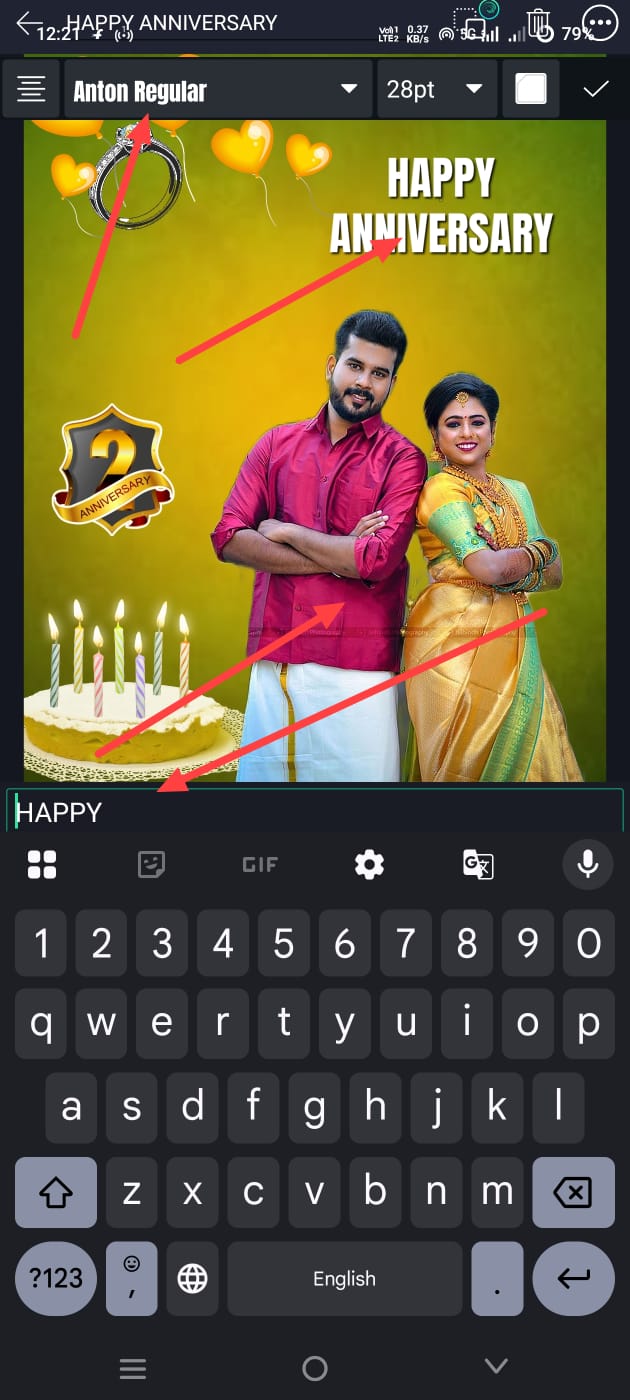 To upload any text, first come back and click on the plus sign, then click on the option to upload text to add the text content and give the text content, like, if it is long in English, a good Happy Anniversary. If you want to get the options related to this, there will be an edit text option at the bottom. If you click it, options for colour, font size, etc. will appear at the top. If you have all these options, you can set them and do the same. You have to align this text on top of this image. Because the names should come under it, leave a little space. So after doing this, you have to click on the add text again as mentioned earlier for the names and type the name in the text. After typing both the names like this, now you have taken it. You have to add this text under the Happy Anniversary text. After that, almost all photo editing is complete. In this, you can edit the photo in two ways.
Add smoothness to the photo bottom.
First, if you want to save it, you have to apply smoothness to the photo you took earlier. For this, click on the photo layer, go to Effects, and click on the Add Effect option; there is a feather option in it. Through this feather, we need to increase the smoothness at the bottom.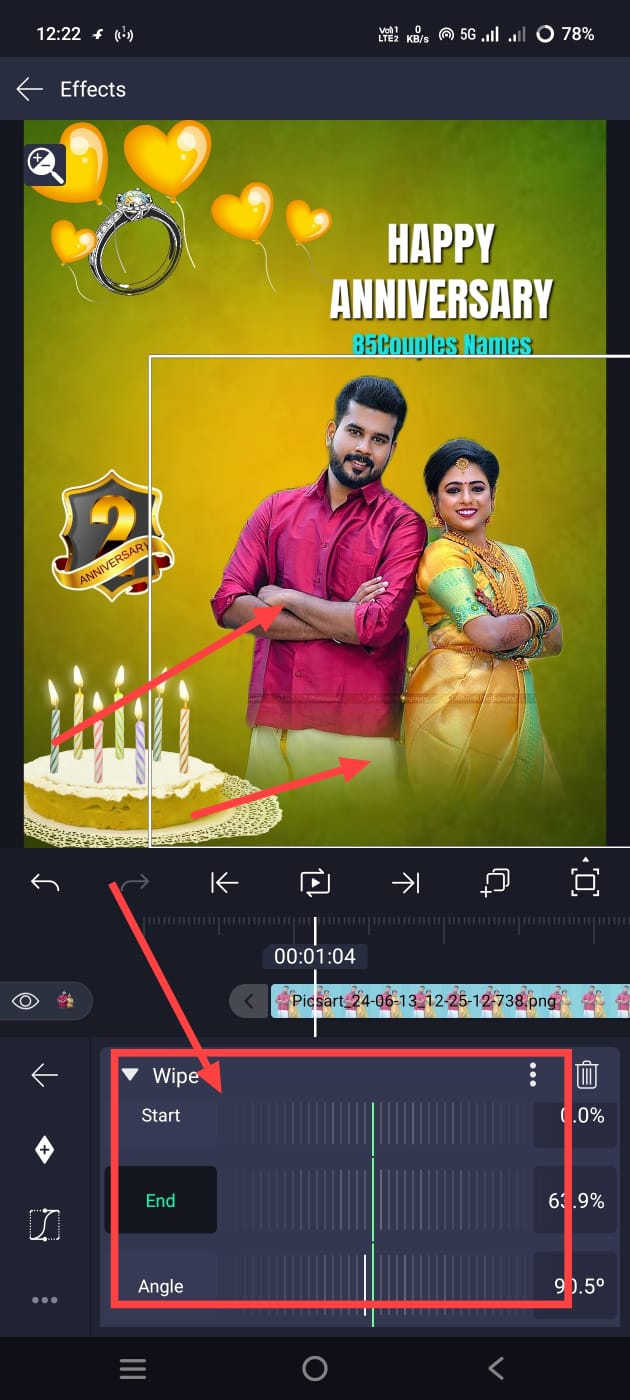 If we increase the smoothness in this way, the photo editing will get a slightly professional look. Unlike any other mistake
Don’t make common mistakes.
A common mistake that many people make is that they directly remove the photo background and add photos and effects without aligning them. They do not add any effects to increase the clarity of the photo editing, nor do they add any colour grading or smoothness, but they directly add photos as normal and save them directly. It is because of these small mistakes that we do not get a professional look in photo editing.
Save Photo to gallery.
So if you want to check if everything is correct or not and save it, click on the share option on the right side. Then there will be an option called Current Frame as PNG. So you can edit it in this way. If you want to use other tools, you can easily and if you want, AI tools are also available now, in which you just upload the photo of the couples you like and tell them what it means under that photo in Telugu or English, but clearly, how you want the photo to be edited, it will take some time and edit it and give it to you. Simply click on the edited photo and save it.
Prompt
Ultra-realistic Telugu wedding anniversary poster using the uploaded couple photo with identical faces and natural smiles. Groom in royal navy blue sherwani, bride in pastel blue saree with temple jewellery and jasmine flowers. Luxury palace background with fairy lights, candles, floral decor, and cinematic lighting. Add “[Your Name] ❤️ [Partner Name]”, “వివాహ వార్షికోత్సవ శుభాకాంక్షలు”, and “Happy Anniversary”. Premium 8K South Indian wedding poster style.
