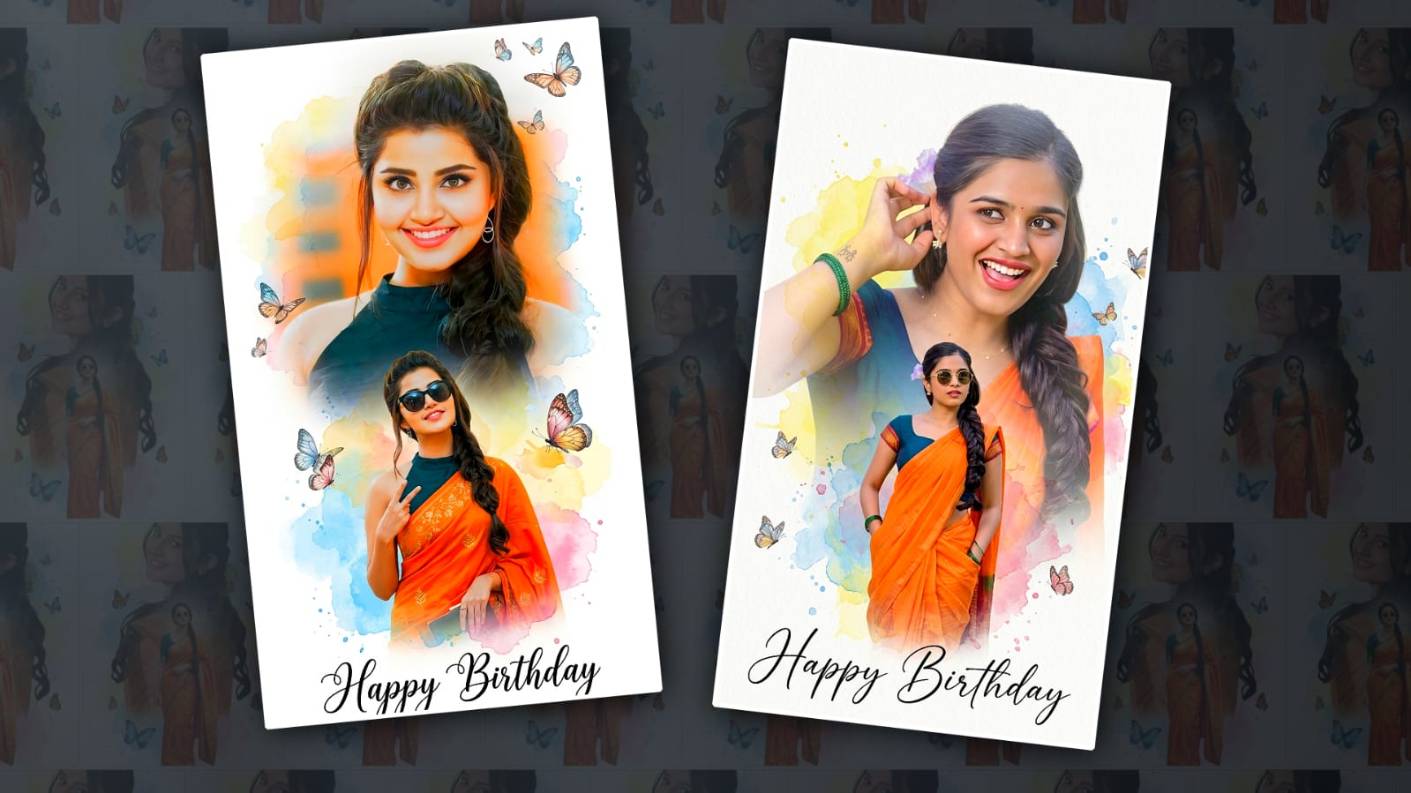

Hey, absolutely everyone, welcome to another topic. In this topic, I will tell you how to edit a happy birthday photo with the butterfly effect in the PicsArt app. Read the article completely, and you can also edit it. It will be easy.
First, let’s see what is required for this photo editing
- PNG butterfly effect images
- Two photos of yourself
- Background image
- PicsArt application must be installed on your mobile
- If you want to add any other effects, keep their images ready.
Create a new project in the Picsart app.
So now let’s learn how to edit. First you open the PicsArt app, after opening it, there will be a plus icon in pink color, click on it, add an image, to add this image, it doesn’t matter which image you have, otherwise there will be many images in it, add any color image, how to take this color image, that is, take it in plain yellow color or add any color image, then you can change the color, after adding it,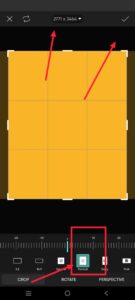 Here you go to the crop option again, after going there you have to select the ratio here. The ratio of the photo is 4:5 or you can take something else, if not, this ratio will be good for the photo, then now click on this layer to change the background color, then there will be a color option, click on it, you can also go into the options below and select the color of your choice, then now you have to add another image with any effect like yellow or orange color on this photo. For this, you come back again and click on the Add Photo option in the options at the bottom. There are many options in it, and after clicking on the Photo option, add a photo from your mobile.
Add Decorative PNG images.
If you don’t have a photo, there will be another option next to the Add Photo. If we use these options and click on this, we will have many effects, PNG images and many more.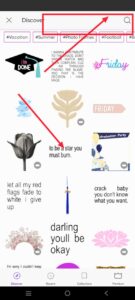 Search for stickers in it and add whatever you want, and make adjustments to the background. After making adjustments, now you have to add your photo. For this, come back again and now click on Add Photo.
Add Your Photo
Then add your photo from the gallery. Click on Add, and those photos will be created.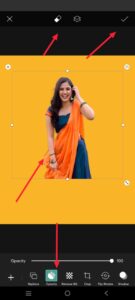 There will be some more options at the bottom. There will be a Background Remove option. Click on it. Then some more options will come. Again, there will be an option called Person in the options below. When you select this person, mobile data should be on on your mobile; only then will it work. Background Remove: This will bring back the background photo that was removed and make adjustments there. After making the adjustments,
Add Butterfly Image
Now you need to apply another effect, the same butterfly effect. How to add it? After coming back, there will be options at the bottom. As mentioned earlier, click on the sticker option and search for butterfly in the search bar. You will get many images.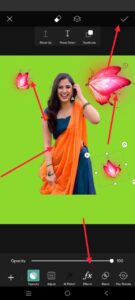 Add the images you like. Then, wherever you have the background blank, duplicate them and adjust each one. After making the adjustments, add your second photo on top of this effect. For this, simply click on Add Photo again. Here, you need to add your full photo. After adding, at the bottom, there will be Remove Background or Remove BG. Click on it. Click on the person option again and remove the background. Now, make the adjustments. If the background is not removed properly, there will be an eraser tool option at the top. Click on it, and wherever it is not removed, it can be removed.
Birthday Text Create
Then, finally, you need to add the Happy Birthday text. For this, after coming back, there will be an Add Text option in the options at the bottom. Click on it. After clicking, you will directly type the text Happy Birthday.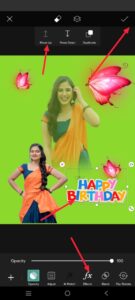 If you type, there you will have many options for font styles, colours, and adjustments. If there are many tools, use them and set the colours. Or if you want it to be stylish and professional, instead of the text you just added, after coming back, click on the option called Stickers again and search there. After setting the Happy Birthday text like that, if you get many options, select one of them and add the text you like and adjust it properly at the bottom. After making the adjustments, finally check whether everything is correct or not.
Common Mistakes
The common mistakes that many people make are that they cannot remove the background of the photo properly, as well as not being able to make the photo properly, and also not being able to make adjustments, not being able to add effects properly, and in the same way, they cannot add the photo properly. Small mistakes like not doing colour grading and aligning photos in text can ruin the professional look of the photo.
Save Photo to Gallery
So, once you have aligned it in the centre, as I said, on the right side there will be a save option at the top or click on the tick mark. Then click on the Save to Gallery option and save the photo. Before that, if you want it in full HD, there will be another option. Similarly, when you come back, after coming back, there will be a tool option at the bottom on the left side. Click on this. You will have many options in it. Don’t get confused. In the options, there is an AI enhancement option at the bottom right side. When you click on this, mobile data should be on your mobile. Only then will it work. Then, after clicking on this, it will automatically add pixels to your photo, reduce the blur if there is any, and make your photo clear in HD. Then save this photo as mentioned earlier.
Photo Editing with AI
If you ask me to tell you in a very simple way, I will tell you how it is: we can edit it on the website or using other AI tools. Let’s see how it is. There are many tools for this. We all use Google Gemini or ChatGPT regularly. Open any of them. Upload and type the photo editing method as you like under that photo. No, if you don’t know how to be kind, give me an easy example. I uploaded a photo and allocated pixels and edited it professionally, like a double promotion photo editor. Happy Birthday photo editing with butterfly effect. It will take you a few seconds or minutes to edit your photo. Then click on that photo and save it. In this way, you can edit it in both ways.
Prompt
A lovely Indian lady with a long braid, wearing a colourful orange saree and a dark teal shirt. The photo is a double publicity creative edit on a smooth white heritage. The top half suggests a close-up portrait with a heat smile, and the lower half shows her in an elegant pose sporting sunglasses. Surrounded by gentle watercolour shimmers in shades of yellow, blue, and red, ” Happy Birthday ” is written in stylish black curved calligraphy with a minimum of delicate butterflies floating around.
