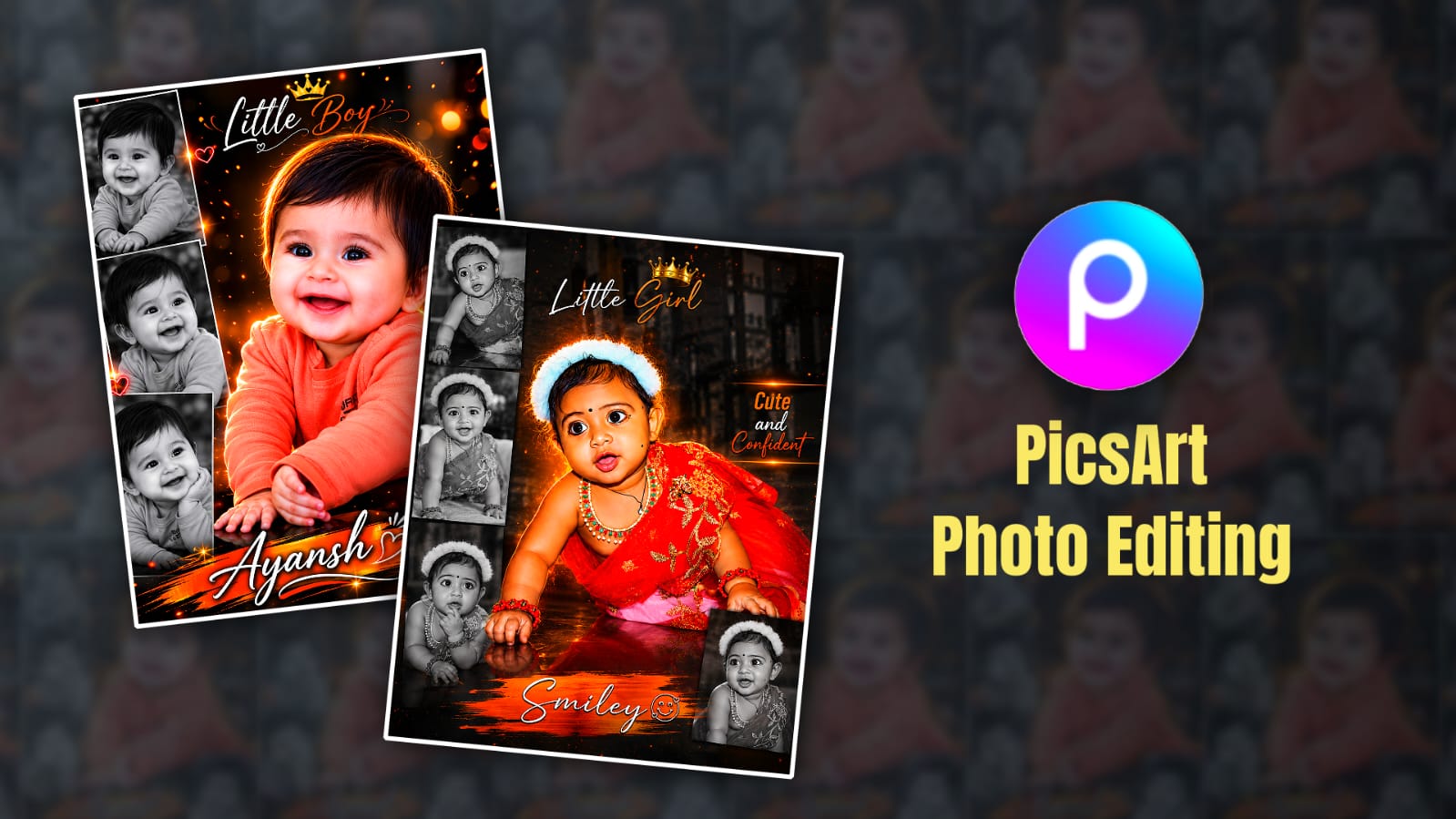

In this article, I will tell you how to edit a trending, attractive kids’ photo in HD quality in the Picsart app. Read the article completely and edit the photo you like.
First, gather the things you need for this photo editing.
- First of all, the background lighting effect should be a dark red background,
- Stylish font styles.
- One or two brushstroke PNG images are also needed.
- PicsArt application should be installed on your mobile.
Now let’s start photo editing. First, open this application on your mobile. When you open it, you will see five options at the bottom, in which the plus icon option, like the one in the middle, will appear.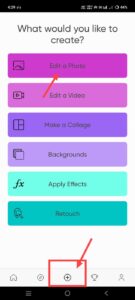 Click on it. If you click on it, you will have 6 options here again. The first option among these is the Edit a photo option. Click on it and add a background photo. After adding the background photo, you will again have to adjust the ratio of this photo. For this, you will have many options at the bottom. You click on the second option. The option name is Tools. We have many options. In this, you have to select the crop option again. After that, you have many options to select the ratio. But in this, you have to select the best ratio for photo editing. Portrait Ratio. Select it. There will be a right mark in the corner on the right side. Now we have a background. It is ready. Now we have to add photos on this background. As I said in the beginning, what you need for photo editing. You should also add your own photos. Add them too.
Kids Photo Adding
First, add your photos, kids’ photos, and a photo. First, in the options at the bottom, swipe from right to left.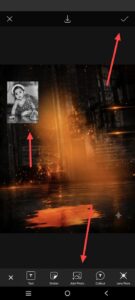 If you do this, the Add Photo option will appear. Click on it. It will take you directly to the gallery. Now, select any photo. After selecting it, click on that photo and some options at the bottom again. There will be an effects option in it, click on this option, when you click on it, first we have to change this photo to black and white color, for that we have some more options here at the bottom, in which there will be a B&W option, click on this, there are many filters in it, in which we have to select black and white color, then again in the right side corner there will be a right mark, click on it, after clicking like this, we have to crop this photo again. For this, there will be a crop option here again; go to it, in which we have to select the portrait ratio option again. All of them should be selected as the portrait ratio option; then you should adjust this photo. Add three photos as a line on the left side; first, add the photo you added on the top, on the left side. After adding it like this, add another photo, the same.
Similarly, you need to add another photo. For this, again use the third option in the options at the bottom.
There you will have an add photo option in the right-side corner at the top; click on it, and the photo will be added. Then here you have to crop this photo again as you did before. For this, click on the crop option again and then go to portrait and crop it. When you click on the right mark in the right-side corner again, you will see the effects option.
Black and White Three Photos
Go to that and select the black and white option again. In the same way, you have to add three photos. Three photos should also be added on the left side, one photo under one photo, and three photos on the left side.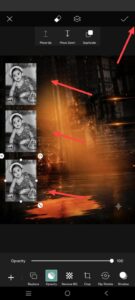 After that, add another photo, add it in the middle and add it in big size. For this, you need to add a different photo from the gallery after adding the photo. After adding, you need to remove the background of this photo. For this, you will have the Remove Background option in the options at the bottom or the Eraser Tool option at the top. Click on it. Then again, some options will appear at the bottom, in which there will be the Person option. Select it. After that, when we select it, the data should be on; then it will work. Then again, click on the tick mark in the right-side corner and then make adjustments.
Brush Stroke Effect
Now you need to apply a brush stroke under that photo. For this, you will have a sticker option in the options below. Click on it. There you will see an option called Discover. There you will also find a search. Search there. Here you will find a search for brush stroke. You will get a lot of PNG images. Select any one and make adjustments at the bottom.
Name Adding
After making adjustments, now you need to add text on it.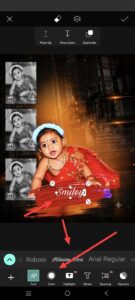 For this text, you have to come back again. Click on the right mark at the top. Then there will be a text option at the bottom. Click on this. It will take you directly to the text editor. Here you first add a name, add it, click on the tick mark, apply a font and colour to this text, select the size and add it to the brush stroke at the bottom. Now take another text and add it on top. Here you go to edit the text and add little boy, or if it is a little girl, if it is a boy, add boy, or if it is a girl, add boy. Then take another text on the right side. You can also take any text you like as a quotation type. Now you have to edit the photo like this for the final touch.
Photo Enhance
After coming back, the photo should be in high quality. For this, after coming back, there will be a tools option on the left side. Click on the option.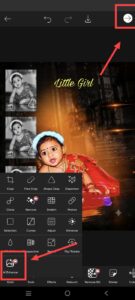 Here again, at the bottom,m there will be an option called Enhance. Click on this. When you click on this, the internet should be on; then it will work. It will take some time, and it will convert your photo to HD quality. Then click on the tick mark on the right side,e and then there will be a save option at the bottom. Click on it on the left side and save the photo.
Edit using AI
However, I will tell you another method or another way to edit more easily. You can also edit this very simply and quickly using AI tools. For this, you can use ChatGPT or any other tool. Here, you first open ChatGPT. When you open it, there will be a plus icon. Click on it and select the photo option. Select the photo. Upload it from the gallery. After uploading, give the text or prompt under that photo. I will give you access to it in the article below. Copy that area. If you don’t know how to edit the text or prompt, I will paste it for you in this article. Copy and paste it under this photo and submit it. It will take some time,e and you will easily edit it in a few seconds. Then click on the photo and save it if it is a photo. And another thing is that you have to replace the details related to your photo in the text that I have given in that area. For example, after the name, after the age, after the boy or girl, like this.
Use this prompt to generate a photo.
Create a premium cinematic baby poster using my uploaded photo. Keep the face, eyes, hairstyle, smile, skin tone, and outfit unchanged.
Layout: 1 large colour photo in the centre, 3 black-and-white photos on the left, 1 black-and-white photo at the bottom-right. Add orange-golden rim light, glowing outline, sparks, bokeh lights, cinematic particles, and a dark black background with orange highlights.
Text:
Top: “Little Boy” with a golden crown
Right: “Cute and Confident”
Bottom: “Name” on an orange brush-stroke banner
Style: Orange & Black theme, premium Photoshop edit, hyper-realistic, HDR lighting, sharp details, luxury baby poster, 8K quality, magazine-cover look, vertical 4:5 ratio. Match the reference poster composition, typography, lighting, and colour grading.
