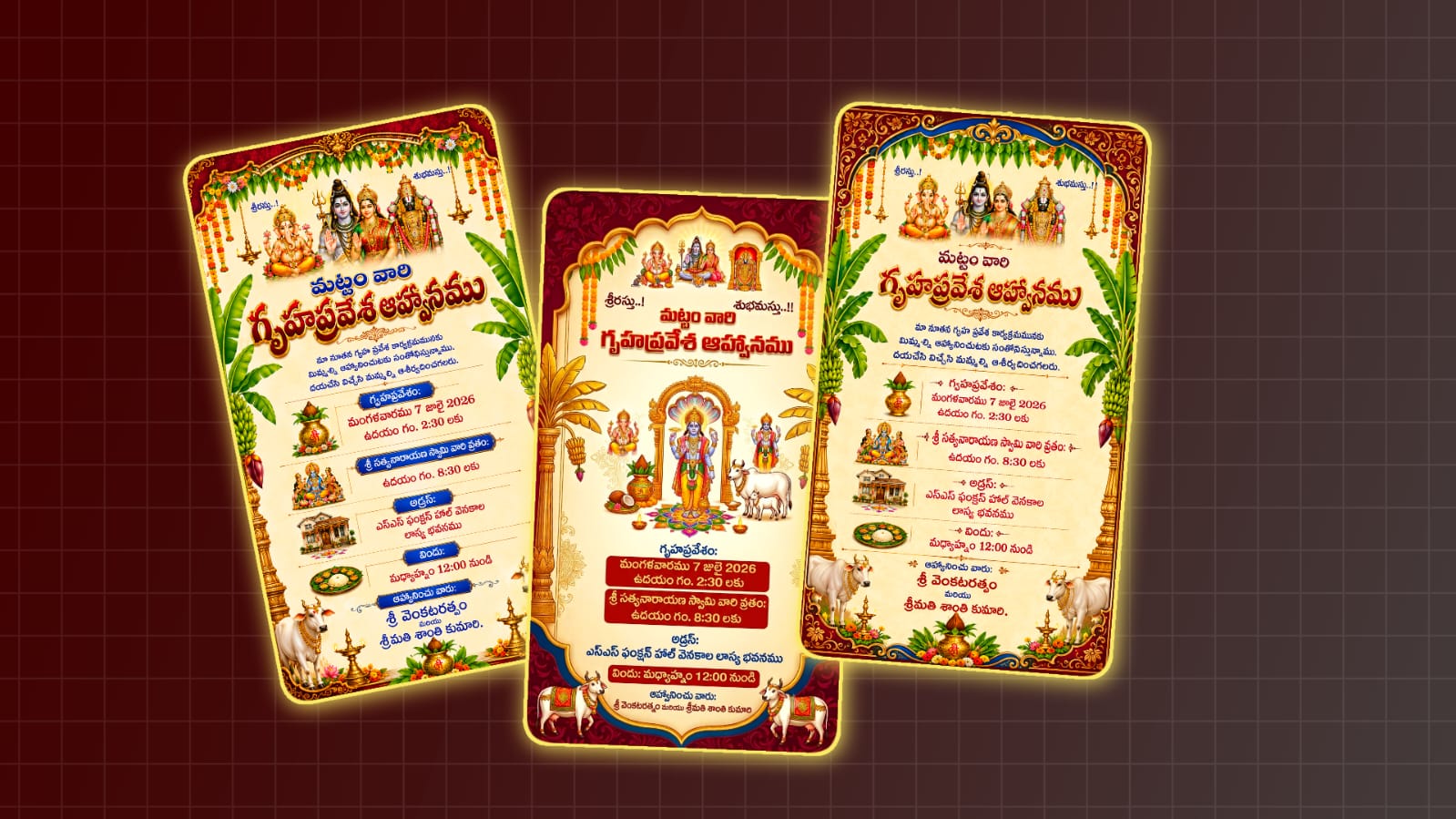

In this article, let’s learn how to create a Housewarming invitation card in Telugu using the Alight Motion app; you can edit it very easily to achieve a traditional yet professional look.
First, let’s look at what is needed to edit this card.
- Alight Motion app installed on your mobile
- Background image
- God Photos
- Telugu Stylish Fonts
- Text Create
- House Photo
- A personal photo of yourself.
Alight Motion
If you want to edit professionally, you can use this app; although it is primarily a video editing app, it also allows you to edit photos professionally. It is available on the Play Store, and you can edit very easily with it.
Background image adding
First, open the application and enter a project name.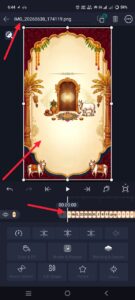 Then, select the aspect ratio specifically 9:16 choose the frame rate and background, and click the “Create Project” option. This will take you to the next screen or interface where you need to add the legacy image. Once the image is loaded, you’ll want to adapt it to your display; adjust it to cover all four sides. You could use the options to make these changes. First, select “Fill Composition Area” by clicking the three dots in the appropriate corner at the top; This can automatically heal the image to the screen. Alternatively, select the layer, click the “Move & Transform” option at the bottom and use the “Scale” function to change the fit. Once you’ve found and modified the background image, you’ll need to modify the colours – especially looking at colour settings or effects. To test this, select the track once more and set “Add Effect” to the lowest click. We have now successfully created the background.
Adding God PNG Images
Now, you need to add images of deities; including them is very useful, so you should add several.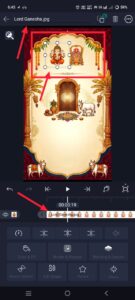 Start with an image of Lord Vinayaka, along with Lord Venkateshwara and Lord Satyanarayana, and include images of other deities of your choice;e, however, those images should be in PNG format. This is because, while providing background removal features, the software handily gets rid of the background.s
Import the Images
To upload those photos, scroll down to the bottom and tap the green plus icon, then select ‘Media’ to import the photos from your gallery – you can either upload them one at a time. Once added, have Vinayaka form the area at the top and change his role to the middle; Then place a picture of Lord Venkateswara after that, and finally, upload a picture of Lord Satyanarayana in the middle. Then adjust the colour or sharpness of these images; You want to change the colours using the settings. When you click on that effect, several options will appear; select the “Standard Settings” option and use the settings within it to adjust the colours.
Telugu Stylish Fonts Adding in Alight Motion
For a traditional look, you can use Telugu fonts while enhancing them as well.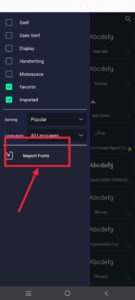 It doesn’t matter how nicely you edit it; the chosen look won’t be complete without the right fonts. So the first step is to add these fonts to the application. To test this, select the text description and click ‘Edit Text’; You can see the font options appear at the top. Click ‘Add Fonts’, then select ‘Import Fonts’ to display the applicable fonts of your choice.
Adding Texts
Now let’s add the text elements one at a time.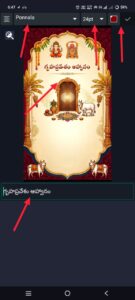 First, for the ” Housewarming Message” textual content, click on the plus sign on the right and select the “Add Text” option; then add a good “homecoming” message. Next, you need to apply fonts; If you have already imported fonts, actually go to the fonts section – there are many available, and you can use the search bar to discover the selection. Click on the font, and it can be used in regular text. Change colours and sizes to make textual content look smart; for example, the text “housewarming message” should be enlarged while it is at the top. You also need to display different headings – check-in date and time, time for Sri Satyanarayana Swamy Vratha to attend, dinner or party time, and names of the hosts – and then actually upload specific information under each heading (for example, upload your full address under the “address” heading).
Adding House Photo
Here, you want to add a photo of your address; Make sure the PNG is removed from the background.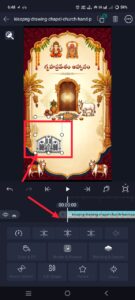 While many people make use of caricature styles or trendy address photos by making changes, given that this is *your* message, you need to use your actual address photo to get the expert look and clarity that the message is actually yours. To try this, click on the plus sign, select ‘Media’, and add photos from your gallery. You ought to add the specific phase of this home photo – specifically, keep dimensions small and nearby (to the left or right of the address text) to clarify the information. Adjust the colour and size appropriately. It is important to make sure that the image of the house stands out; considering that it is by far a picture of your private home, it should be highlighted, whereas if you were to use a plain or caricature picture, it would not be so necessary to highlight it.
Adding Personal Photo
Many people simply add names in the invitee section without including photos.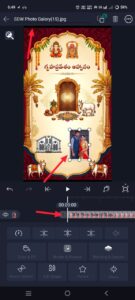 If you want the design to look professional and attractive, pictures should be uploaded next to or below the names. Check out the technique already mentioned to do this: Click on the inexperienced plus sign, select ‘Media’ and upload a photo from your gallery. Once you familiarise yourself, regulate the image and practice colour correction or shadow effects as desired.
Don’t Do These Mistakes
Common errors include using low-quality historical images, not aligning text content correctly, and not choosing text colours or fonts that complement the story. In addition, problems such as incorrect placement of deities, non-public images or messages, along with other minor errors, can occur. By paying attention to these details and avoiding such small mistakes through proper alignment, the final output will turn out much better.
How to edit an invitation card using ChatGPT
If you are a professional editor, you might feel that an invitation or card created manually by you looks more professional than one edited by AI; this is because AI often applies edits much like a standard filter—something that is easily noticeable. However, AI is also capable of editing in highly intelligent, professional, and traditional styles. Alternatively, you can deliver animated educational content in an AI-aware language; You just want to give an explanation of the appropriate style of cardboard, the language (Telugu or English), and the general theme. 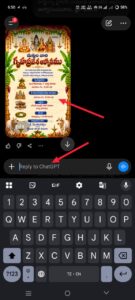 Once you’ve uploaded the updates, it takes a second for the machine to edit and make your card professional. After the image is generated, the trade option appears by clicking on it; Deciding this allows you to save the image. Additionally, if you want to match snapshots of the invitees, you can specify this – either in Telugu or English – when submitting your request (for example, by asking invitees to add their photos to their name). The tool will then create a cardboard box for it. Here’s how to edit the card; If you have more questions, feel free to invite them to the feedback session.
Use this Prompt for creating with your details.
Create a premium traditional Telugu Griha Pravesam invitation card in portrait (4:7 ratio), inspired by classic South Indian invitation designs. Use a rich maroon decorative floral border with a cream parchment centre, golden ornamental frame, top mango leaf toran, hanging marigold garlands, banana trees on both sides, and elegant blue ornamental curves at the top and bottom. Place Lord Ganesha, Lord Shiva-Parvati, and Lord Venkateswara at the top centre with “శ్రీరస్తు..!” on the left and “శుభమస్తు..!!” on the right. Add a large artistic Telugu title “మట్టం వారి గృహప్రవేశ ఆహ్వానము” in bold red with golden outline and embossed effect. Arrange all event details in neat centre alignment using elegant Telugu typography, highlighting dates, timings, and venue in red while keeping the remaining text in royal blue. Display every section heading (గృహప్రవేశం, శ్రీ సత్యనారాయణ స్వామి వారి వ్రతం, అడ్రస్, విందు, ఆహ్వానించు వారు) inside premium royal-blue ornamental nameplates with gold borders and white bold Telugu text for clear visual emphasis. Include decorative flourishes, Satyanarayana Swamy image, traditional housewarming illustration, Kalash icon, sacred white cows at the bottom corners, and premium Indian wedding-style ornaments. Use vibrant colours, a soft golden glow, realistic decorations, ultra-HD quality, print-ready 300 DPI, balanced spacing, no watermark, and no spelling mistakes. Keep these details exactly as follows:
గృహప్రవేశం: తేదీ మరియు సమయం,
శ్రీ సత్యనారాయణ స్వామి వారి వ్రతం: సమయం,
అడ్రస్: మీ పూర్తి చిరునామా,
విందు: సమయం,
ఆహ్వానించు వారు: మీ పేర్లు.
