
Hello Friends, Welcome to Another Wedding invitation video editing tutorial. Today’s article, let’s learn how to create a Telugu wedding invitation. This wedding invitation is with a golden colour and a red background colour combination. The invitation video is beautiful and looks very professional. We need some Telugu fonts to create it. It will be a little different. It will be perfect. Read it completely and learn it completely. I will tell you step by step. First, you need to keep the Telugu font PNG images background in red colour, so ready. First, you need to open the Kine Master application. Then, give the project name,e select a 16:9 ratio, and click on Create. You will go to the main pro. Here, you will get the Kine master. Enter pace her. Tap on the first media and take a red colour background as a background colour,r then one colour on top of that.t. The full lips effect should be added first, st after we have done the animation. Let’s add the titles..jpeg) First, take a rectangular red colour shape, leave top and bottom space in the middle, and track it as far as you want to create, i.e. up to six seconds. Now apply a shadow to that rectangular shape. Then we have to take an image in the background and put it as the default, and if we tap on that image,e our options will come.
First, take a rectangular red colour shape, leave top and bottom space in the middle, and track it as far as you want to create, i.e. up to six seconds. Now apply a shadow to that rectangular shape. Then we have to take an image in the background and put it as the default, and if we tap on that image,e our options will come. Now apply a divider or leaves animation effect to that rectangular shape. For that, take the image in a PNG format, duplicate it at the top and bottom, and after applying it, do a left and right or right-hand left-hand mission, and do two animations in the opposite direction. Now we have to add titles.
.jpeg) Then you have to add the Vinayaka photo in the first slide and add a title related to it, Om Sri Ganeshaya Na, mah and then apply gold colour to the text. So in this text,xt if you are creating a kine master, and if you are creating with a finger, it will take a lot of time; otherwise, I will tell you some tricks by using which you can create titles professionally. So what do you do about that?
Then you have to add the Vinayaka photo in the first slide and add a title related to it, Om Sri Ganeshaya Na, mah and then apply gold colour to the text. So in this text,xt if you are creating a kine master, and if you are creating with a finger, it will take a lot of time; otherwise, I will tell you some tricks by using which you can create titles professionally. So what do you do about that? In the first kine master take a new project and take some background images in it and tap on that image, and you will see the background option on the right side tap on it and tap on the transference changed in the background now come back and there you will see palm jam option tap on that photo Back means if we move left or right we will have transparency now background let’s add a title above it.
.jpeg) First, click on the layer and then take the text and type that text as a wedding invitation and apply a font tt Telugu font if we like it in Kine Master, then select a golden colour and now add a rectangular shape. Now we have to animate the text.
First, click on the layer and then take the text and type that text as a wedding invitation and apply a font tt Telugu font if we like it in Kine Master, then select a golden colour and now add a rectangular shape. Now we have to animate the text. .jpeg) Then create music for the photo or video you shot at the beginning, and how many seconds you need to create the video. After the first block, start editing this video. In the next line, slightly different shapes should be taken. It is a bit attractive. Colours should also be taken. First, add a black image in the background and add red to it.
Then create music for the photo or video you shot at the beginning, and how many seconds you need to create the video. After the first block, start editing this video. In the next line, slightly different shapes should be taken. It is a bit attractive. Colours should also be taken. First, add a black image in the background and add red to it. After applying two circles on both sides, i.e. left and right, once foreditingt text, another circle should be used for the photo. If we add a green image in the middle, it will look a bit attractive without distraction. Now these left and right circles should also apply innovation outer mission two and animate it as per your requirement, i.e. set to the third flight.
 In this way, you create the titles and, in the same way, duplicate the titles, add them under the next slide, and reply to them.
 We will add three or four photos in this, so tap on whichever is the rectangle circle option, add a photo, and add text related to the photo. In one slide and before there is another side, add another title in that slide and invite one photo related to them and the last couple of photos. Add and add the details of the dinner save the date at the end,d and create a slightly different animation like this.
 After the video is complete, you can save the video.
How to Create Telugu Golden Titles
For these titles, you first open the Alight Motion application. You will see a plus (+) icon in green colour at the bottom. Click on the icon, enter a name for this project, select 1080p resolution, set it to 30 frames and take it in background transparency, click on the create button..jpeg) The interface of the Alight motion app will now open for you. Again you click on the plus (+) button at the bottom on the right side click on the media option or click on the text option on the right side and enter a text then apply the Telugu font to this text on your mobile keyboard to enter in Telugu enable Telugu option and then type Telugu you have to apply golden color to the typed text you can use hello color for this color or from there come back and click on that text layer and lift either color and field option on the left side and again media Click on the option and select any image in golden color from your gallery. Now, the golden image that you have added or selected in the text will be converted into text. Now you can see the text in golden colour. Align vertically within the centre. Also, if you want to display a larger title, you can duplicate or reproduce and paste the same text, click on the duplicate text content, edit the text content, and then you can change that text. Also, we need to add a gold colour to this divider. Now click on the share option in right side corner and scroll down click on the Current Frame as PNG option then click on the export button this image will be converted into a PNG image then click on the save option for as many titles as we want, we have to create and save all the titles in the same way, so we can create titles in Telugu in golden color.
The interface of the Alight motion app will now open for you. Again you click on the plus (+) button at the bottom on the right side click on the media option or click on the text option on the right side and enter a text then apply the Telugu font to this text on your mobile keyboard to enter in Telugu enable Telugu option and then type Telugu you have to apply golden color to the typed text you can use hello color for this color or from there come back and click on that text layer and lift either color and field option on the left side and again media Click on the option and select any image in golden color from your gallery. Now, the golden image that you have added or selected in the text will be converted into text. Now you can see the text in golden colour. Align vertically within the centre. Also, if you want to display a larger title, you can duplicate or reproduce and paste the same text, click on the duplicate text content, edit the text content, and then you can change that text. Also, we need to add a gold colour to this divider. Now click on the share option in right side corner and scroll down click on the Current Frame as PNG option then click on the export button this image will be converted into a PNG image then click on the save option for as many titles as we want, we have to create and save all the titles in the same way, so we can create titles in Telugu in golden color.
Prompt
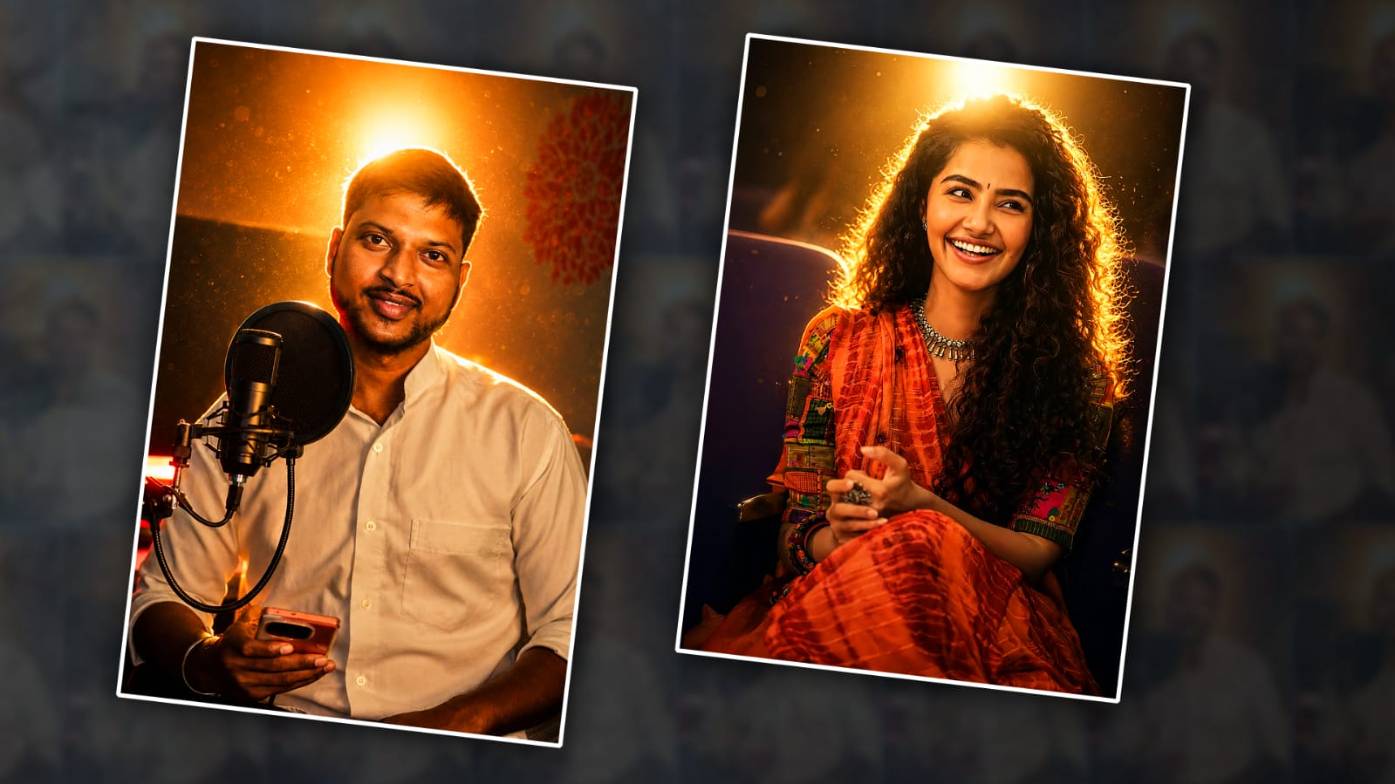
“Transform this normal portrait into a cinematic night portrait with dramatic backlighting. Add a strong, warm golden light source directly behind the subject’s head, creating a beautiful halo glow around the hair and body edges. Create realistic rim lighting on hair, face edges, shoulders, and neck. Add bold, fluffy flowers, lens lighting, a stretchy blanket that floats in the breeze, and a moody cinema light fixture. Increase contrast by keeping pores and skin texture natural and delicate.
