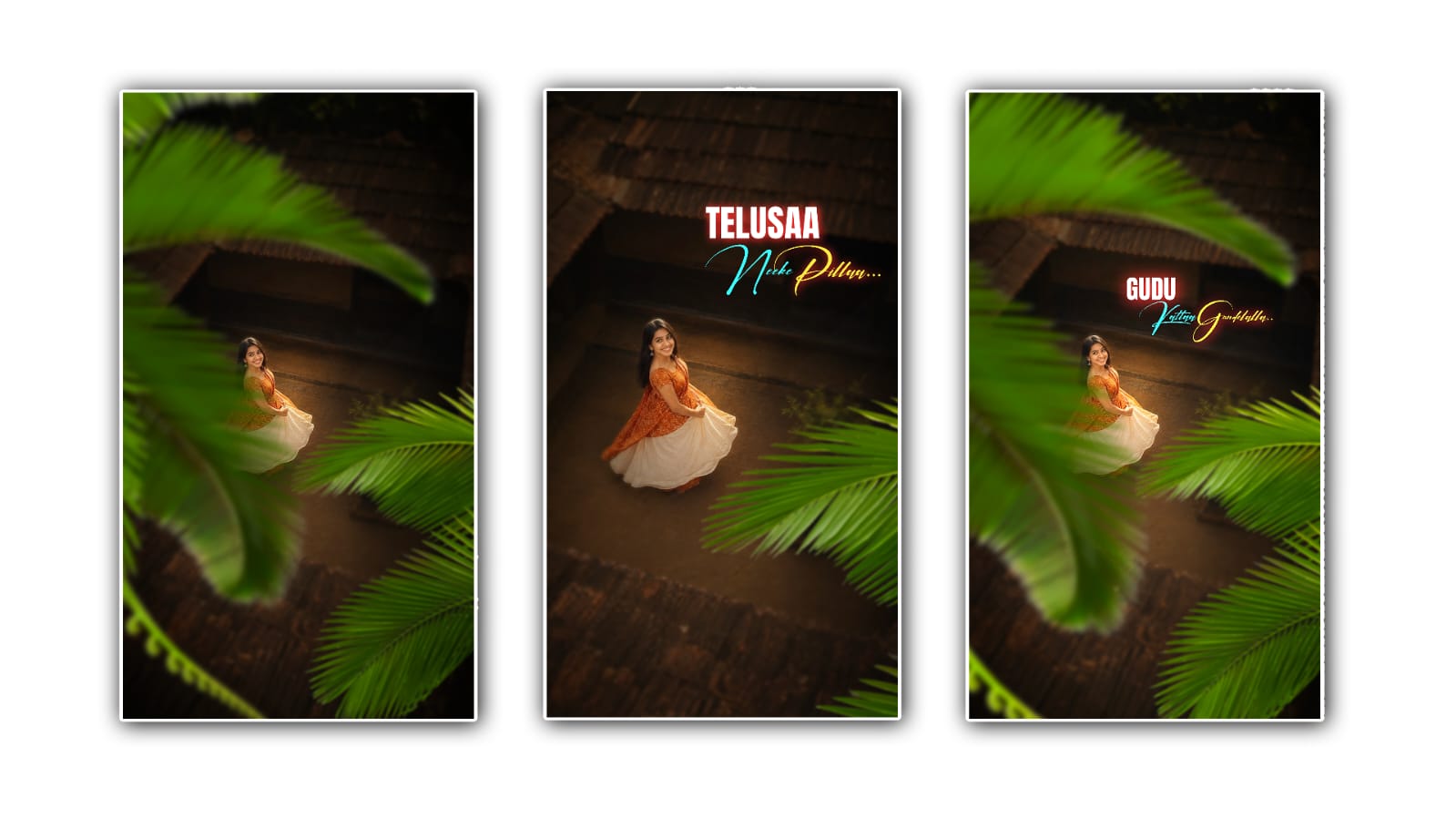

Overhead cinematic lyrical video editing has become one of the most popular styles on social media, especially on Instagram Reels, YouTube Shorts, and other short-video platforms. These videos often feature beautiful overhead shots, smooth slow-motion effects, cinematic colour grading, and lyrics that appear perfectly in sync with the music. The combination of creative camera angles, emotional songs, and stylish text creates a unique visual experience that can make even a simple video look professional. The best part is that you do not need an expensive computer or professional editing software to create this type of video. With Alight Motion on your smartphone, you can create an attractive overhead cinematic lyrical video by following a few simple editing techniques.
Before starting the editing process, you need to collect the right footage, choose a suitable song, and decide what kind of mood you want to create. Overhead shots are usually recorded from above the subject, showing a person, a street, a road, a moving vehicle, or even a beautiful natural scene from a top-down perspective. This angle gives the video a cinematic appearance and makes it look different from ordinary clips. You can record your own footage using a smartphone, or use suitable high-quality clips that you have permission to edit. Try to choose footage with good lighting, clear details, and enough movement to keep viewers interested. A simple clip can work beautifully when the timing, effects, and music are combined correctly.
Once your footage is ready, open Alight Motion and create a new project. For Instagram Reels and YouTube Shorts, a vertical 9:16 aspect ratio is generally the best choice. You can use a resolution of 1080 × 1920 pixels for a clear and high-quality result. Set the frame rate according to your original footage and the style you want to achieve. A frame rate of 30 FPS is suitable for most social media videos, while 60 FPS footage can provide more flexibility for smooth slow-motion effects. After creating the project, import your video clip and place it on the main timeline. If the original footage is too long, trim the unnecessary portions and keep only the most attractive moments.
The next important step is selecting the right audio. Music plays a major role in lyrical video editing because it determines the mood, rhythm, and overall impact of the final result. Choose a song with meaningful lyrics, a memorable beat, or an emotional musical section. Romantic songs, slowed-and-reverb tracks, and emotional Hindi, Telugu, Tamil, or English songs can work well for this editing style, depending on your audience. Listen to the selected section several times and identify the important beats, pauses, and lyrical moments. In Alight Motion, import your audio file and position it beneath the video layer. You can then trim the audio to match the length of your footage.
After adding the music, focus on timing your video with the sound. Good timing is one of the biggest differences between an ordinary edit and a trending cinematic edit. Move through the audio timeline and identify the beats where you want the scene to change, the footage to slow down, or the lyrics to appear. You can add markers to important moments if the available timeline controls support them. Split the footage at suitable points and arrange the clips according to the rhythm. Avoid adding too many random cuts because they can make the video feel confusing. Instead, allow the most beautiful parts of the overhead footage to remain on the screen long enough for viewers to appreciate them.
Slow motion is another useful technique for creating a cinematic feeling. If your footage contains a person walking, a vehicle moving along a road, or shadows passing across the ground, slowing down the movement can make the scene look more dramatic. Select the video layer and adjust its speed using the available speed controls. For footage recorded at a higher frame rate, a moderate reduction in speed can create smoother results. If the original clip was recorded at a standard frame rate, avoid slowing it down excessively because the movement may become choppy. You can also experiment with subtle zooming or position animation to give a static overhead shot a little more depth. Keep the movement smooth rather than making the camera appear to shake unnecessarily.
Now comes the lyrical part of the editing process. Text animation is often the main feature that makes these videos recognisable. Choose a short line from the song that matches the emotion of the scene. Open the text tool in Alight Motion, type the lyrics, and select a clean font that is easy to read on a small screen. White text is a popular choice because it works well with many cinematic backgrounds. However, you can use a soft cream, light grey, or another suitable colour if it matches the footage better. Place the lyrics in an area where they do not cover the main subject. For overhead shots, the centre or lower-middle portion of the frame can work well, depending on the composition.
To make the lyrics look more professional, animate them instead of displaying them suddenly without any movement. You can use keyframes to control the text’s position, scale, opacity, and rotation. For example, begin with the text slightly smaller and almost transparent, then gradually increase its size and opacity until it becomes fully visible. This creates a gentle fade-in effect. You can also animate the text upward by a few pixels to give it a floating appearance. When the lyric ends, reduce the opacity smoothly so the text disappears without a harsh cut. Keep the animation simple and consistent with the mood of the song. Excessive bouncing, spinning, and flashing effects can distract viewers from the cinematic footage.
Transitions and visual effects should be used carefully. A subtle fade, smooth zoom transition, or short blur can help connect two clips naturally. In Alight Motion, you can experiment with effects such as Gaussian Blur, Exposure or Gamma, and other available colour adjustments to improve the appearance of the footage. A slight glow may suit certain night scenes, while a soft blur can help create a dreamy atmosphere. However, applying every available effect will not automatically make your video look better. The goal is to improve the original footage while preserving its natural details. If you want to use motion blur, apply it where the movement benefits from a softer appearance. Always preview the video after adding an effect to make sure it does not reduce the clarity of the subject or the lyrics. Colour grading is another essential part of overhead cinematic lyrical editing. A consistent colour style makes the entire video feel connected, even when it contains several different clips. Depending on the footage, you can experiment with slightly reduced saturation, balanced contrast, deeper shadows, and controlled highlights. Warm tones can create a nostalgic or romantic mood, while cooler tones can produce a calm and dramatic appearance. Do not make the image excessively dark just to achieve a cinematic look. The subject should remain visible, and the lyrics should be readable against the background. If your footage contains different lighting conditions, adjust each clip carefully so that colours match as closely as possible.
Before exporting the project, watch the entire video from beginning to end. Check whether the lyrics appear at the right moments, whether the transitions feel smooth, and whether the visual effects match the rhythm of the song. Make sure there are no unwanted black frames, accidental gaps, or text that disappears too quickly. Pay attention to the first two or three seconds because an attractive opening can encourage viewers to continue watching. You can begin with a visually striking overhead shot and introduce the first lyric at an emotional moment in the music. A strong ending is equally important, so try to finish the video naturally rather than cutting off the final scene abruptly.
When everything looks right, export the video in 1080p resolution using a suitable frame rate and a high-quality bitrate. If the file size becomes too large, you can adjust the bitrate slightly without sacrificing too much visual quality. Watch the exported file once more before uploading it to social media, because some issues may become noticeable only after rendering. Use music and footage that you have permission to publish, especially if you plan to use the video for commercial purposes.
Creating a trending overhead cinematic lyrical video in Alight Motion is not only about using popular effects. It is about understanding music, choosing attractive footage, placing lyrics thoughtfully, and making every movement feel natural. You do not need to use dozens of effects or complicated transitions to produce a beautiful result. Sometimes, a simple overhead shot, smooth slow motion, elegant typography, and well-timed lyrics are enough to create a memorable video. Keep practising with different songs, experiment with your own colour styles, and learn how to use keyframes effectively. As you gain experience, you will develop a personal editing style that makes your videos stand out and helps you create cinematic lyrical edits that people enjoy watching and sharing.
PROMPT
Create a realistic cinematic 9:16 portrait using the uploaded girl photo as the exact identity and outfit reference. STRICTLY preserve her original face, identity, skin tone, hairstyle, hair texture, earrings, accessories, and dress design, colours, and patterns. Do not change her appearance or clothing. Show her standing gracefully, slightly left of centre, looking DIRECTLY at the overhead camera with a natural smile. Capture the entire scene from a high-angle, top-down rooftop perspective, showing her full body and naturally flowing original outfit.
Environment: Traditional Indian village courtyard, weathered terracotta roof tiles around the edges, rustic brown stone flooring, dark antique wooden veranda wall, and a small green plant in a square stone planter on the right. Warm, dim golden evening light, earthy brown tones, soft cinematic shadows, subtle vintage film grain, photorealistic details, dreamy Instagram aesthetic. Match the same composition, courtyard layout, camera angle, and cinematic style. Natural body proportions and realistic hands. No text, logos, or watermark.
