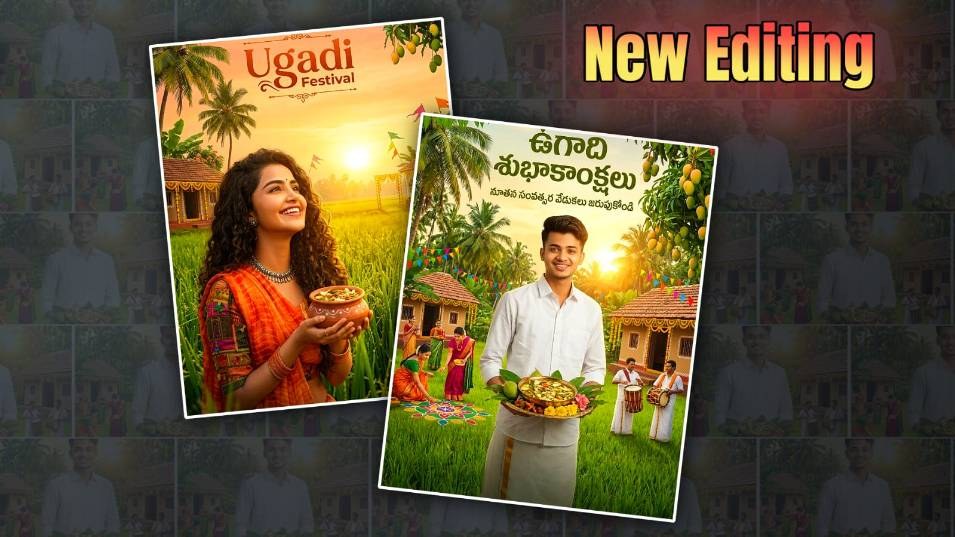

Hello friends, welcome to another article. I will tell you how to edit photos related to the Sankranti festival, that too on mobile, that too with the Kinemaster application. Usually, we do video editing in this application, but with some tools in it, we can also do image modification. I’ll give you a step-by-step guide. Read this article completely, and you can also edit your photos.
First, let’s find out what is required for this Editing
- You should have KineMaster installed on your mobile.
- You will also need an image like a green village type with a landscape to add in the background.
- Similarly, you will also need some PNG images related to the festival.
- The photo with the background removed from your photo should be in PNG format.
Now let’s learn how to edit step by step.
First, open this application. After it starts, you will see the Create New option.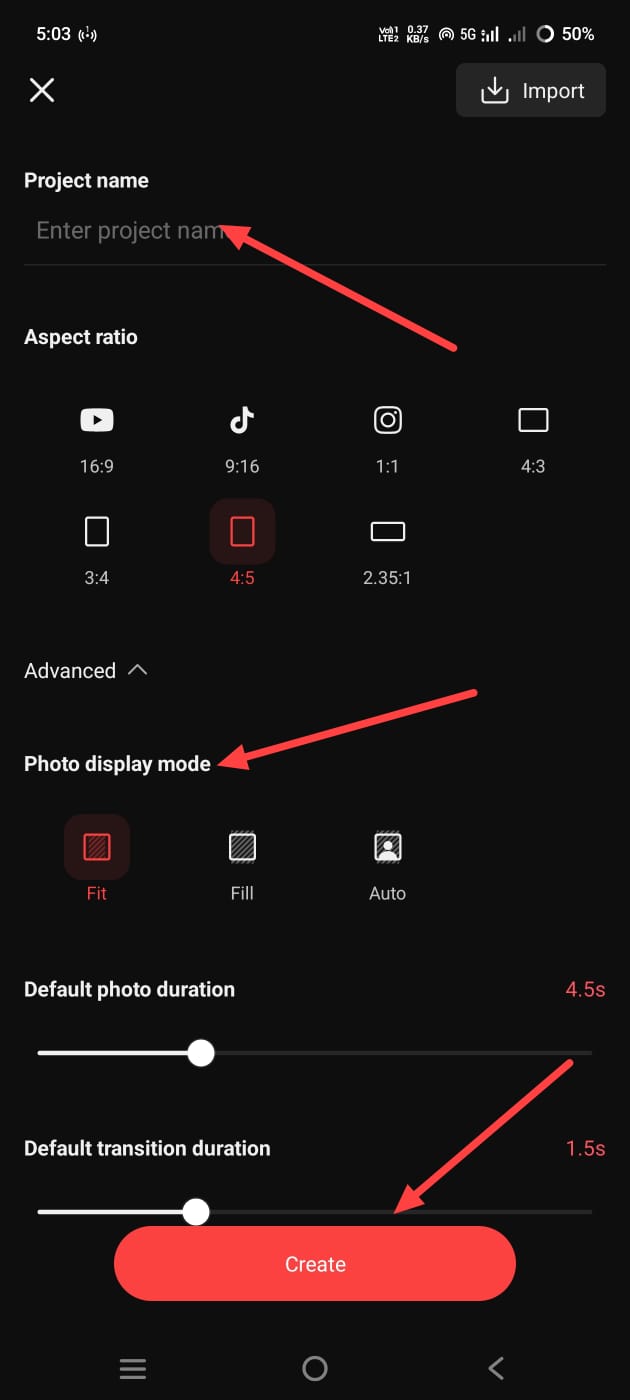 Clicking on it will take you to the next step where you can select the task call and release ratio. Here we have to select a 4:5 ratio. It would be good if we edit the posters’ photos in the area shown itself. Then there is an option called Advanced. If we go into it, there will be a photo display mode in which you can set yours as the default photo. Then there is a setting for the photo or video duration. You also have to set that. There will also be a transition duration. After setting it, click on the Create option. A timeline will open for us. Here you have to add a photo. Here you will have all the default applications, videos, photos, etc.
Background Photo Adding
If you want a photo background, you don’t even need to take it from outside. All the images are here. You can add them from there.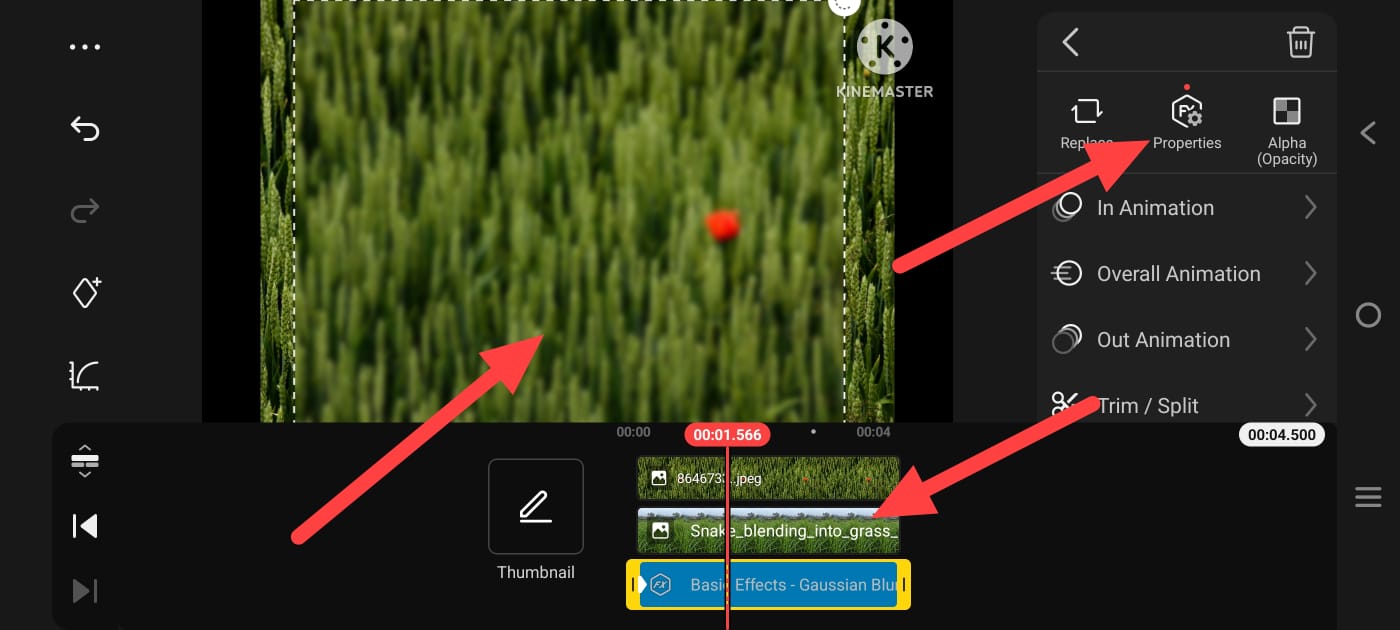 After adding, now click on that photo. To make this photo look professional, you need to apply a blur effect to this photo. What you do with this is that on the left side there will be a layer option, click on it, then there will be an effects option, click on that, here again for blur you will have an option called Basic Effects, if you click on it, there you will have an option called Gaussian Blur, select it, after taking the image you have to manually select it so that it fits the screen, after selecting it like this, now you have to take a text on this photo saying Happy Sankranti. Before adding text.
Add Your Photo
You need to add your photo. For this, there is a media option on the right side. Click on it. Then it will take you directly to the gallery.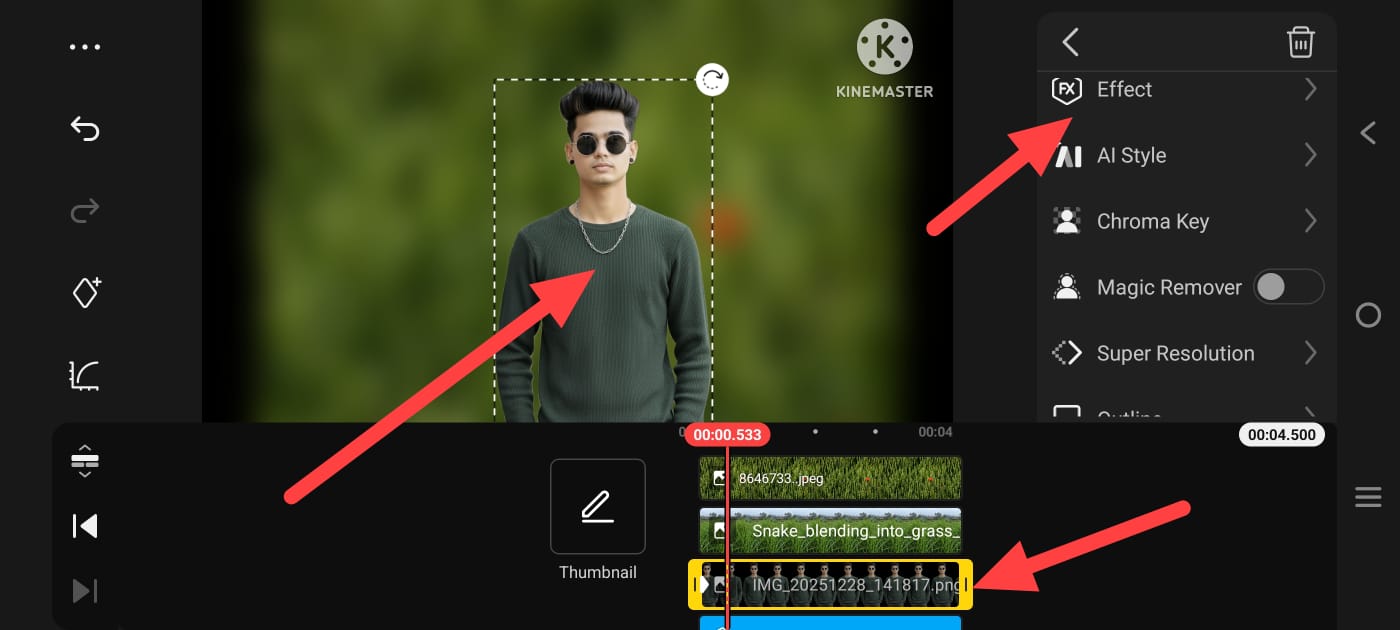 Select a photo there. After selecting the photo, now it is okay to remove the background of your photo because there is an option in it. Using it, we need to remove the background of our photo. Click on the photo layer. Then, if there are some options on the right side, scroll down. It will take some time to remove the background. Like this, we have to align the background of the photo to the centre. Now, we have to add text on top of it. For the text, use the same as we took the photo earlier. In the same way, click on the text option and take a layer that says Happy Sankranti. Take a text here and type it. Type it and apply the font style like in Telugu. You will have a lot of fonts in this. Apply the font; select a stylish one and apply it. Now we need to select the text in the size we want. For that, simply click on the text. There will be some options on the right side. There will be a transform option. So, in this, there are options like XY and Rotation angles, scale, mirror, and flip; there are many options like this. Using these options, you have to arrange the text. Make sure that it is at the bottom or top. Again, you have to apply shadow and edge.
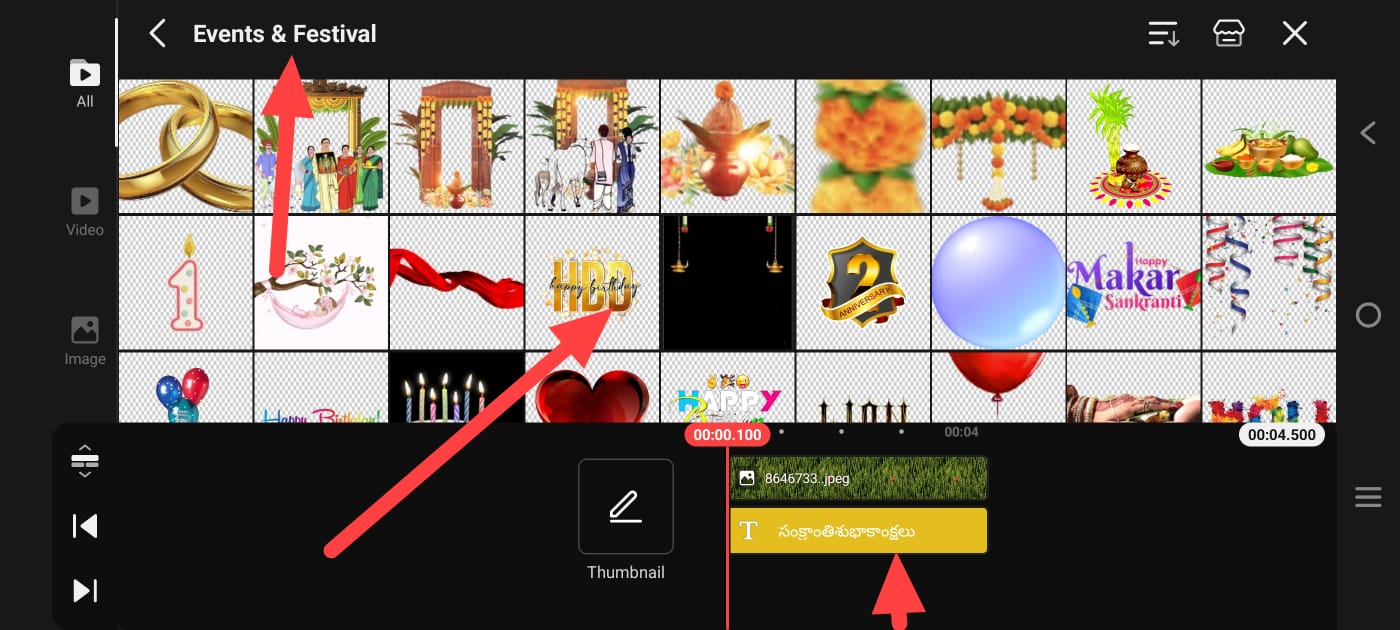 Now add all the PNG images related to the festival, one by one. For this, simply use the options on the right side, click on the media, add each PNG image and arrange them properly. If you want to convert them into photos or save them, there are many options on the left side. We will have the view option. Click on it. Then there will be the capture and save option. Click on this option. This frame or this photo will be automatically saved to your gallery. In this way, we can do photo editing in this KineMaster application.
Tip
We can do this photo editing in other photo editing applications, but it is also easy for everyone, so if you edit and edit in it, it is very easy. Apart from this, we can also edit this photo very easily through AI tools according to the current technology; for example, we can edit it on websites or in applications like Google Gemini Chat. How to edit this: for example, open Google Gemini. After opening it, click on the plus icon. There, you will click on the gallery or photos option and upload a photo from the gallery. Upload the photo you like, and there you can clearly explain how you want the editing, whether the text is in Telugu or English, what font style is needed, and what background is needed. You should give space to explain everything so that it is completely understood. In the same way, we can edit in ChatGPT. click on the plus sign and select the photo same here also you can give the text properly as understood in Telugu or English it will take a little time one to two minutes it will edit it for you then click on the edited photo and there will be a save option at the bottom or top you can click on it and save the photo if you think you do not have all the knowledge about photo editing about these festivals then you can think of a photo on Google or anywhere you like take that photo save it on your mobile and upload the photo in chat or any other tools and there same in the same way edit it with your photo and give it a clear explanation it will edit it for you in any way you can edit it very easily
Prompt
Created a highly innovative and accurate cinematic Ugadi competition poster inspired by reference image design, yet with a completely different idea and composition. Scene: A lovely South Indian village farm at some point in the Ugadi competition party at sunrise, lush green fields glowing gently in the morning. flat, winningly decorated with.
