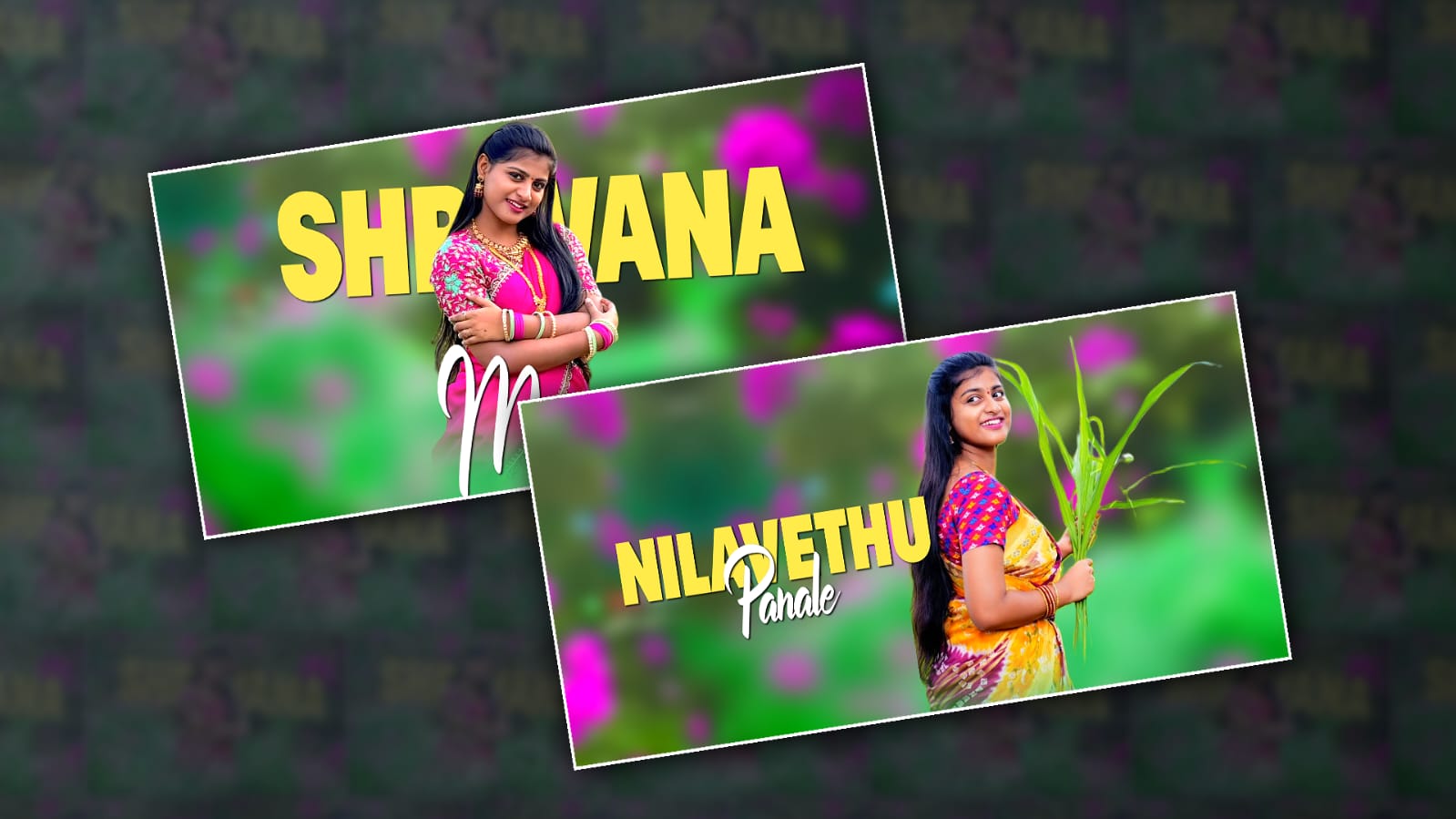

I will tell you how to edit a 3D trending lyrical video in Alight Motion. It is very professional and very good for you to put in your status or in your story. I will explain clearly how to edit it by putting your favourite photos. Read the article completely and edit it with your photos.
Let’s gather some files to edit this video
- The application should be installed on your mobile.
- There should be some flower images
- Lyrical song
- Stylish fonts. Two fonts are enough.
So now let’s start video editing.
First, open the Alight Motion app. Click on the Create Project option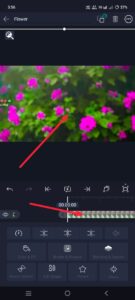 Here, you need to add some flower images in the background. For this, first click on the green plus icon and click on the media option. Then, take one of the two variations of the flower image from the gallery and apply the 3D effect to this photo.
 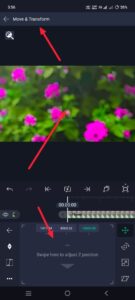 For this, if you come back, there will be a Move and Transform option on the left side, go into it, there you have XYZ axis options, if you want to add a 3D effect, you should use the Z option, you should add this Z option the same to the first image, here you should put up to 10,000, you should add two or three thousand to all the other layers, reducing them. Use the same process.
Add a blur effect to the image.
So after doing this, you should apply the blur effect to this image again. Come back again and click on the Effects option, click on the Add effect option and search here Search for Gaussian Blur. If you search, click on the effect you get and select Standard Settings. There, the strength is not too much; it is enough to blur as little as possible. Use the settings here and set it. Now we need to add a photo.
Add Music or Song
First, before that, we need to add a song because if you add lyrics while listening to a song, you need to add a photo, so add a song. For this, when you come back, there will be a music option. Click on it next to the media and add music or a song. After adding a song, you can add a status for the reel. So, if it is 30 seconds, it is enough. Add until then and delete the extra.
Add Your Photo
Now let’s add a photo. First, for this photo, come back and click on the plus icon in green colour again.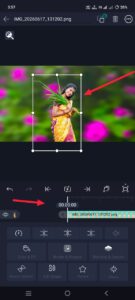 Click on the media option and add your photo. This photo should only be selected with the background removed. You should have a few photos like this, five or 6 or more. It doesn’t matter if it is photos. Select a photo from it. Now, to improve the photo quality a little, go to the effects option, click on the add effect option. There, you search again; there are some colour-grading-related effects: saturation and brightness. There are some like this; use these to improve the photo quality,
3D Effect
Then we need to apply a 3D effect to this photo as well, as I told you at the start. Go to the Move and Transform option and set the Z Value exactly to 8000 and adjust it here; you have to adjust it so that it appears exactly on the screen. After adjusting, now add the lyrics while playing the song. Lyrics means we need to add text.
Lyrics Adding
For this text, first you come back and click on the green plus icon and then click on the Add Text option.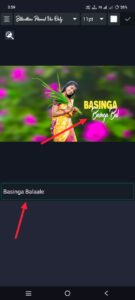 After clicking on it, add text there. Then you type the lyrics and select a font style. All the settings related to this will appear at the top. There you will also have the font size and colour. If you want to add a font, we have the View All Fonts option. Go to it. If you click on it, we will have three lines on the left side. Click on it. You just need to select that font there and then apply another layer. So for this, you duplicate this again, duplicate it and change the colour again; that is, add a different colour than the one you took in the starting and then apply a font here that is in a different style. So after applying this way, you should apply 3D to this text and these lyrics. We will get the look only if we applya 3D effect to each. So far we have taken 8000, so take 5000, 5000 and make adjustments like that. One side will be complete if we do this.
Camera Layer
Now we need to apply a camera layer to this slide.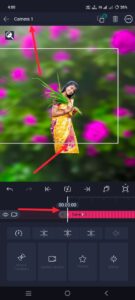 For this, come back again and click on the green plus icon; then, at the top, there will be an elements option; click on it. There will be a camera option; if you click on it, the layer will be applied to the extent of the video. So, keep it only up to where you want it and delete the extra, cut it, then now you can do 3D animation using this camera only, that is, first click on this camera option, then click on the move and transform option, it will have XY Z options, you should only use Z while doing the animation, okay, if you use Z only, you will see the 3D effect. Then, if you want to see the animation made like this, there will be a view option on the right side; click on it. There will be a camera symbol option. If you click on it, you will see a preview, so you can complete one side in this way. Then you will be very late while adding everything to the slide in the same way.
Using Duplicate Method
What you do is copy all the text of the images you took in the starting style, paste it in the next line, after pasting, play the song while listening to the lyrics, listen to the lyrics, just listen to the next lyrics and replay it there, that is, you duplicated and pasted it, delete the text in it and type it again while listening to the lyrics, all the other Effects will remain the same.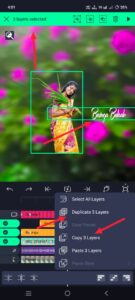 But here, take a different photo. If you want to replace the photo here, simply click on the photo editor. There will be a colour and fill option on the left side; click on it, click on the gallery option, select a different photo and add it; it will be set automatically. In this way, you have to edit it in the same way for 30 seconds with different animations. So after doing this, timing everything once is a common mistake that many people make. This is because many people normally do not remove the background of the photo properly, then they cannot add photos or text at the correct timing at the right time, and the quality of the images is lost. What happens to them is that the output does not come out properly, the quality is low, or it does not look that professional. All this should be checked once and only then exported. Even while exporting, click on the share option in the right-side corner. There you can check the resolution again and the frame rate again, and tap on it. In this way, you can do video editing in 3D.
