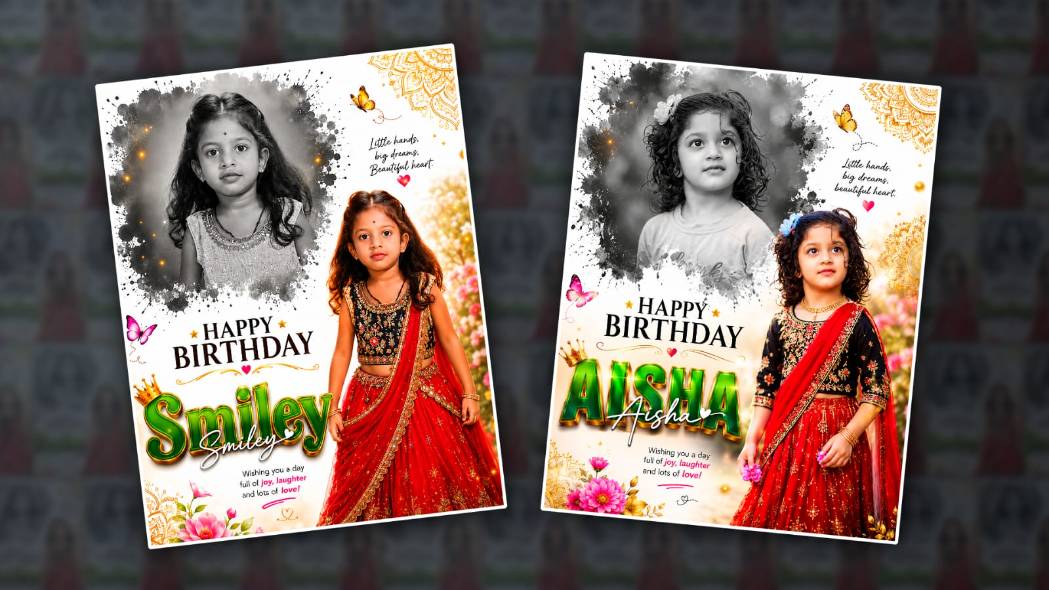

Hello everyone, today in this article I will tell you how to edit a premium cinematic happy birthday poster in the Alight Motion app. This is excellent for kids. So if you have kids at home, check out the full article and edit this picture. If you want to edit it and give it to the person, you can do that. It should be very professional. So be sure to edit it without missing anything.
Gather some required files for the poster.
- To edit this photo, you must first have the Alight Motion app installed on your mobile.
- Then you must have your own kids’ photo.
- Then there must be a background image.
- It must have a flower design.
- Then, if you want to add any butterfly effect, add it.
- Then there must be happy birthday text on these photos.
- Stylish font related to it to edit the name.
So get ready; now let’s start editing. First, open the Alight Motion app on your mobile. After opening it, you have to select only the ratio of 4:5. This is the same as the ratio related to photo editing. After that, without selecting any of these, click directly on Create Project. Then again, there will be a plus icon in green colour. Click on it on the bottom right side, and there will be a media option at the top. Go to that.
Background Image Adding
Add a background image to it. Adding it would probably be a shock to him. If you do not size the display, click the 3 dots on the pinnacle correct facet.
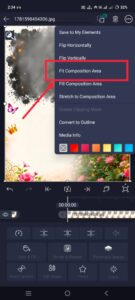 If you click on the option, it will automatically fit the screen. Then you can feed it with another method. Below, we have a Move and Transform option on the left side. You can also make adjustments by clicking on it. We need to add a photo of our choice on top of this photo. First, if there are any decorations, I mean PNG images, add them.
Kids Photo Add
Now add your own kids’ photo. For this, come back again and click on the plus sign.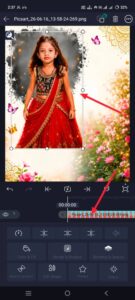 Then click on the media option and upload a baby photo or kids photo from the gallery. After adding this photo, first make adjustments to the ink slash effect on the top left side. We also need to change it to black and white. First, add some effects to this photo for some quality improvements.
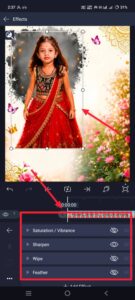 There will be an option under these effects. Go to it. Click on the Add Effect option and search. There are some effects like colour grading and saturation gamma. Apply them. Apply them and make colour improvements.
Feather Effect Applying
After that, now you need to apply smoothness to this photo.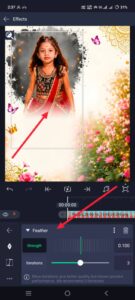 For this, click on the photo above. Go to the effects option again and search for the Feather effect. Apply the smoothness here. After that, now you need to change this photo to black and white. For this, go to Effects again and search for Actuation there. Apply the effect and take whatever strength you have in it as minus. Take it less.
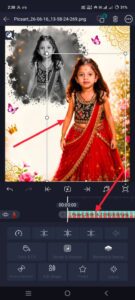 Now you need to add another photo. Add the second photo. For this, click on the green plus sign again and click on the media option. Add a photo from the gallery. Place the added photo a little lower on the right side. It doesn’t matter if it’s a full photo. Here, you need to do colour correction for this photo as well. Along with that, you need to make image quality improvements. In the same way, you need to add effects to this photo and improve it. Then, you need to make it a little more colourful. For this, apply the same saturation effect again and increase the colour. After that, you need to apply smoothness to this photo. Apply the same as mentioned earlier here. For that, go to the Effects option and search there. Apply whatever effect you get. After applying,
Adding Happy Birthday Text
Now you have to take the Happy Birthday text on the left side of this photo.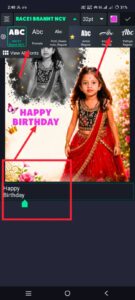 For this, come back again and click on the green plus icon. Then click on the add text option. Add the text there: first, Happy Birthday. Type it, and there will be a font style and colour at the top; also increase the size and adjust it. There, only the colour is white here. Put it in white and adjust it, and it should be in capital letters. Then put the middle option a little above and apply another text after this text. For the name, for this, again press the plus sign and then the text.
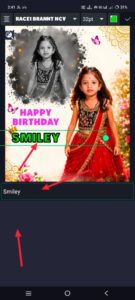 Enter your name here. After entering, apply the same colour or a font size here too. However, you need to apply a different font to this because this name should look special. Select a colour that is different and special. Then copy it so that it is not the same. Copy it, then click on the edit text again, and change it. Apply the writing point here. Make it a little smaller and put it on the name we took first. If you put it like this, almost all the photo editing will be complete. If you want to add any effects, do it using the media option and add PNG images from it and align them. A common mistake that many people make is that they upload without getting rid of the story properly, and they restore it smoothly, and they don’t enhance the image adequately, and they place the image and deliver it to you without delay.
Final Checks
So all these small mistakes make it lose its professional look. So when exporting, that is, when saving, you should check everything once and save it. If you want to save it, simply click on the save option on the right side; then there will be a current frame image there. Click on it and save the photo. This application is actually useful for video editing. It is not only for video editing, but the options in it are very good, so you can also use these options to edit photos, and you can also edit photos in PNG format, and you can also edit logos. So that’s why I told you how to edit photos in this application. If you want high quality, you can use another application to do it. For example, you can use the Remini app to save in HD quality.
Prompt
Create a premium cinematic birthday poster using my uploaded photo. Design a beautiful dual-photo composition. Place a large black-and-white artistic portrait of me in the upper left with watercolor splash and ink brush effects. Add a colorful high-quality full-body portrait on the right side with a confident pose. Use a clean white background with luxury golden mandala patterns in the corners, soft butterflies, floral decorations, golden sparkles, bokeh lights, and elegant festive elements.
Add stylish typography: “HAPPY BIRTHDAY”
Below it, add the name: “[YOUR NAME]”
The name should be in large glossy green and gold 3D text with premium shine and depth. Add a stylish signature-style handwritten version of the name overlapping the 3D text.
Include the quote: “Wishing you a day full of joy, laughter and lots of love!”
Add another elegant quote: “Little hands, big dreams, beautiful heart.”
Use professional color grading, ultra-HD quality, realistic lighting, sharp details, premium poster design, luxury birthday theme, social media trending style, 8K resolution, high contrast, vibrant colors, elegant composition, studio-quality editing. 3Aspect Ratio: 4:5 (Instagram Post)
