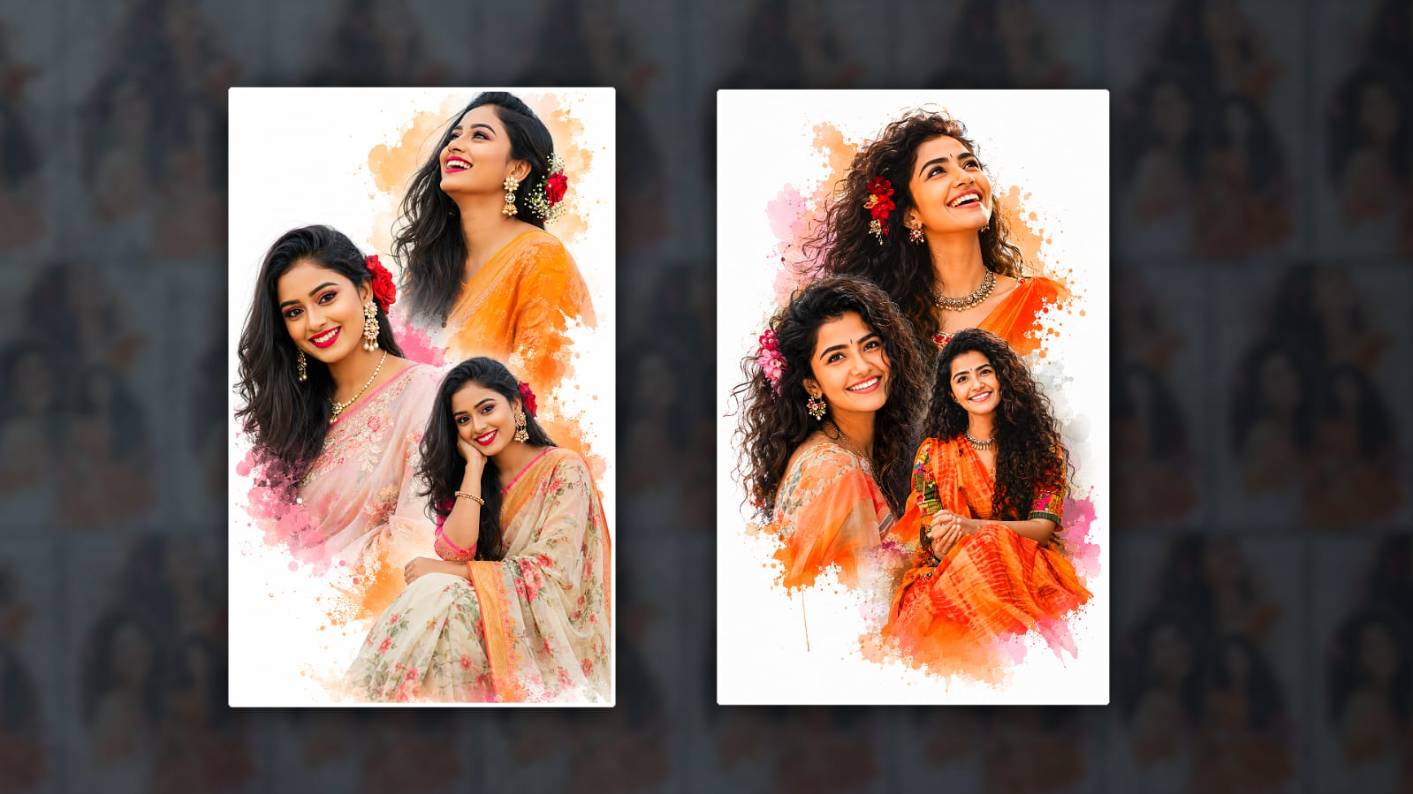

Hello friends, welcome to another article. In this article, I will tell you how to edit a clone-effect girl photo in the Picsart app. This is not specifically for girls; boys can also edit it. So this will be very good for girls. I will tell you how to edit it. Read this article completely, and you can also edit it with the photo you like. Similarly, if you need to edit and give it to someone, edit this photo and provide it to them. They will definitely be impressed. Now this is trending and has gone viral.
Let’s see what is needed to edit this.
- We don’t need much. You should have the PicsArt application or app installed on your mobile.
- In addition, you should have one or two of your own photos,
- Three or more. Then you need a good background photo to add in the background.
- Then add some effects like a butterfly or an ink flash effect and gather them.
So now what you will do first is open the PicsArt app and click on the plus icon at the bottom.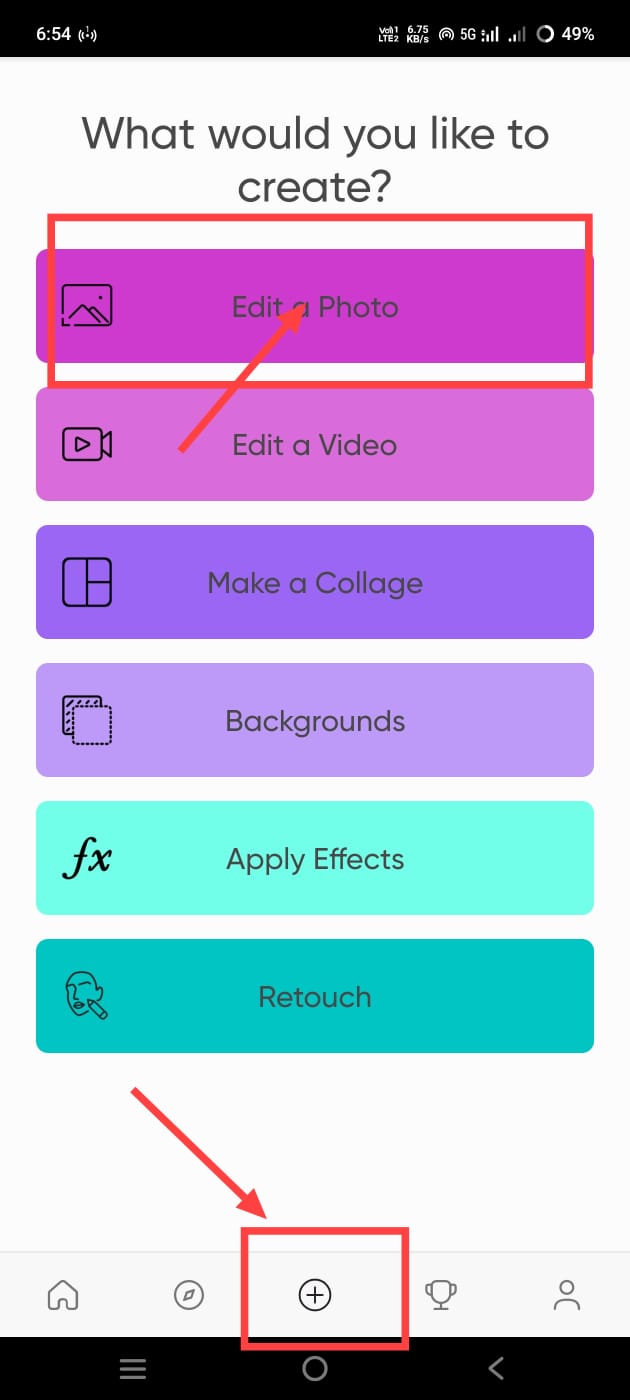 Then click on the Create Photo or Edit Any Photo option and open it. Here, first you can add a background photo directly in this application.
 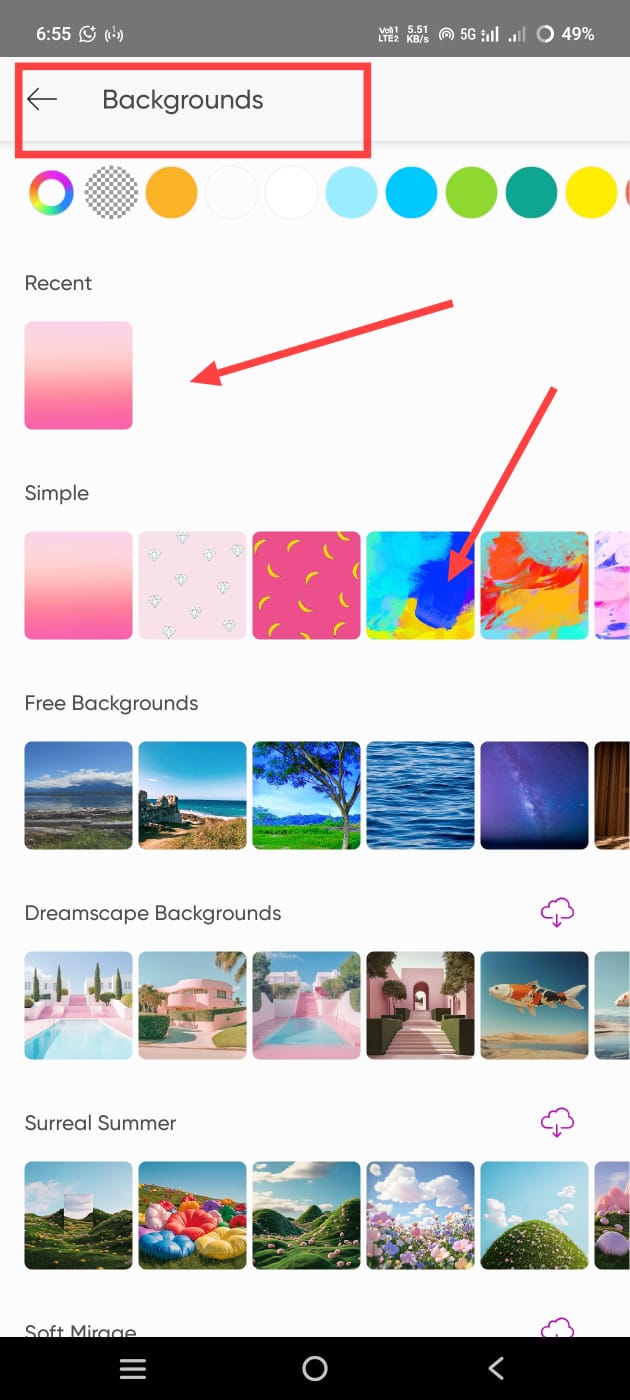 If you don’t have a background photo, there are many colored backgrounds and different images in it. All of them are free. Add the one you like. After adding, now select the ratio of this photo. You have to select it. For this ratio, simply come back and click on the tool option; then there will be a crop option at the top. Click on the option, and there you have to select the ratio,
Decorative Images Adding
You want to add any other effects on this photo, do it, if there are many pics in this, for effects, first you will have an option called sticker or add photo at the bottom,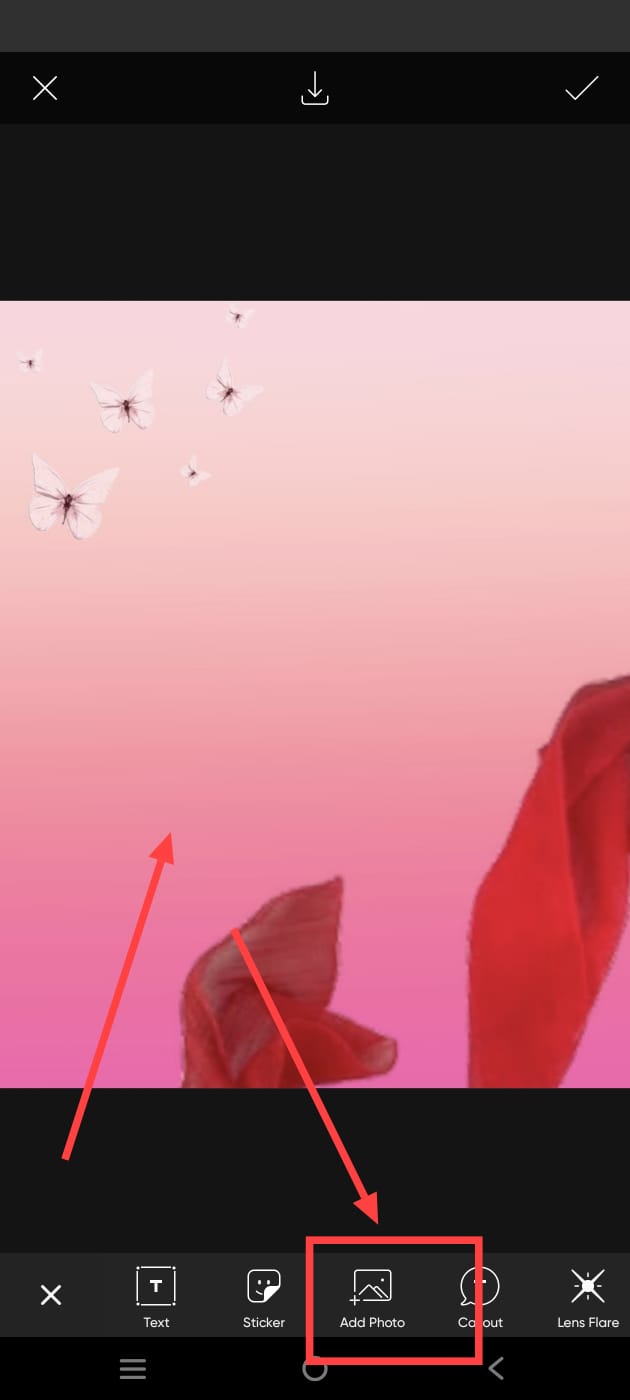 There are many effects in this, if there are many PNG images, search for what you want, if you search and get many, add the image you like in it, add and align the photos, align them wherever you want, now let’s add our photo. In this, we need a total of three photos, yours.
Add Photos
Take a photo; even if the first photo’s background is not removed, it doesn’t matter. These applications can remove the background for this. After coming back, at the bottom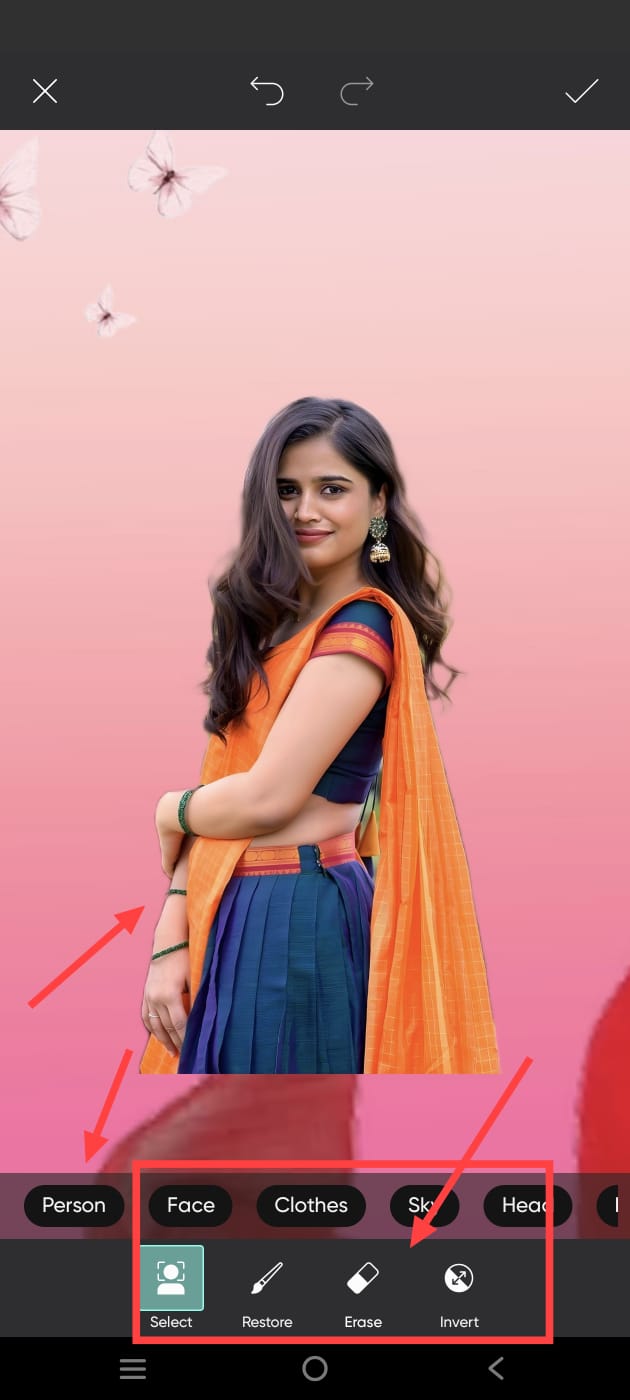 It will be called Add Photo. Add a photo from there. After adding, click on this photo. Now we need to remove the background of the photo. When we click on this, we will have an eraser tool option at the top. Click on it again. At the bottom, there will be an option called Person. Select this, and the background will be removed
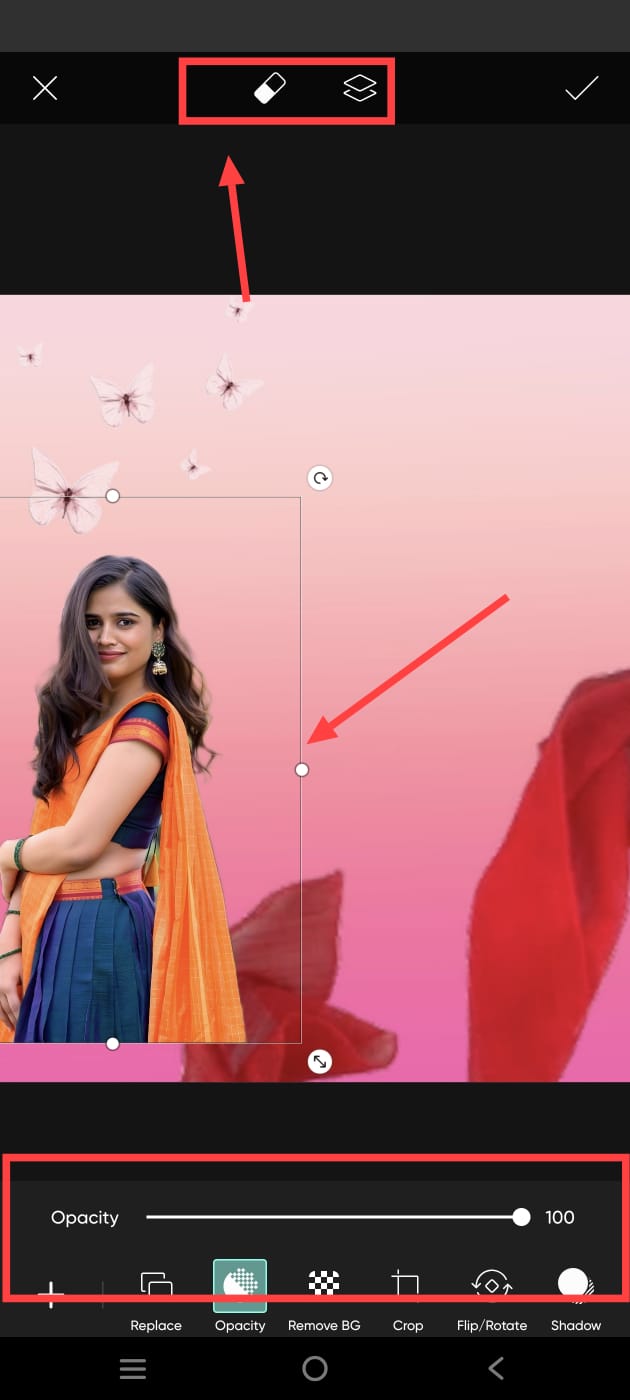 Automatically. When using this option, the data should be on your mobile; then it will work. Then, since the background is almost clear, it will remove the background. If the background is not removed clearly, there will be another option: the eraser option. Click on this, and if there are three options, adjust them, and you can remove them manually with your finger. Now it will come back again. Now align one photo. Put one side somewhere. There will be two more photos, so put the first on the left side. So now we have to add the second photo. This photo is also the same as mentioned earlier; click on the Add Photo button at the bottom and add your photo from the gallery in the second style. Then click on the Eraser Tool option at the top as mentioned above. Then remove the person and put the background in the middle. Then add another photo. In the same way,
3rd Photo Adding
Now add another third photo as I said, remove the background of this photo, and put it on the right side.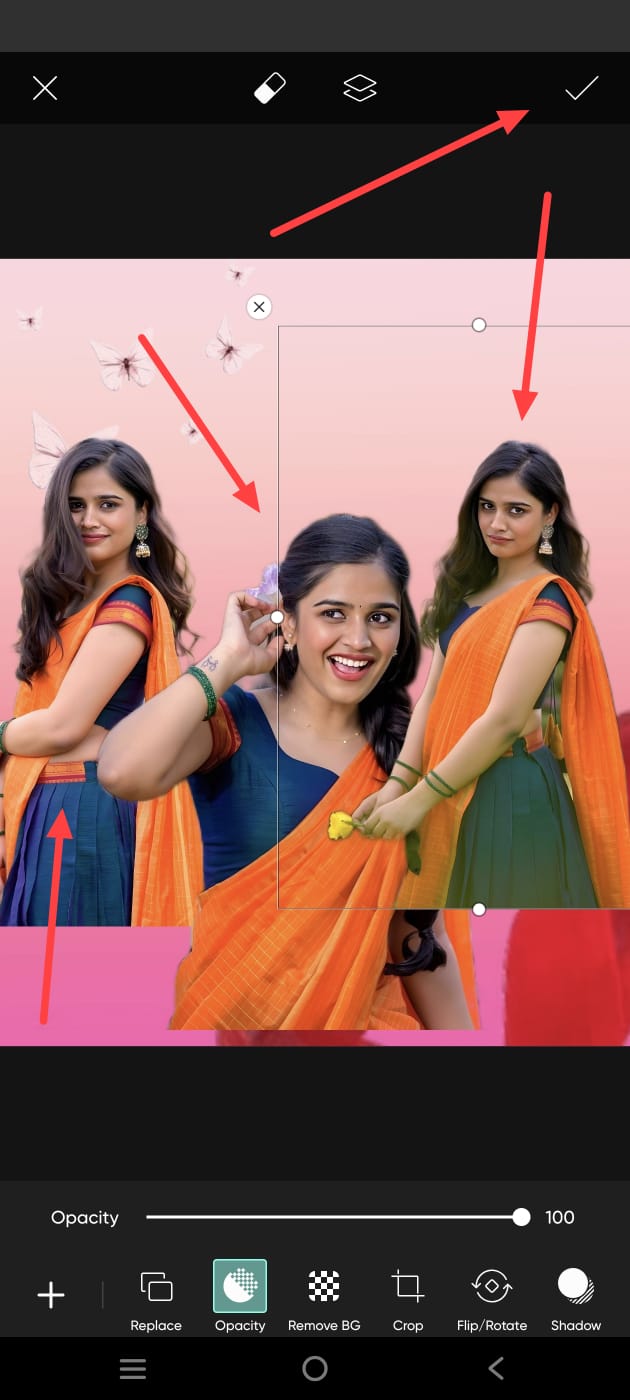 Now all three photos are complete. Now these photos are a little distracting to us at the bottom, so the look is not that professional. Apply it smoothly. So for this, again select each photo and select the Eraser Tool option at the top, select it and adjust the three options at the bottom again and now reset it with your hand finger in the text and erase it smoothly. Capture and adjust three photos like this.
Enhance Photo
What you will do now is that this photo will be normal; now we need to enhance it to HD and increase the clarity. For this, we have another option in this application. For this option, first add all the photos, then on the right side, there will be a right mark at the top; press on it. After pressing, there will be the first option at the bottom.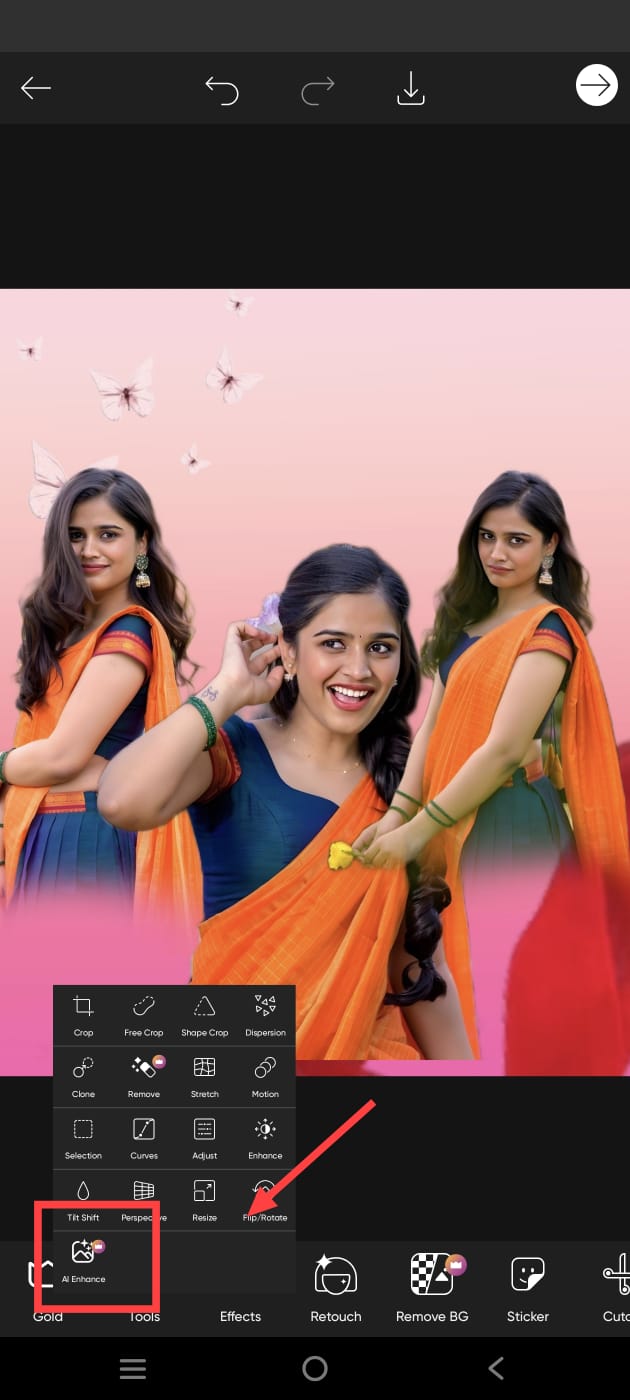 Click on this tool option. Then again at the bottom, in the same options, at the bottom, there will be AI enhancement. Click on it. When you click on this, your mobile data should be on; then it will work. When you click on this, it will do some pixels and enhancement. It will clearly change it to HD quality. It will take a little time, one to two minutes, to edit and give it. Now click on the right mark on the right side of your edited photo.
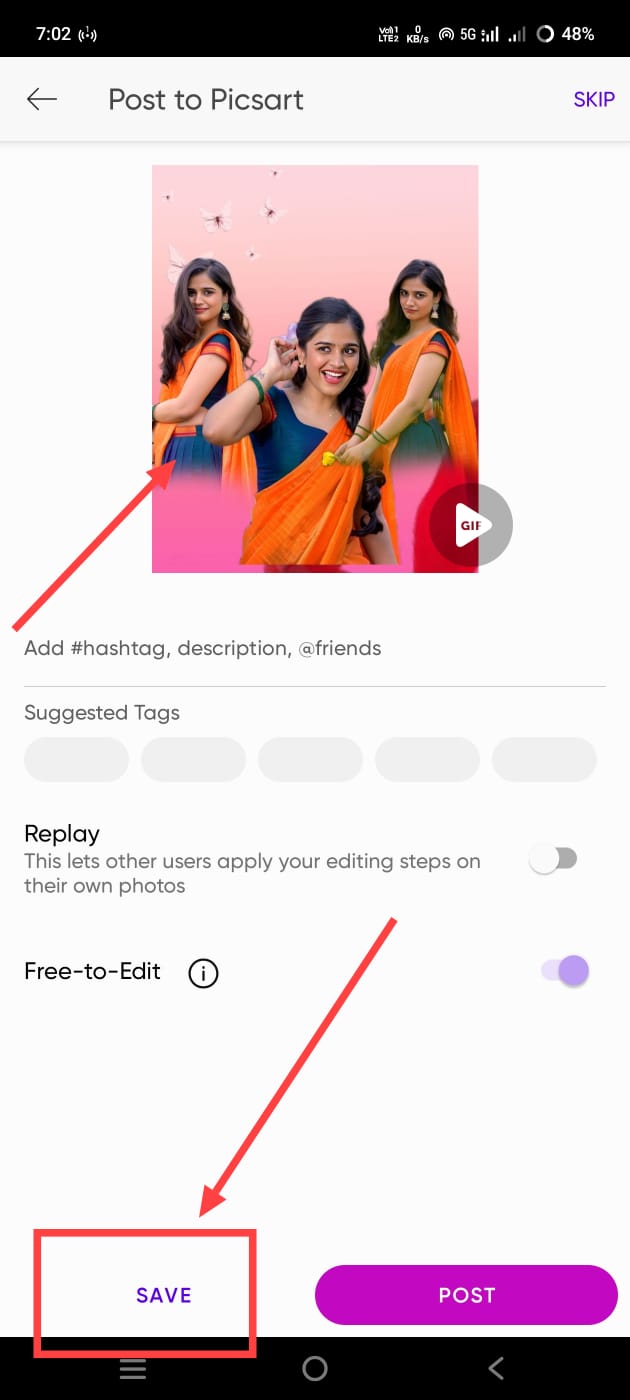 Then in the corner, there will be a tick mark, which is the save mark. Click on it and save your photo. So in this way, we can do professional photo editing in HD. Trending
How to Edit with AI
You can also use another method to edit easily. This method is called AI tools. Now, according to the technology we have, we have a lot of AI tools. In this, you can edit very fast and professionally. There are many websites and applications for this. There are many websites and applications like ChatGPT and Gemini, and many more. Open any website or application and click on the plus sign and add a single photo of your choice. Otherwise, if you have more photos, add more photos. It will edit in different styles very clearly, even with a single photo. There is nothing under your uploaded photos. Add text in a language that makes sense to it, in Telugu or English. Tell me how you want the photo editing to be done in the same way. If you don’t know English, for example, edit the photo or photos I uploaded with a clone effect or double-exposure photo editing. If the photo is blurry, then 8K HD. Add to the image, add pixels, reduce blur, increase brightness, increase face smoothness, and the face should not be changed at all; only the facial features in the photo I uploaded should come as it is. Generate in cinematic style. If you give a text, it will take some time to generate. So now, if we click on the generated photo, we will get a service option. Click on the option and save the photo; in this way, we can easily edit it with this method too. Also, comment which method you found easy.
Prompt
Beautiful Eyes & Smile, a beautiful Indian woman collage poster on a clean white background, featuring three elegant portrait poses with artistic paint splash masking effects. Long dark flowing hair, expressive eyes, glowing warm skin tone, joyful smile, traditional sarees in orange and pastel shades, ethnic jewellery, floral earrings, red flower hair accessories. One laughing upward pose, one candid smile, and one graceful seated pose.
