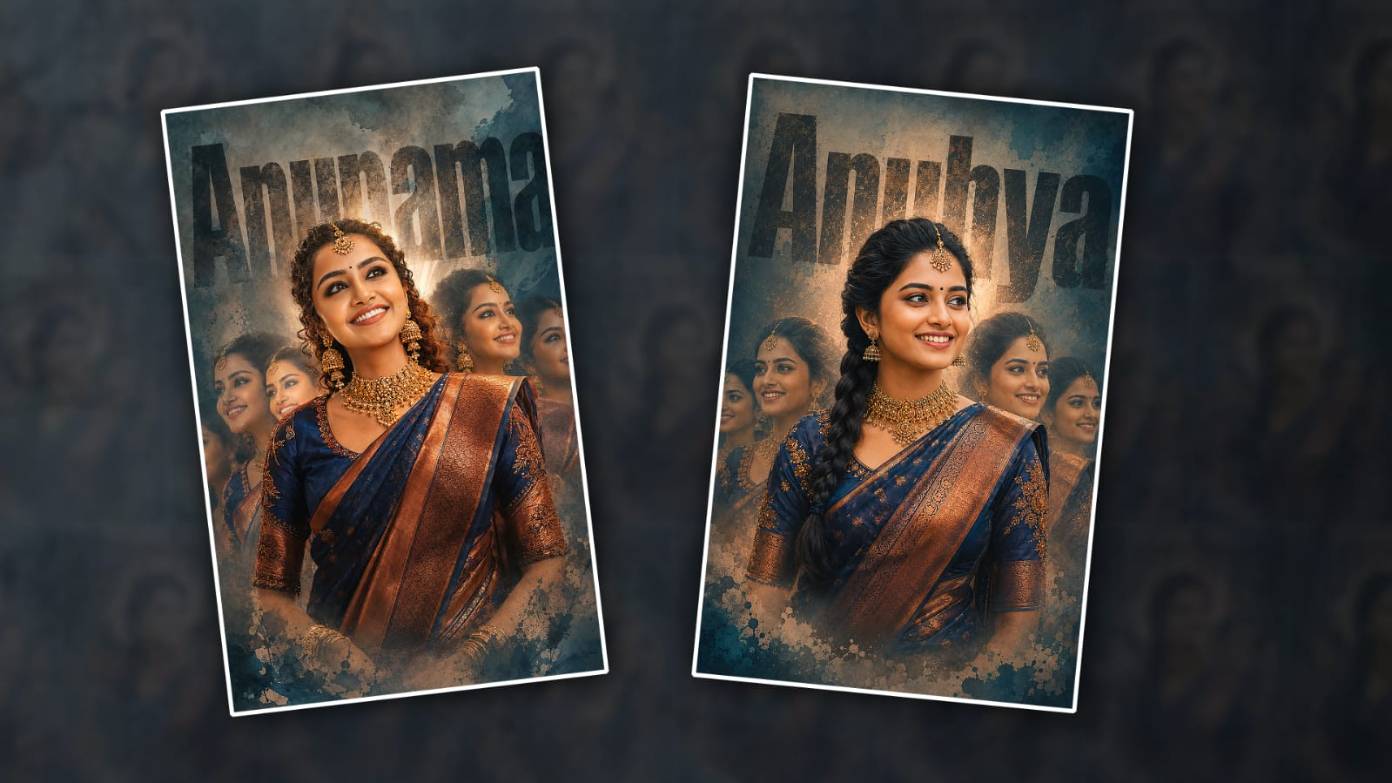

Hi friends, in this article I will tell you how to edit name art trending photo editing using the Alight Motion app. Currently, it is very trendy. Wherever you look, it has become viral on social media. You can also edit it. This is actually being used in AI tools. What tools are being used to edit it, but I will tell you how to edit it in the Alight Motion app first without using those tools. Then I will tell you how to edit it using AI tools. After reading the article completely, you can also edit the photo you like using it, and you can also edit the lines. You can edit it and give it to your friends, your family members, your relatives, anyone. They will feel very happy. So now let’s start editing.
- For editing, first we need four to five photos because it is a bit of a clone-type double exposure; that is, we need to add multiple photos together, which is why we need some photos.
- Similarly, we need a texture in the background; that is, we need an old cinematic-type texture,
- a red-coloured background image. In the same way,
- we need to edit with a name, so we need a stylish font, an English font,
- You should have the Alight Motion app installed on your mobile,
So keep these ready. Now let’s start video editing. First, open the Alight Motion app on your mobile.
Open Alight Motion
Here you select the ratio of your choice, select the resolution, choose the background colour black or white, and click Create. Next, the next page will open. Here, the timeline will be empty. You have to add the background image first. What do you do for the image first? After getting the back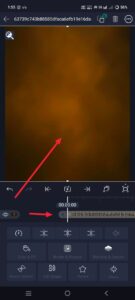 Click on the green plus sign at the bottom; then there will be options like Shapes Gallery or Media. Click on the Media option there and add a background image from the gallery. After adding this background image, we need to fit it to the screen. For this, we have two options. One is the Move and Transform option. You can also make adjustments by going to that. Or, directly on the right side, there are three dots at the top. Click on that. Then there will be an option called Fill Composition Area. If you click on that, it will automatically fit. Now add some effects to this photo and adjust the colour of the photo a little. For this, come back and click on the effects option. Then click on the Add Effect option. If there are many effects there, search for those related to colour grading, for example, saturation, gamma, brightness. If there are many such effects, add them here. After adding them,
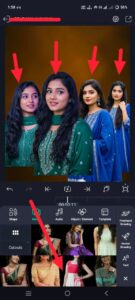 now first add our photos to this photo and then add the name. These photos should be added one by one. First, add only those photos whose background has been removed. If you want to add this photo, first come back again, then click on the green plus icon at the bottom, then click on the media option. First, add a photo, add it, put an ending on the left side, and make adjustments there.
Improve Image Quality
Now, to improve the quality of this photo, add some effects as others have said.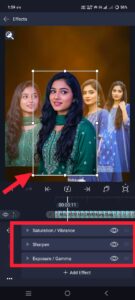 For effects, come back again and click on the effects option at the bottom, then click on Add Effect and search there. If there are many quality-related effects, search there. You will get many effects. Apply them and use them to improve the clarity. In the same way, add another photo. Come back again and go to the plus icon in the media gallery, add a photo, and add this photo on the left side of this photo. We have already added a photo, so add this photo next to it. Like this, you can add four photos behind and add the photo in the middle, in the front. Because we want a professional look. Now, apply the quality improvement to all the photos as mentioned earlier. I have already told you, right? Go to Effects and click on Add Effects and search for quality-related effects. Then apply these effects to all the photos.
Adding Smoothness to Photos
Only by applying them like this will we get a professional look without any disturbance. Select each photo for this smoothing. Again, click on the Effects option at the bottom. Click on Add Effects and search for the effect. Apply the Wipe effect and increase the smoothness with the option in it.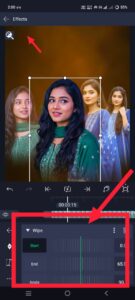 In the same way, apply each photo in your own way; now you need to add a name. This photo should be added on top of all others. For me, come back again and click on the plus sign in green colour, and on the left side there will be an option called Add Text,
Text Adding
Click on this option and add text. Type the name you like here. Now apply the font style, size, and colour to that. Apply all these options. After you add this text, all the options will be at the top. Use the options to make adjustments and put this text on. Turn it off. So now you want to add any more effects to this photo; add only the images related to the black screen; then you can use these photos without any PNG message. When using these black screen images, you will have a blending and opacity option; using this, you should apply effects to the images.
Save Photo to Gallery
So, almost all photo editing is done now. If you want to save it, click on the share option on the top right side, and there again you have to click on the current frame as PNG option, then export and save it. In this way,y you can edit, and if you want to edit it even more easily, we can also edit using AI tools. There are many tools for example I am opening it by charging here in the chat show click on the plus sign and there you will find a single photo of your choice that will automatically generate it so upload a photo and under that photo this photo you like trading photo editing which is running clearly how you want it and it will take a few seconds or minutes to edit it so you can click on the edited photo and save the photo.
Another Method using PicsArt App
There is another method for the same photo editing. Another application is separate. The photo editing app is called PicsArt, so in this, the only photo editing app I explained to you in the app startup is related to video editing. But since it has many tools, it is actually related to video editing, so since it has more tools, I have explained photo editing. In this photo editing app, you will simply have all the backgrounds in it, as well as PNG images, decorations, all the like- decorative PNG images, butterfly images, and some such attractive images. To edit each PNG, there is an option called stickers, using which we can edit professionally. Moreover, in this,s we have an option called AI Enhance to change the photo to HD quality. With this option, you can increase the photo clarity to the next level and then simply save it. Overall, this is an article. If you have any doubts, you can also comment.
Prompt
Create a cinematic Indian bridal fashion poster of a beautiful South Indian woman with a shiny smile, elegant dark blue and copper silk saree with exaggerated embroidery and play with high-priced traditional jewellery,y including choker necklaces, small necklaces and mangalsutra earrings. She had well-curled hair, stunning eyes, perfectly porous pores and skin. She looks happy and a little dreamy, like she’s looking for something. I want her image to be within the centre and to be very clear. It should be soft and fairly clear. The colours should be as rich as the inside of the film. I also want the historical past to be a little dark, so it stands out. Behind her is the call “Anuhya” in black letters. The letters look like they are engraved on something. I need to see her image around her as she changes. These pictures should be on all parts of it. History wants to be blue and grey. It feels hard to touch. There could be smooth beams and a few mists behind her head. The whole image looks like a movie poster, with a few grains to make the look believable. AA watercolour brush texture
