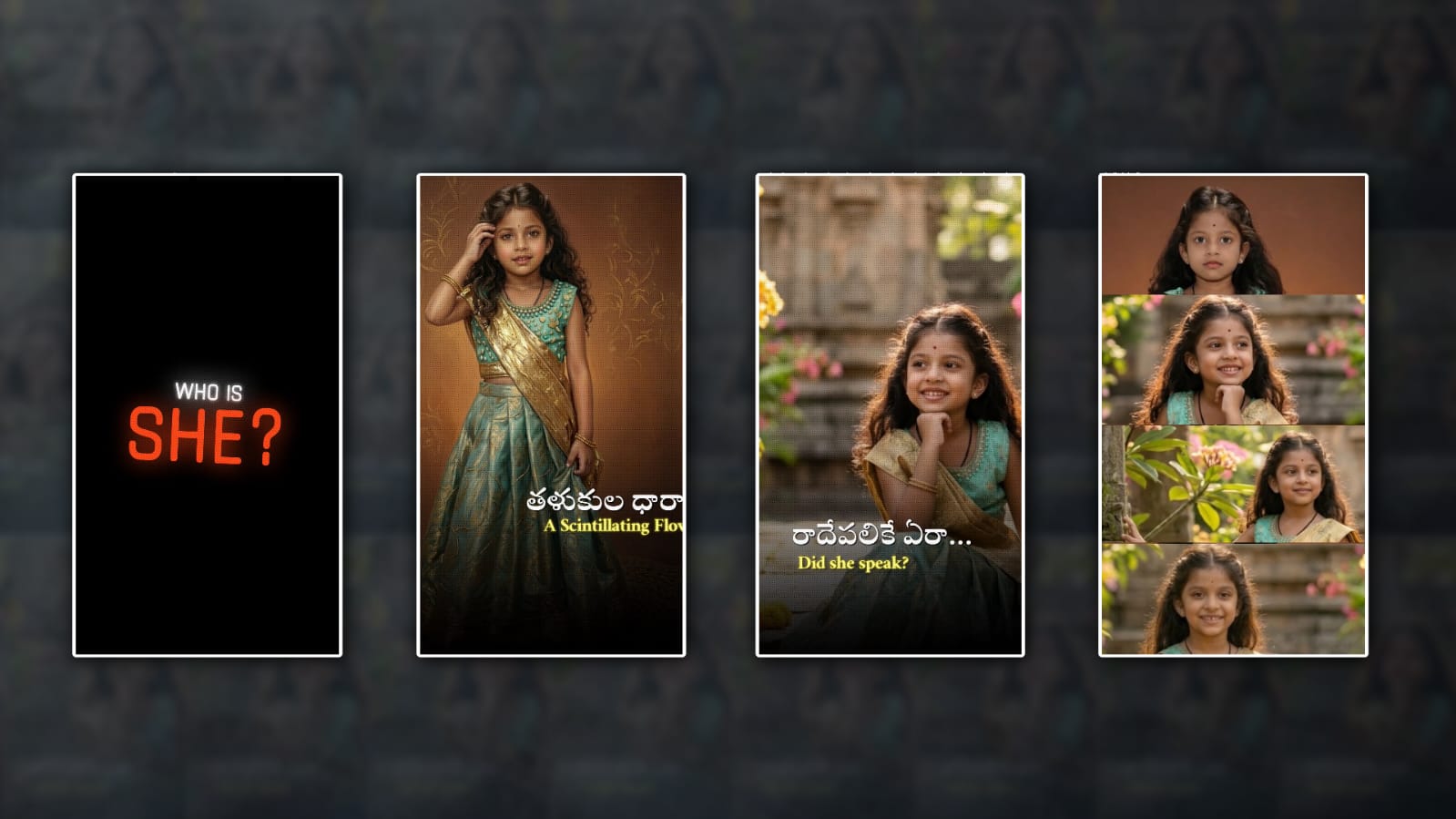

Today, in this article, we will learn how to edit a trending lyrical video in Alight Motion by adding photos of our choice.
Gather some material for this edit.
- Stylish Fonts
- Baby Photos or Girls Photos
- Alight Motion app should be installed on your mobile.
- Overlay video clips; get them ready.
Now let’s start editing. First, open the Alight Motion application on your mobile.  Then click on the green plus icon and create a project. In this, select 9:16, frame rate 30, and a black background and click on Create Project. The next page will open for us.
Music Adding
Here you have to start by adding music. I told you to gather some files; add music to them too.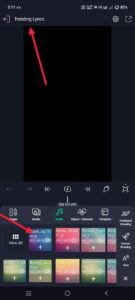 First, add music. For this music, come back again and click on the green plus icon and go to the audio option. From there, add music. Add music, and here you can add the video duration you want to add. Delete the extra. Then, after this music reaches 1:28 seconds, you need to add photos and start from this section. However,
Lyrical Text Adding
You need to add text on the first slide. For this, click on the green plus icon again and click on add text. Then type the text here. Type Who is she.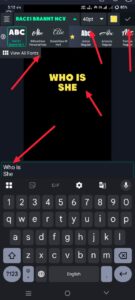 Then, if you want to apply red colour to it, click on this layer and click on the edit text option. After that, when we get some options, apply a font style to it at the top. Similarly, select the size and set the colour to red. That is, we have to split two texts here. Split them and apply white colour to one text and red colour to the other text.
How to add Photo
Then we have to add a photo along with a text from the next slide.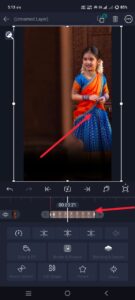 To animate this photo, first we have to take a shape. Click on the option and add a shape, a rectangular shape. Add it and apply black colour to it at the bottom and align it at the bottom. Now add a photo. For this photo, come back again and click on the second slide and apply the photo. Add the photo. Add and align this photo. Make it full screen in the centre. To fit the screen, click on these photos. Click on the three dots at the top on the right side, click on the Fill Composition Area option, and it will fit. Then type a text on this photo in Telugu and Telugu, what is it called in English, you also need to type it both,
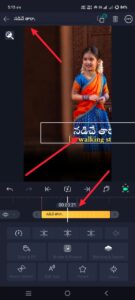 Take yellow color text for the text typed in English, take color, but in Telugu, take white color, after typing in this way, set these two to each other and align them, now we have completed one side, now let’s apply some color effects and some effects to the photo, for these, this photo does not exist, click on it, then go to the effects option, here add all the effects,
Camera Layer Adding:
If there are any, add them here and adjust them. Then, in the options there, at the top, there is the camera option.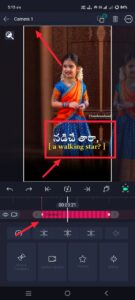 If you go to the Elements option, the camera option will appear. Click on it, and it will be applied as a camera layer. The camera layer is only for 2 seconds or 3 seconds, and then you have to delete the extra. Now, if you want to animate this, click on the Move and Transform option in this camera, and there will be a Move option there; click on it, then add a keyframe. Add a keyframe at the start,d add another keyframe from the right side to the left side, and add another one at the end and do the animation. Is it okay? We need to animate from left to right; then, when we create another slide, we don’t have to go through all this process. I will also tell you how to edit it simply.
Copy-Paste or Duplicate Method Using
If you add text and effects without any copy, what will happen is that it will be a waste of time.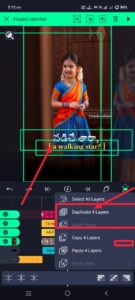 Your project will become difficult for you. So I will tell you easily. What you do is copy all those layers in the first line. Select and copy them, and paste them on the next slide. Here, click on the other text layers. Click on that layer. Click on the edit text. Listen to the lyrics and type the lyrics there. If you just type, the font style and colours will all be the same, and so will the photo. Click on that photo layer. Then, on the left side, there will be a colour and fill option. Click on it. If you click on it, you will automatically get the Media option. Click on it and select a photo from the gallery. All the effects will also be applied. Now you don’t need to add anything from the starting point. It will be very simple. Okay, after adding the effects, use the same process to add all the styles. Listen to music and type. If you have a text player, you have to go to Edit Text and type. If you take a photo, you can use it within the photo by going to the photo layer and filling it within the option. But if you’re not doing the same animation now on every slide right now, do it like this: animation from left to right, or animation from right to left, or from top to bottom. If you do the animation a little bit differently, it looks a little bit extra professional for us. And finally, after reaching the last step, after the ending, you have to animate the four photos together. You have to crop those photos into a rectangle and animate all four photos.
Common Mistakes
So now, take a look at it completely. A common mistake that many people make before exporting is not being able to use high-quality photos, not applying effects properly, and not being able to add photos or video effects at the right time for that duration. Such small mistakes can make the video look less professional, so check everything once. After the final check, click on the share option in the right-side corner, check the quality you like there and tap on export; it will start exporting. Then the save option will come, and you have to save it. So in this way, we can edit the lyrical trending Instagram video or status video professionally. If you have any other doubts, comment.
