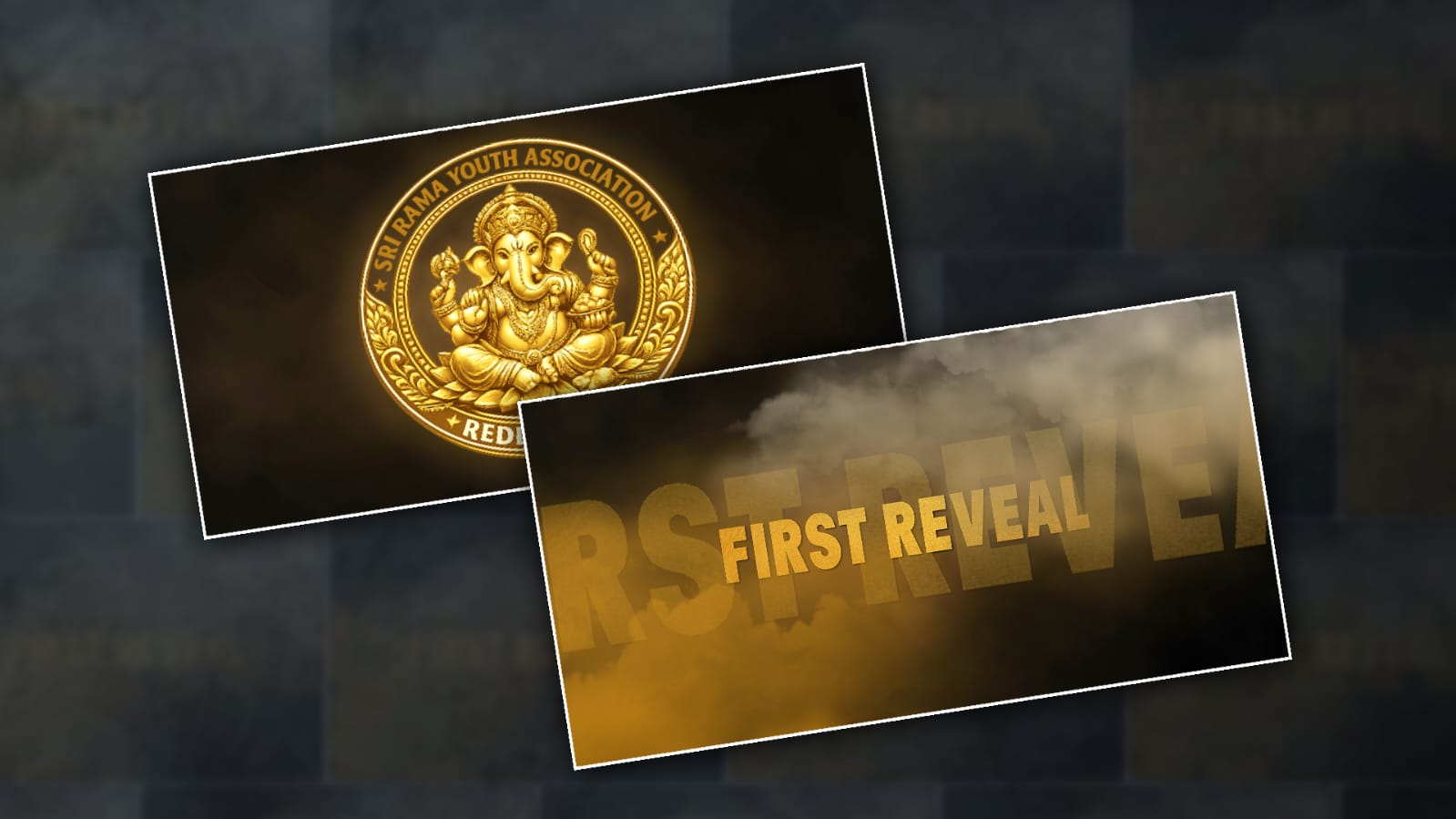

In this article, I will explain how to create a cinematic Ganesh Chaturthi or Ganesh logo reveal video using the Alight Motion app. This type of video is currently going viral on Instagram and other social media platforms. I will clearly guide you through creating your own version using your preferred logo and name. Read this article thoroughly to learn the process—it is very simple, and anyone can do it.
Let’s look at the requirements:
- A cloud PNG image (white or another colour),
- A stylish font, audio featuring a dialogue,
- Your logo, and finally, your name (either pre-designed in a stylish format or created directly within the app).
- Most importantly, ensure Alight Motion is installed on your mobile.
Create New Project: Open the
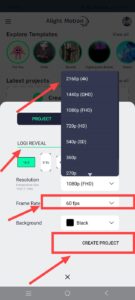
Alight Motion application, then select the 16:9 aspect ratio by tapping the green plus symbol at the bottom. Now select the resolution, also select the black BG and click “Create Project” to go to the next screen.
 There you will need to display a legacy photo (be sure to include this one, as I didn’t select it on the initial list of things needed). To begin, tap the untested plus (+) sign located at the bottom of the screen. You have the ‘Media’ option; Click on it and paste a photo from your gallery. Once selected, you need to fit the image to the screen. To do this, click on the layer, then tap the three dots on the right side and select ‘Fill Composition Area ‘; this will automatically fit the image to the screen.
Adding 3D Effect
After fitting it, you want to apply a three-D effect. You don’t need to add a special effect for this; press the layer without hesitation.
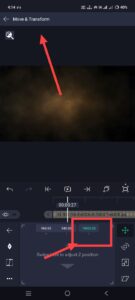 Once this is in place, pull the appropriate duration on your video until the legacy image is healthy. Now that the 3-D effect has been implemented, it could lead to a shrinking of the image; To fix it, go to the ‘Transform’ option, select ‘Scale’, increase the dimension, and it adjusts nicely.
Adding Music
Next, you need to add music. Go back, click the green plus icon, select the ‘Music’ option, and add your track.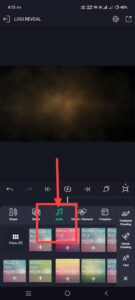 Use the cursor on the timeline to do this; Move the cursor to the desired position and click on it to create a red icon. Place these icons where the songs appear because you will include the lyrics content songs in those slots. To add a song, go back and focus on the first track; Write while listening to the song.
Text Adding
To add textual content, click the untested plus sign and then ‘Add Text’ (this choice is on the right).
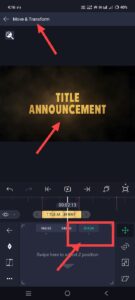 Type the lyrics and then apply a font. At the top, you will see options for font, size, and colour; Choose a light yellow shade – or a shade that ensures that the text stands out against the background. Apply the 3D effect to the text and set the animation exactly as defined earlier. Before animating, however,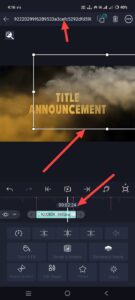
Add cloud PNG images over the 3D text. To do this, go back, tap the green plus button, select the ‘Media’ option, and add two PNG images. Now let’s control the animation. Animating each line of text on a separate layer wouldn’t yield perfect results and would waste a lot of time. Instead, a simpler approach is to add a camera layer that spans the exact duration of the slide’s lyrics.
Camera Layer Add
To try this, click the green plus sign, go to “Elements” (which is located after “Media”) and select “Camera.” It is robotically delivered to cover the supposed duration of the video; cut or delete any extra periods so it best fits the text.
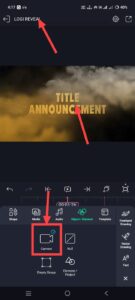 Next, create the animation by adding keyframes. Select the camera layer, go to “Move & Transform,” choose the “Z” option, and add an initial keyframe (you can add a keyframe by clicking the plus icon on the left). Adjust the zoom level at this point – either in or out. Then rotate to the end of the song level and use the “Z” option again to reverse the zoom (for example, if you zoomed in at the beginning, zoom out on the give-up). Use the “Z” option to make those changes. Once this is done, the slide animation is complete.
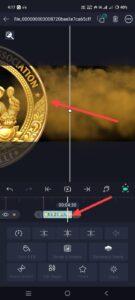 For the next slide, if you need to reveal a symbol, you need to highlight the simplest 1/2 of it against the whole. First, you’ll need to design your icon – you can use special apps like ChatGPT or AI tools to do that – and make sure to save it in a PNG format. Then go to another slide, select the green historical past and add labels outside your gallery. Apply 3D effects to the logo and set animations using keyframes to discover the best part of that mile; You can choose to slide left, right, back, or top. For instance, start with the logo positioned off-screen to the left so it isn’t visible at all. Then, move forward in the timeline and adjust its position so that half the logo appears, setting a keyframe there. After doing this, you need to add lyrics to the third slide. Since adding lyrics from scratch can be time-consuming, I’ll share a trick with you
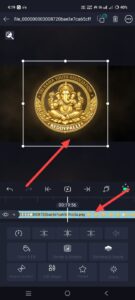 Listen to the song, sort within the next set of songs. By doing this, the animations and results will robotically skew to the new text, making it very easy to complete the following slide. You can choose whether the song should be written in blocks or line by line. If you want to add a symbol, animate it on the next slide, so that the first one that appears in the section is much simpler, rather than the full screen at once; Animate it so that the entire logo is most effectively discovered at the same stop. Finally, after the symbol display is total
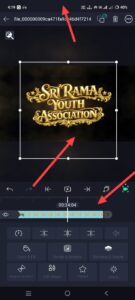 Reveal your Youth Name. You can edit this username to appear in a cinematic 3D style within the app, or create it using ChatGPT and then animate it by following the steps mentioned earlier. So, please check everything. Common mistakes made by humans include failure to effectively adjust levels and timing, or failure to match infectious effects; Such small mistakes can compromise the high quality and professional look of the video. So evaluate everything before exporting. To export, click ‘Share’ in the appropriate place, confirm the pleasant settings and then click the ‘Export’ button.
Text Prompt
Create a premium luxury 3D golden typography logo with the custom text:
“YOUR MAIN NAME”
“YOUR SUBTITLE”
Replace these two lines with my custom text exactly as provided. Design the typography in an elegant royal style with bold serif letters, metallic gold texture, embossed 3D effect, glossy reflections, beveled edges, luxury engraving details, ornamental flourishes, baroque decorations, symmetrical composition, premium calligraphy, decorative swirls, and an expensive cinematic branding look. The main title should be very large and dominant. The subtitle should be placed below inside a luxury curved ribbon/banner with matching golden metallic styling. Use ultra-realistic gold material, sparkling highlights, soft golden glow, dramatic cinematic lighting, realistic shadows, depth, and premium luxury finish. The logo must have a transparent PNG background (no checkerboard visible), isolated object only, centered composition, no watermark, no mockup, no border, no extra objects, no extra text, no icons, no symbols, no people. Hyper-detailed, photorealistic 3D typography, luxury emblem logo, award-winning design, ultra sharp focus, 8K, HDR, professional branding, premium quality.
Logo Prompt
Create a premium luxury 3D golden typography logo with the text “YOUR NAME HERE” in the center. Use highly detailed metallic gold lettering with elegant curves, ornamental flourishes, royal styling, glossy reflections, embossed effect, cinematic lighting, and luxury branding aesthetics. Place the text “SINCE 2025” below the main title in smaller golden font. Add decorative golden swirls, glowing highlights, depth, shadows, and a rich golden shine. Background should be transparent PNG. Ultra HD 8K quality, professional logo design, symmetrical composition, sharp details, realistic gold texture, premium typography, luxury emblem style, royal golden logo, black and gold branding look. No watermark, no extra text, only the logo design. High resolution, PNG with transparent background.
Font Download
AM Project Import
