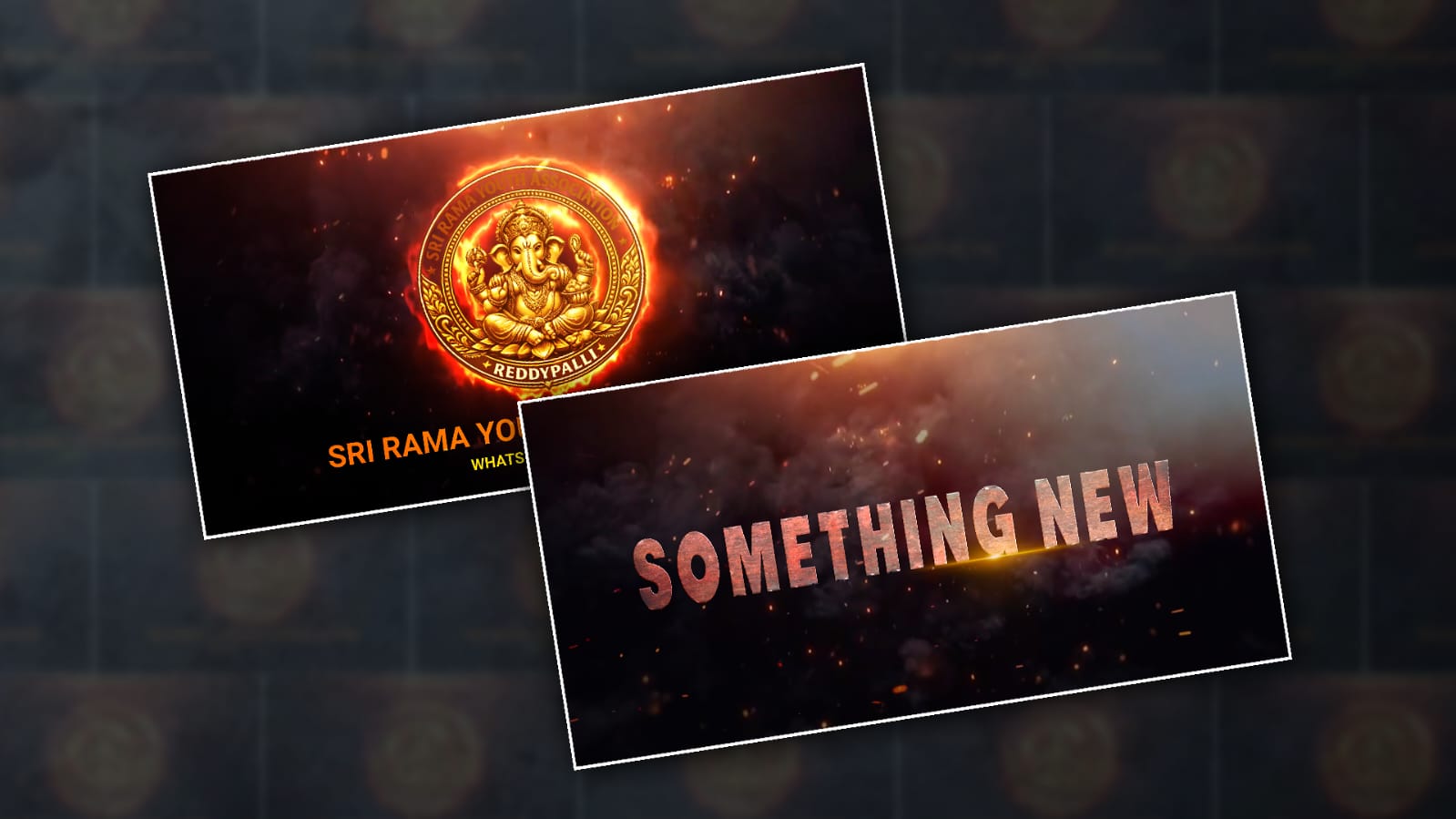

Hello everyone, welcome to our next tutorial. I will tell you how to edit the Ganesh Youth logo in another style in the Alight Motion app. It is very beautiful, it is cinematic, and you can edit it in advance. Cherry, you can also edit it completely. The process is easy.
Required Materials or Files
- You should have the Alight Motion app installed on your mobile.
- The background video should be cinematic.
- Clip and particle effect video. A font style.
- Lighting effect photo.
- PNG photo.
- Your own logo. Your youth logo.
- Fire effect. Make a fire effect in circle type.
First, you open the Alight Motion app. There, select a 16:9 ratio. Then select quality, background colour, frame rate, and all and click on the project. Then, next, an interface will open for us.
Add Music
There you again first you have to add music. If you want to add this music, you can do it at the bottom.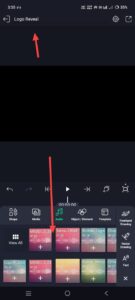 Click on the green plus icon and go to the media option or the music option next to it. Go there and add music, and then add a background video. For this, click on the green plus icon again,d click on the Media option and add a background video from the gallery. After adding this video, track how much you want to create the video; that is, extend it and delete the extra. The tool you use to delete this is that when you click on that layer, you will get some options at the top where you will have all the cutting options. Use them and cut the right side.
Text Adding on Background
After that, now you can add text. For this, after the plus icon again, in the options on the right side, there will be an add text option;d click on it and add text.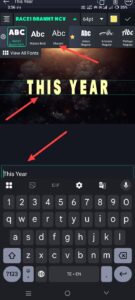 Here you have to give the text a little special. What you will write here is this year. After that, we need to apply a colour to this text. First,t align it, take it to the middle, increase the size and apply the font style. If you want to apply this font style, if you want to have a contact of your choice, when you click on this text layer, when you are in edit, there will be a font at the top, if you go to it, there will be three lines on the left side, go to it, there will be an import font option, so go to it and you can install or add the font and apply it. Then you need to apply a texture to it. This texture means applying an image of our choice to the text instead of colours. For this, when you click on this layer, below there will be a colour and fill option. Click on it; then the media option will come. If you want to apply a texture of your choice from the gallery, just select the texture in Colour and Fill; it will be applied.
Lighting Effect
So now we need to apply another lighting effect to this photo,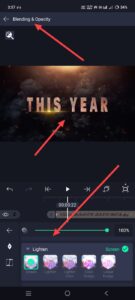 For this you again click on the green color plus icon then add it from the media option gallery now after adding it click on this layer then there will be a blending and opacity option click on it and in it you will have a contrast option then go there select the second or third options there soft light after selecting it align it right under the text and also do the animation when you add this text you need to apply it to 2.7sec. Then, how to animate this light effect when it comes back on the left side? There is an option called Move and Transform. If you go into it,t you have to move and add transform; you have to animate
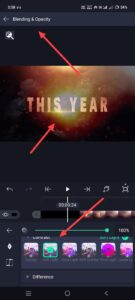 Now you need to apply another particle effect video on this. For this, come back and click on the green plus icon again, then go to the media option and add that video from the gallery. Add it,t and now click on this video and go to the blending and opacity option again, and there you have to use the light and/or contrast options.
Camera Layer Adding
After that, finally apply the camera layer in this slide.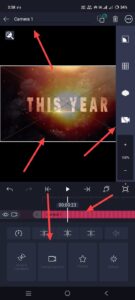 For this, you have to come back again and click on the plus icon and at the top you will have the elements option; click on it. If you click on it, there you will have the camera layer option. When you click on it, it will be applied. Now we have to animate the camera. For that, as mentioned earlier, click on the Move and Transform option, and you have to animate it. Keep the same layer as the layers you took earlier and delete the extra one. Now apply another text to the next slide of the same flight. Select all the layers in this first slide once and copy them. Copy and paste them on the next slide. For this paste, when we select and copy these, there will be a layer option on the left side. If we click on it, we will have a paste option. If we click on it, now it will be very fast without any double work. Just click on the text that you have added and replace it with the next text. For this, click on the text that you have added, click on the edit text, and just remove all that text and type something new or something else there. Then automatically the second slide will be completed for us. This is the same slide; copy all the layers in it and paste them again to the next slide. Paste them, click on Edit Text there again and apply text only; replace only the text.
Logo and Youth Name Adding
After doing this, if you go to the last slide, along with the logo, there will be a name, Youth Name. If you want to replace this logo, what do you do first? Here, you have already copied all the layers that you have taken. Now, in Last, add the text at the bottom, align it, and now apply another extra layer, Logo.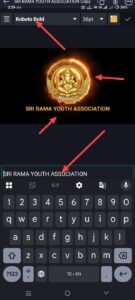 For this, come back and click on the plus sign, go to the media option, add the logo, and add it. After adding it, make a template. Now, under that logo, you have to reply with Youth Name. You have already replied with Youth, right? In the same way, go to the text option, and you have to make Youth. In the same way, you have to apply a fire effect video in the background of this logo. For this, you need to click on the plus sign again,d click on the media option and add from the gallery. Add and send this layer behind the logo layer. Then click on this layer and blend it. Go to the option, and there you need to apply it using the screen or lighting option. Check the whole thing once. Okay, so a common mistake that many people make is that they are not able to apply the transitions and effects of the layers at the right time. Adding low-quality logos or video images,s or adding low-quality music, ic or not being able to set it to the right beat. Due to such mistakes, we lose our professionalism. Check all this once and export it. To export, click on the share option on the right s, select the settings you have there and export it.
